Play: Route High-Value Ad Engagement to Sales
Last updated: September 15, 2026
Overview
Ad engagement can be valuable evidence that a contact is interacting with your brand, but not every click warrants Sales follow-up.
With Vector, you can combine ad engagement with ICP fit, account criteria, and account stage to identify the contacts where a Sales handoff makes sense. Then, use Segment Actions to route that activity and the context Sales needs to your CRM, Slack, webhook, or another preferred endpoint.
Why Run This Play
A click alone doesn't necessarily mean someone is ready for Sales. The value comes from combining that activity with additional evidence about who the contact is and where their account sits in your GTM motion.
This play can help you:
Prioritize ad engagement from contacts who fit your ICP.
Focus on accounts your team already cares about.
Use account stage to determine when engagement warrants Sales attention.
Give Sales useful context rather than simply sending them another lead or alert.
Measure whether contacts showing relevant ad engagement progress through your funnel.
TL;DR
Create a Segment around relevant ad engagement, then layer in criteria such as ICP fit, account list, or account stage.
When a contact meets the combination of engagement + fit/account criteria you've defined, use a Segment Action to send the activity to the destination where Sales already works.
The goal is not to route every ad click. It's to surface the ad engagement that becomes meaningful when combined with additional evidence.
Step 1: Create Your Segment
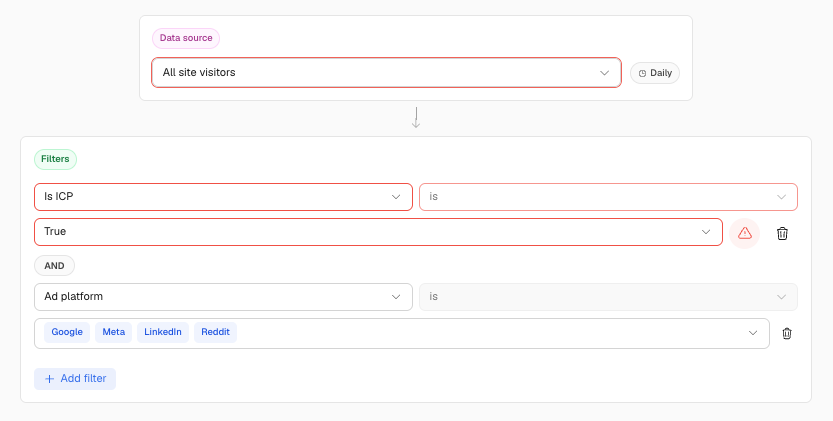
Go to Segments → New Segment and build an audience around the ad engagement you want to monitor.
Use the available website and advertising conditions to define the activity that's relevant to your play.
For example, you may want to:
Filter by advertising platform.
Include multiple advertising platforms.
Narrow to a specific campaign using the relevant page URL or UTM parameters.
This establishes the engagement evidence for the play.
Step 2: Add Fit and Account Criteria
Next, determine which of those contacts actually warrant Sales attention.
Layer in criteria such as:
ICP: Focus on contacts or accounts that fit your Ideal Customer Profile.
Account List: Narrow the audience to accounts your GTM team has prioritized.
Account Stage: Focus on the lifecycle or pipeline stages where ad engagement is meaningful to your team.
Additional contact or account criteria: Further narrow the audience based on your strategy.
You can combine multiple conditions for greater precision.
For example, a click from an unknown, low-fit account may not warrant any action. A click from a high-fit contact at an account your team is actively working may be much more useful evidence for Sales.
Step 3: Decide What Sales Should Receive
Before adding an Action, think about what information will actually help Sales understand why this contact is being surfaced.
Where available, provide context such as:
Contact name, title, and company
Account owner
Account stage
Ad platform
Campaign or UTM information
Page visited
Date and time of the activity
Other relevant context captured by Vector
The handoff should answer two questions for Sales:
Why does this contact matter?
Because they meet the fit or account criteria you've defined.
Why are they being surfaced now?
Because Vector captured relevant ad engagement.
Step 4: Route the Activity With a Segment Action
Once you've defined the right audience, add an Action to the Segment to send the information to the destination that fits your team's workflow.
Depending on your setup, this might include:
CRM: Create or update the appropriate record so Sales can see the activity where they already manage accounts and contacts.
Slack: Notify the relevant Sales team or account owner when the activity warrants more immediate attention.
Webhook: Send the Segment activity into another workflow or system your team uses.
Other available Segment Actions: Choose the endpoint that best fits how your team operates.
Make sure the Segment is live and your desired Action is enabled.
Example in Action
A Director of IT at Acme Corp clicks a Google ad.
On its own, the click is simply evidence of engagement. But Vector can evaluate that activity alongside the criteria you've defined:
The contact fits your ICP.
Acme is an account your team cares about.
The account is at a stage where additional engagement is relevant.
The contact has now interacted with your paid campaign.
Because the combination meets your Segment criteria, Vector routes the activity through your configured Segment Action.
The account owner can then receive the contact and relevant engagement context in the CRM or another destination your team uses and decide the appropriate next step.
Best Practices
Require more than a click. Combine ad engagement with ICP, account, or lifecycle criteria before routing activity to Sales.
Give Sales context. A notification without the reason behind it creates noise. Include enough information for the recipient to understand why the activity matters.
Route to the right place. Use CRM for persistent account/contact context and Slack when your workflow benefits from more immediate visibility.
Watch your volume. If your audience is too small, this play may not generate enough activity to be useful. If it's too large, tighten your fit or account criteria.
Review outcomes. Look at whether the contacts or accounts surfaced through this play actually progress through your funnel.
What to Measure
Consider tracking:
Volume of contacts meeting your full Segment criteria
Ad and website engagement
Sales follow-up on routed activity
Account or opportunity progression
Conversion to meetings, opportunities, or pipeline
The goal isn't simply to generate more Sales alerts. It's to determine whether ad engagement + fit/account evidence helps your team identify meaningful moments for follow-up.
Quick Setup Summary
Confirm you have enough ad engagement volume for the play.
Create a Segment around relevant ad activity.
Layer in ICP, account list, account stage, or other fit criteria.
Decide what context Sales needs to understand the activity.
Add the appropriate Segment Action to route it to CRM, Slack, webhook, or another available destination.
Make sure the Segment and Action are live.
Measure whether the contacts and accounts surfaced through the play progress.
Need help determining the right criteria or setting up this play? Reach out to solutions@vector.co — we're glad to help!