Play: Re‑engage Closed/Lost Contacts with Value‑Based LinkedIn Ads
Last updated: September 12, 2025
TL;DR
Take contacts tied to closed/lost opportunities in your CRM, sync them to a LinkedIn Matched Audience from Vector, and serve value-based content (customer win stories and case studies). These folks already know your brand; this play reframes value and timing—surfacing proof that your solution solves problems peers just like them have.
Why this works
Brand‑aware, not value‑aware: Closed/lost contacts typically remember you, but may not fully grasp the impact you deliver. Proof (case studies) bridges the gap.
Low friction re‑entry: Consuming a peer story feels safer than “talk to sales.”
Signal‑rich: Clicks and deep reads on case studies are strong intent signals you can route back to sales for tailored re‑engagement.
Prerequisites
Vector integrations with CRM and LinkedIn
A CRM contact list (list view) of contacts associated with closed/lost opportunities.
One or more value assets: customer win stories, case studies, industry‑specific proof pages.
UTM plan (e.g., utm_campaign=reactivate_closed_lost, utm_content=<case-study-name>).
Tip: Vector needs to comply with LinkedIn Audience sizes, which is 300 contacts - make sure your CRM list is big enough to meet the platform’s minimum match size and that your case studies load fast on mobile.
Step‑by‑step in Vector
1) Create your Segment
Go to Segments → New Segment.
Trigger: Dynamic contact list.
Source: Select your CRM list of contacts from closed/lost opportunities.
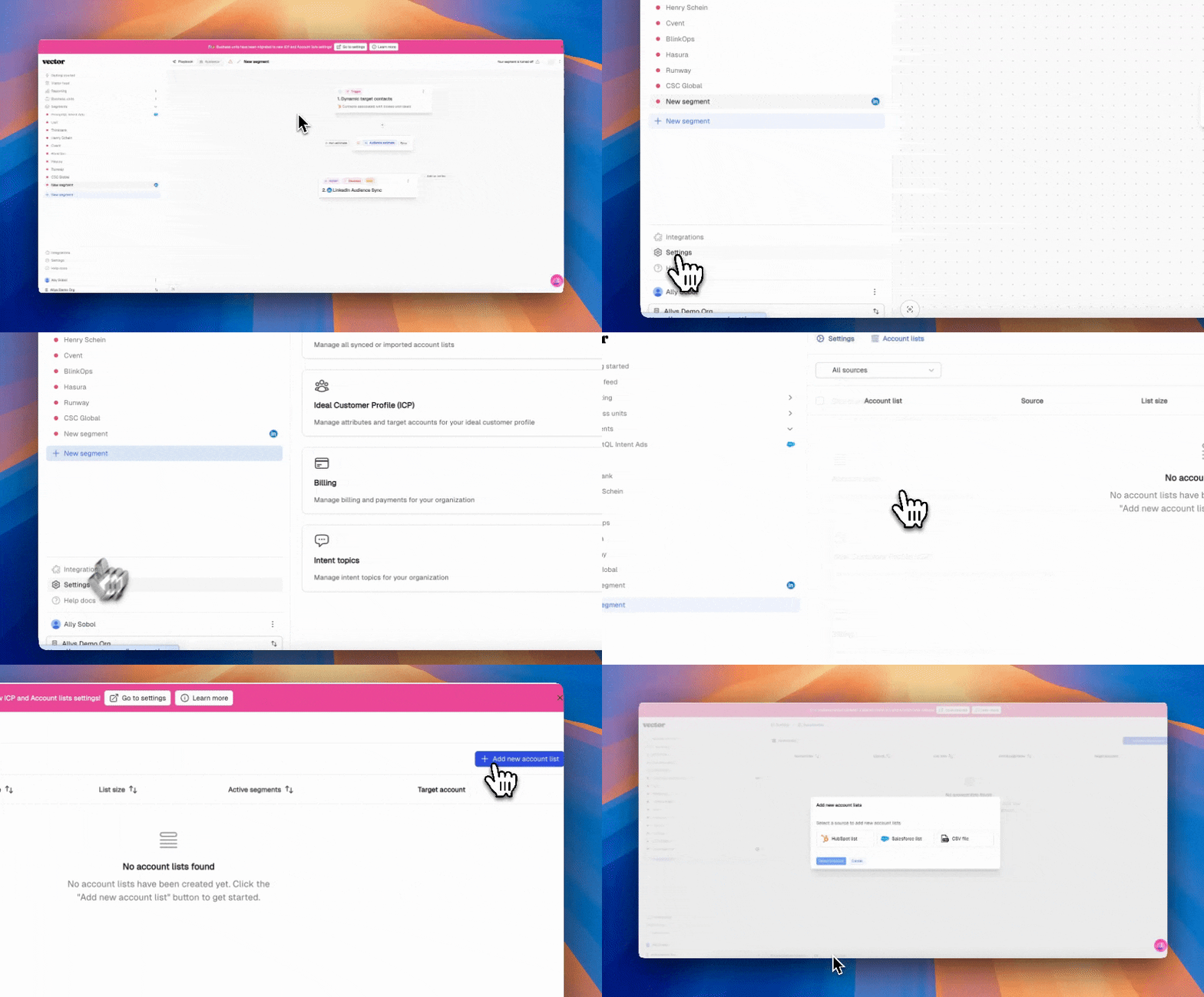
Don’t see the CRM list you’re looking for? Make sure your list is uploaded to your Account lists! To do that, go to Settings → Account Lists.
Filters (optional - recommend doing this in CRM): Narrow to ICP (title, seniority, industry, region) to keep costs efficient.
Naming: ClosedLost → LI Case Studies
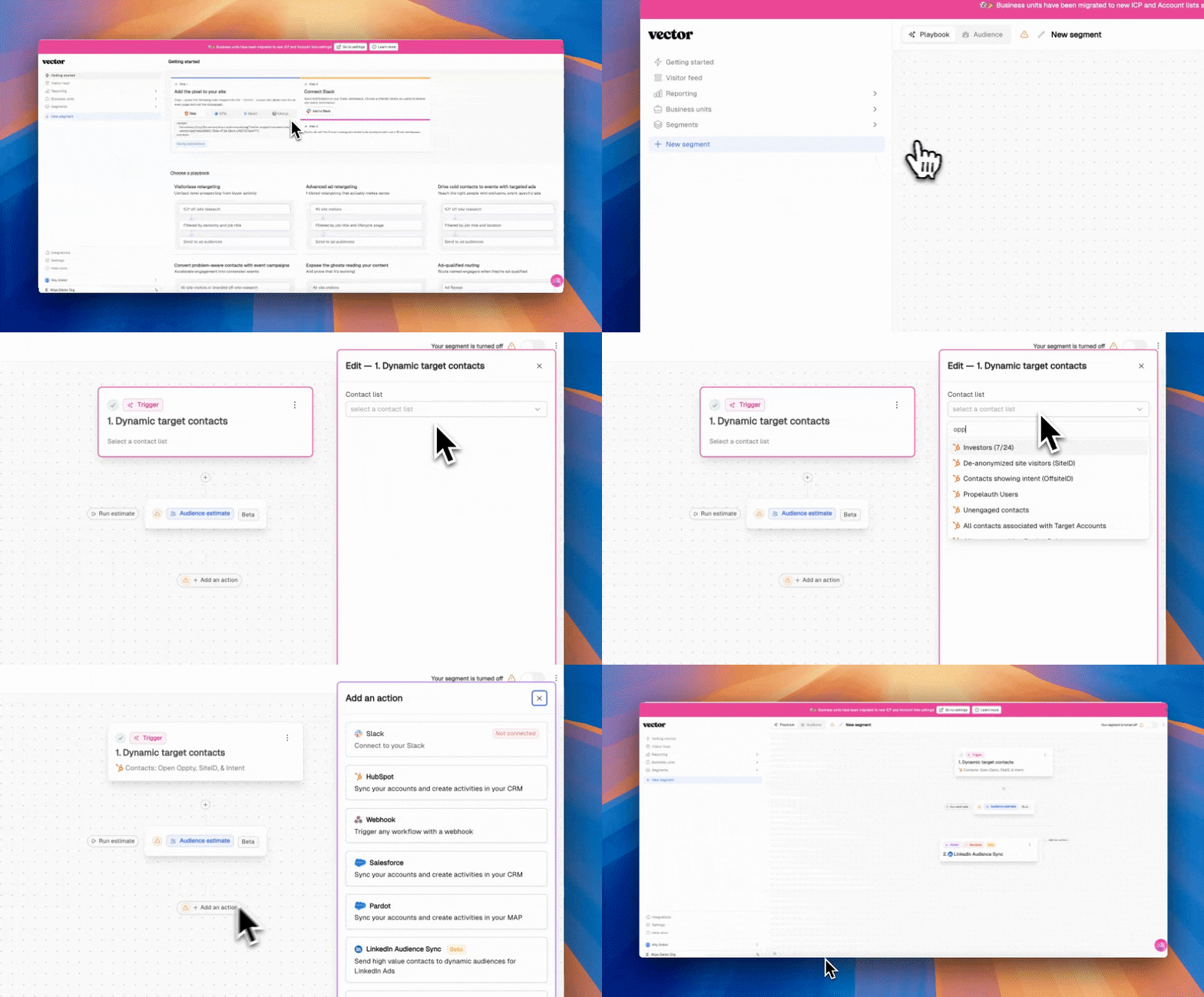
2) Activate as a LinkedIn Ad Audience
In the segment, choose Actions → Add Action → LinkedIn Ad Audience.
Run estimate (if you see the audience populate as narrow, you can ignore that for now!), enable the segment!
Sync timing: Allow up to 48 hours for the list to sync and populate in LinkedIn.
3) Launch value‑based ads to that audience
In LinkedIn Campaign Manager, select the synced audience.
Creative: lead with customer outcomes (metrics, quotes, before/after). Link to the case study page.
Use UTMs to attribute clicks/reads back in Vector and your analytics.
4) Track ICP engagement & qualify interest
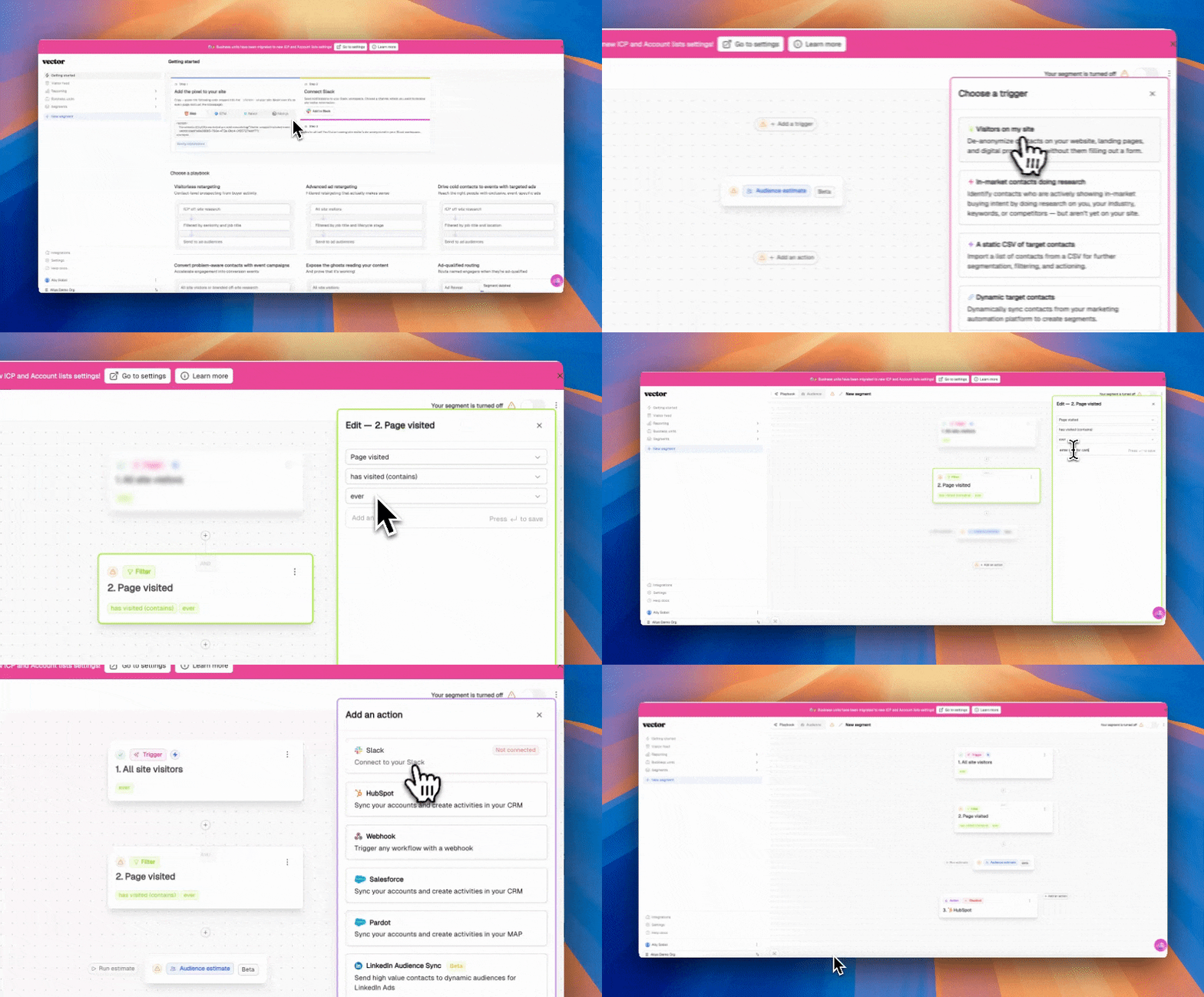
In Vector, create a new segment to track clicks
Go to Segments → New Segment.
Trigger: Website Visits
Filter: Page visited equals (insert URL of case study page or site you’re pushing the ad to)
Action: Send to CRM or Slack for sales to action
Recommended scoring & handoff (examples)
Use these as starting points—tune to your funnel economics.
+5 pts: Click on LinkedIn value ad.
+10 pts: Case study page view.
+10 pts: Visits 2+ value assets in 14 days.
Handoff trigger: Score ≥ 25 and in ICP.
Creative & landing checklist
Headline: Outcome-forward (e.g., “Cut by 42% in 60 Days—See How”).
Proof: Logos, quotes, before/after metric callouts.
CTA: "See how they did it" (not “Book a demo”).
Page UX: Fast load, scannable sections, secondary CTA for soft hand-raise ("Email me the PDF").
KPI guardrails
Track inside Vector + LinkedIn + your web analytics:
Reach/Match Rate on audience.
CTR to case study.
Reactivation rate (Engaged Reactivation / total audience)
CAC payback: incremental pipeline from reactivated contacts ÷ media cost.
Troubleshooting
Small audience / low match: Broaden titles/seniority, include additional closed/lost time windows, verify identifier quality.
Clicks but shallow reads: Tighten message–asset match; move from generic case study to industry‑specific proof; improve page load.
Engagement but no sales response: Confirm alerts/tasks route to the right owner; include last opp reason and talk track.
FAQ
Q: How often does the audience refresh?
A: List syncs happen every 24 hours - a new contact in your CRM list will show up in your Ad audience within 24 hours! Allow up to 48 hours for the initial audience to show up in the ad platforms.
Q: What if my case studies are gated?
A: Leverage the Vector pixel to know who is landing on your case studies without needing to gate the content!
Q: Can I exclude current customers?
A: Yes—add a suppression list of active customers in the CRM list view.
Quick setup summary
Create a segment in Vector → Trigger: Dynamic contact list → Select CRM list = Closed/Lost contacts → (optional) ICP filters.
Push to LinkedIn Ad Audience and wait up to 48 hours for sync.
Run value‑based ads (customer wins, case studies) to that audience.
Track ICP clicks & deep reads on case studies in Vector.
Alert Sales when a contact reaches engagement thresholds—suggest a light, context‑led reach‑out.
Questions on how to get started with this play? Reach out to solutions@vector.co - we're glad to help!