Getting Started with the Reveal Plan
Last updated: February 4, 2026
Welcome to Vector Reveal — your window into the real people behind your website traffic and ad engagement.
This checklist walks you through setup, validation, and how to start using your data to take action.
Estimated setup time: 30–45 minutes
What you’ll need
Admin access to your website/tag manager
HubSpot or Salesforce admin (if connecting CRM)
UTM conventions for active ad campaigns
Step 1 — Install the Pixel
💡 Why it matters: The pixel powers Ad Reveal, audience syncs, and campaign performance tracking. Without it, data can’t flow to your ad platforms or CRM.
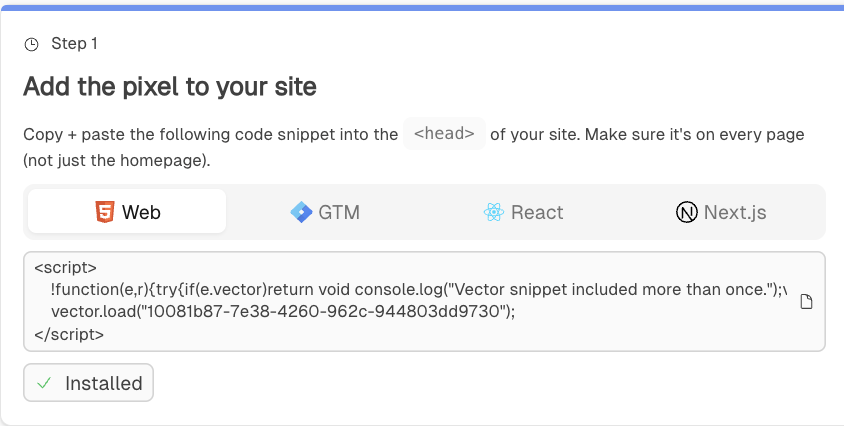
1A. Install the Pixel
☑ Add the Vector pixel to your website so we can start tracking traffic and powering Ad Reveal.
1B. Add Sub-Domains (if applicable)
☑ Make sure Vector is tracking all the right traffic by adding any sub-domains to your allow list.
👉 [How to set up your allow list →]
⚠ Don’t skip this if you have sub-domains — otherwise, key visitor traffic could slip through the cracks.
Step 2 — Integrate Your CRM
💡 Why it matters: CRM integration makes sure every visit or ad click ties back to a real record your team can act on.
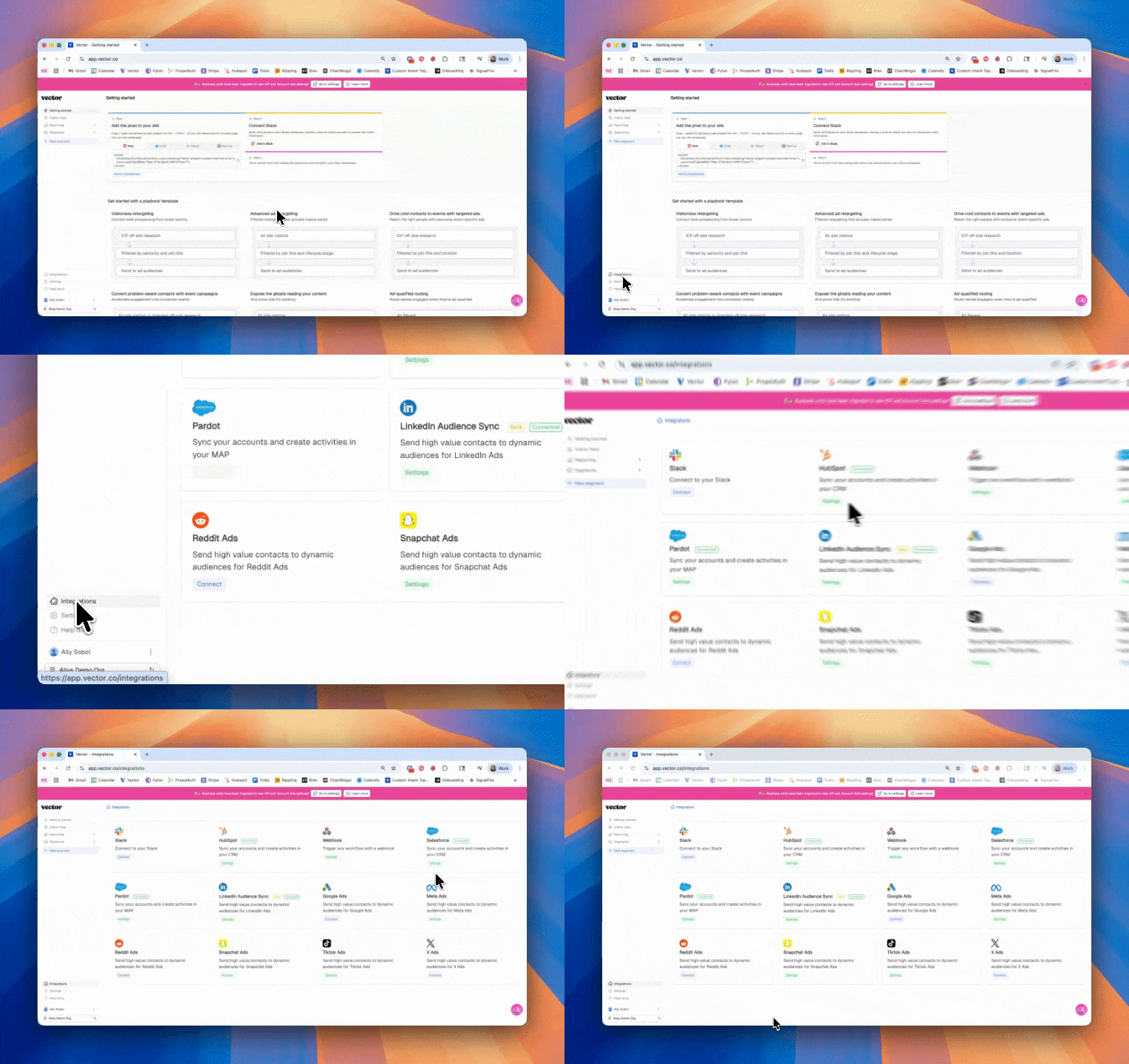
Connect your CRM to keep everything in sync.
👉 [Salesforce integration guide →]
👉 [HubSpot integration guide →]
Step 3 — Connect Your Ad Platforms
💡 Why it matters: Connecting ad platforms allows Vector to power Ad Reveal and measure downstream impact from ad engagement.
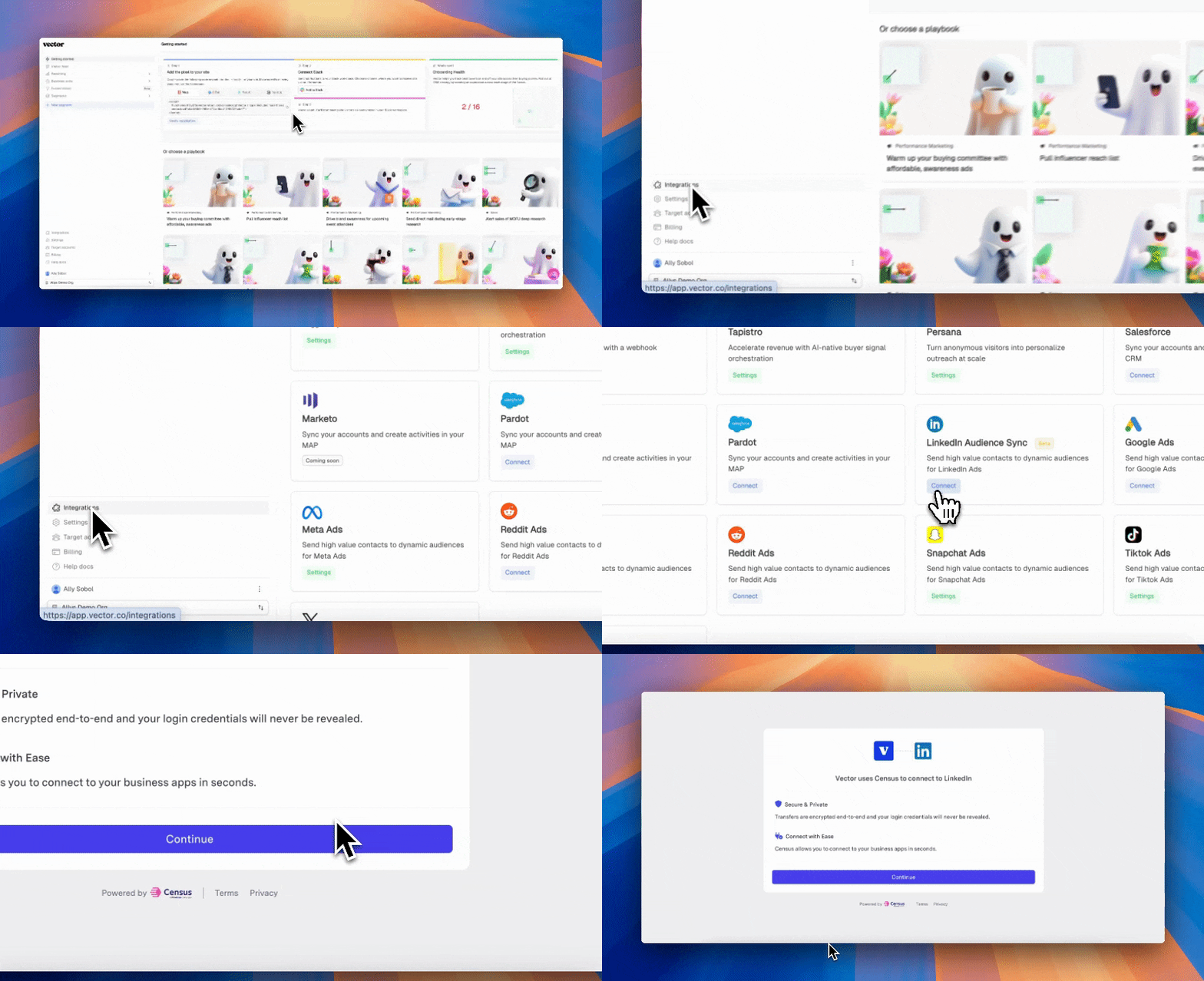
☑ Connect at least one ad platform to track campaign performance.
Native Integrations:
Google Ads
LinkedIn
👉 [Connect your ad platforms →]
Step 4 — Update Your Settings
💡 Why it matters: Your settings tell Vector who to focus on and what data to prioritize for ad and CRM syncs.
☑ Head over to Settings to fine-tune Vector for your plan.
Define your ICP (Ideal Customer Profile) by listing titles, seniorities, and roles you care about most.
Upload account lists as CSV or directly from your CRM (dynamic and always up to date).
Update your Billing info to keep things humming.
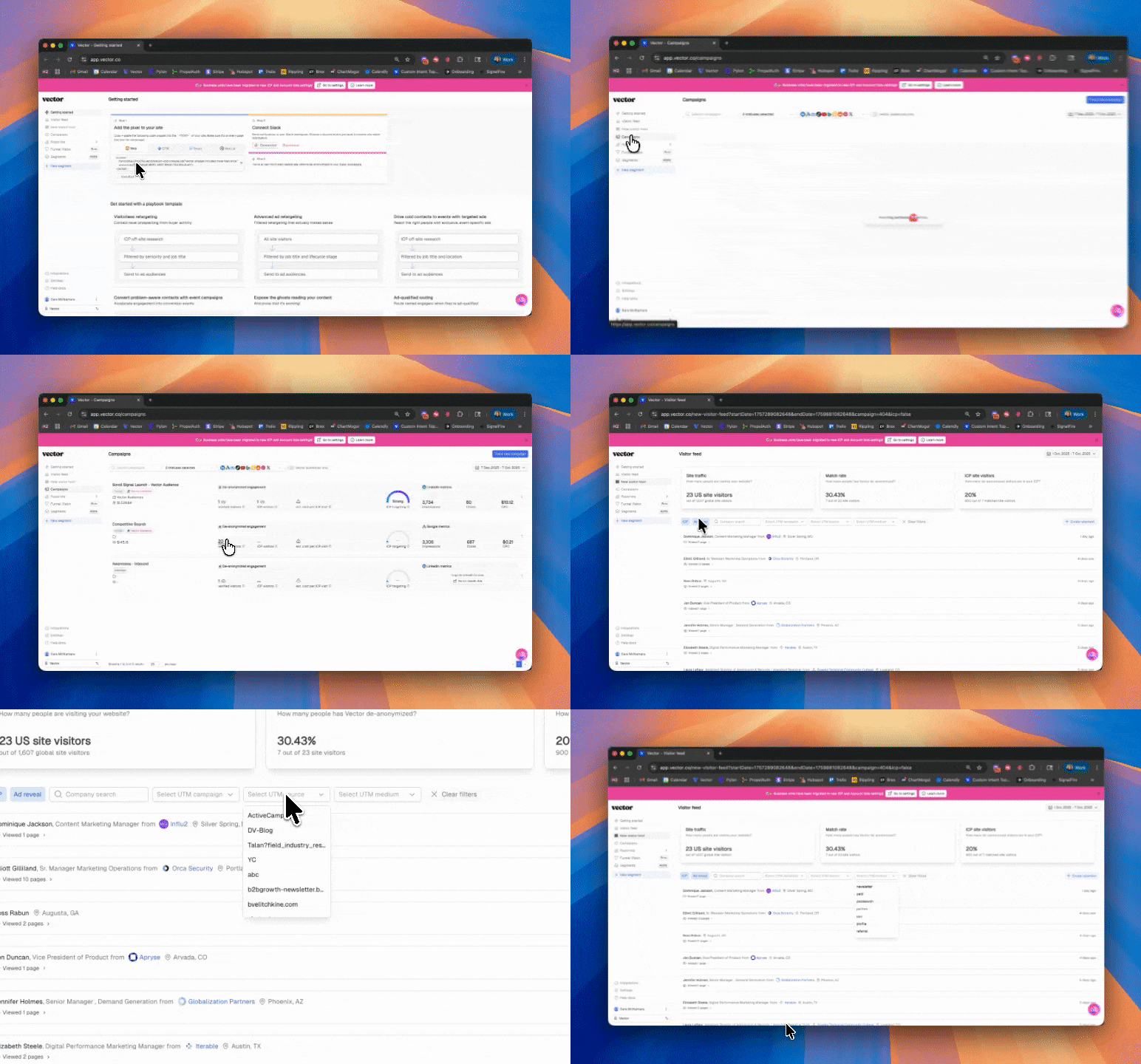
Step 5 — Check out Identified Visitors in the Visitor Feed
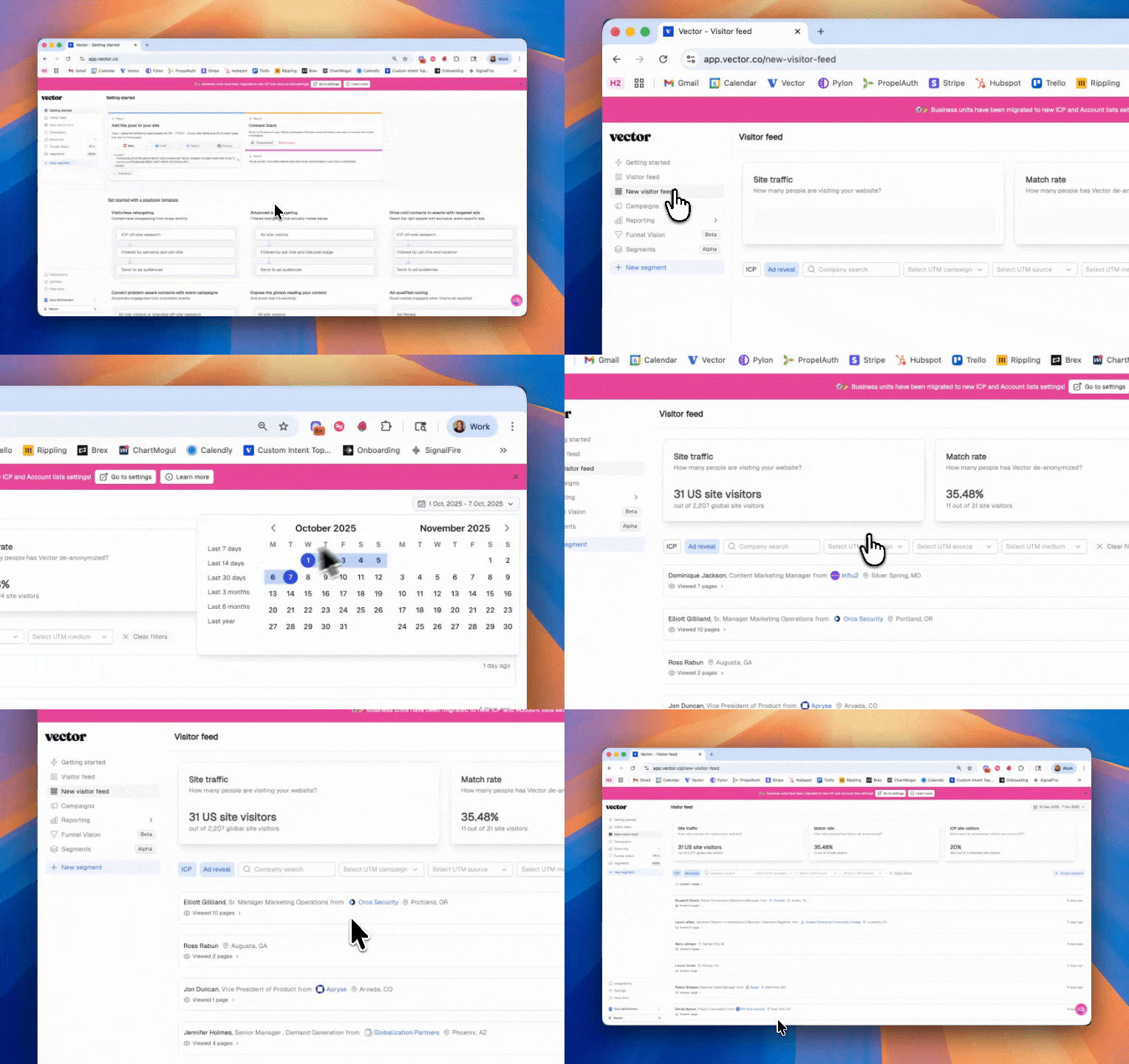
Note - if you just installed the pixel on your site - you will not see any data in this view for a few hours! Check back if that's the case.
Go to Visitor Feed and set the Timeframe in the top right corner(e.g., Last 7 days).
Click on ICP to see only contacts that meet the ICP you set up in the step above.
Step 6 — Track impact with Campaign Reporting & Ad Reveal
Open Campaigns from the navigation on the top left.
Filter by status or timeframe to see campaign performance.
Drill into Engaged Contacts, CTR, Match Rate, and Landing Page performance.
Screenshot to share the dashboard view with stakeholders.
Step 7 — Operationalize: segments & workflows
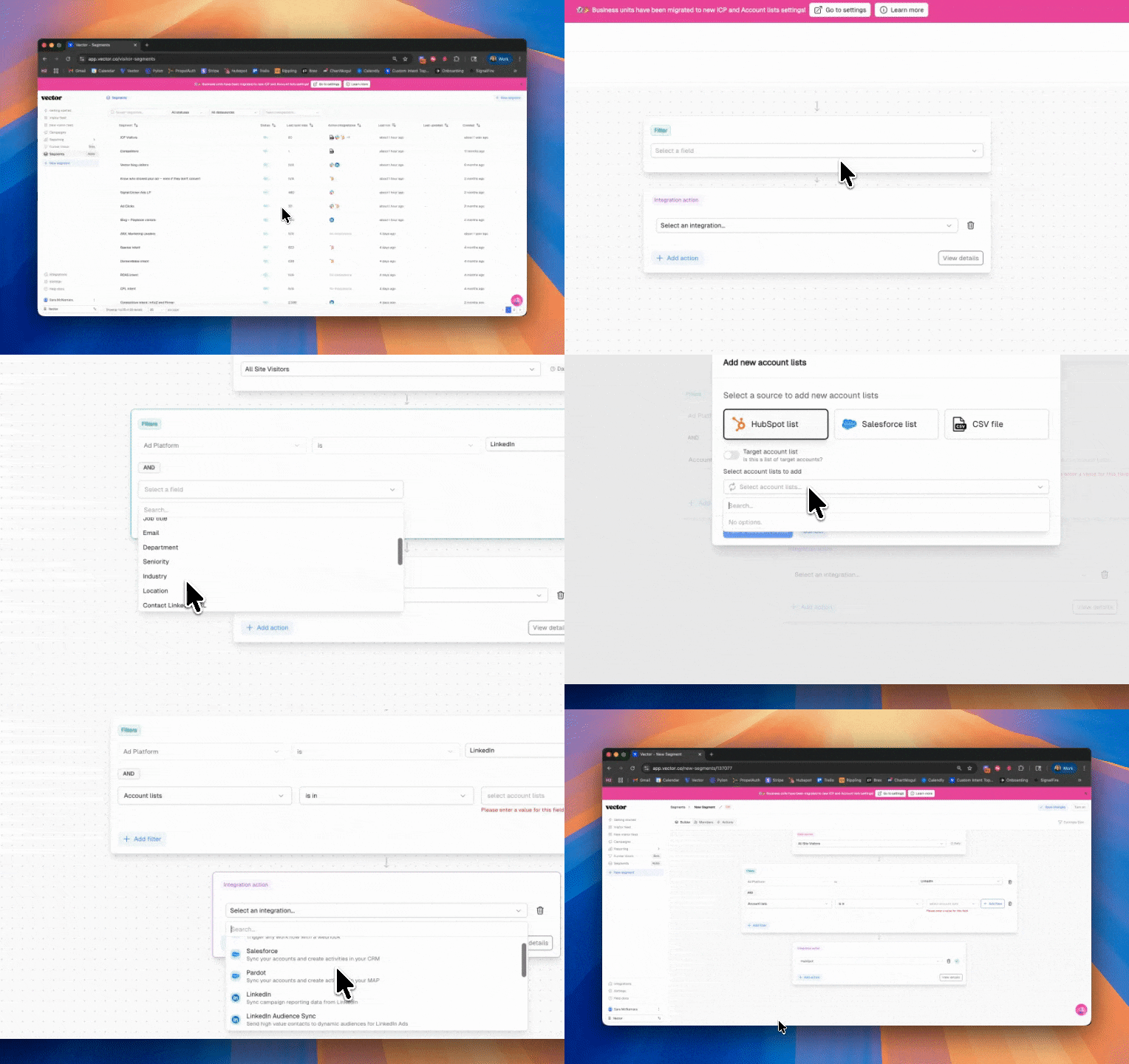
☑ Build at least one segment this week to see Vector in action.
Starter ideas:
Target Accounts visit high intent pages (pricing, demo, blog) on your site → send to LinkedIn as a remarketing audience
ICP contacts engaging with competitor topics → alert sales via Slack
Open opportunities visiting pricing pages → push to Google Ads
Success checklist (copy/paste to your runbook)
Script installed and verified (events appear)
Visitor Feed shows identified contacts that match ICP
Ad platforms connected; UTMs consistent across active campaigns
CRM two-way sync on; fields mapped; target account lists available
Campaign Reporting bookmarked; weekly review scheduled
Troubleshooting & tips
No identified contacts yet? Check script placement, consent timing, and that you have sufficient traffic volume.
Ad Reveal empty? Confirm connected platforms and UTMs; allow first sync window.
CRM duplicates? Tighten domain/email mapping and dedupe rules before first backfill.
Low match rate? Ensure campaigns use business domains and professional channels (e.g., LinkedIn) where possible.
Questions? Chat with us or write to us at solutions@vector.co. Glad to help!