Adding the Pixel to your Site
Last updated: September 25, 2026
Generic install methods
👻 Quick note before you scroll!
This guide walks you through how to install your pixel — not where to find your actual script.
What is the Vector pixel?
The pixel is how Vector can use our fancy device fingerprinting to understand who, at the contact-level, is visiting your site and when.
To grab your unique pixel:
Log into Vector.
Go to Settings in the bottom left corner → Pixel.
Copy your script from there.
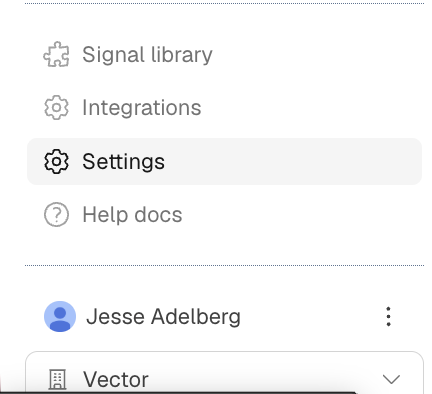

Each organization’s script is unique to ensure your data stays accurate and secure — if we shared one here, everyone would be installing the same thing!
Vector does not cap on licenses/seats. Feel free to add whomever will manage pixel installation to Vector to complete this step!
You can add Vector's SiteID pixel to any site or platform that accepts custom JS. In most cases, you can learn how to do this by searching for "Add customer JS to the name of your tool".
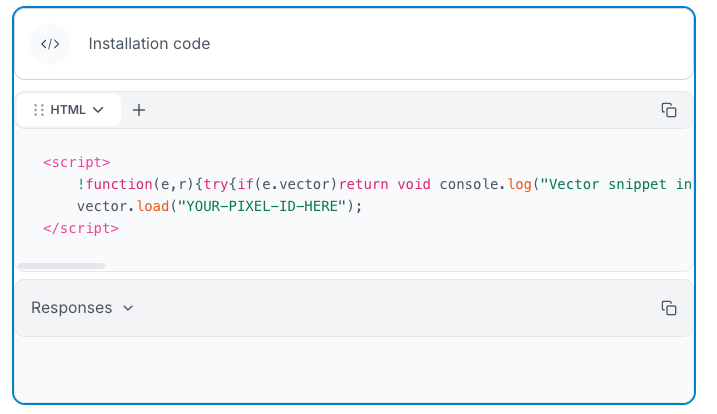
Once you find an article, tutorial, or video showing how to do this in your desired platform, you'll find an install snippet (similar to the one below) in your account's pixel settings page.
Additional install methods
For convenience, we've added a few specific tutorials on how to add SiteID to a few popular website providers.
Site speed implications
Adding any widget to your site will come with speed tradeoffs. Our pixel is tiny and doesn't load any heavy resources. The impact to your website should be nearly undetectable — especially when compared against heavier widgets like Intercom.