How to Add Account Lists & Track Accounts
Last updated: October 15, 2026
Account lists help you bring the companies you care about into Vector. From there, you can choose which accounts you want to track for signal processing and scoring.
The key distinction:
Account source/list: Where an account comes from, such as your CRM or a CSV import.
Available account: An account that has been added to Vector and is available for you to select.
Tracked account: An account you've explicitly chosen to track. Tracking tells Vector to process signals for that account and score and prioritise relevant contacts.
Simply importing an account does not automatically mean it is being tracked.
Add Accounts to Vector
You can bring accounts into Vector from a few different sources:
CRM lists: Import accounts from HubSpot or Salesforce and keep them synced with your CRM.
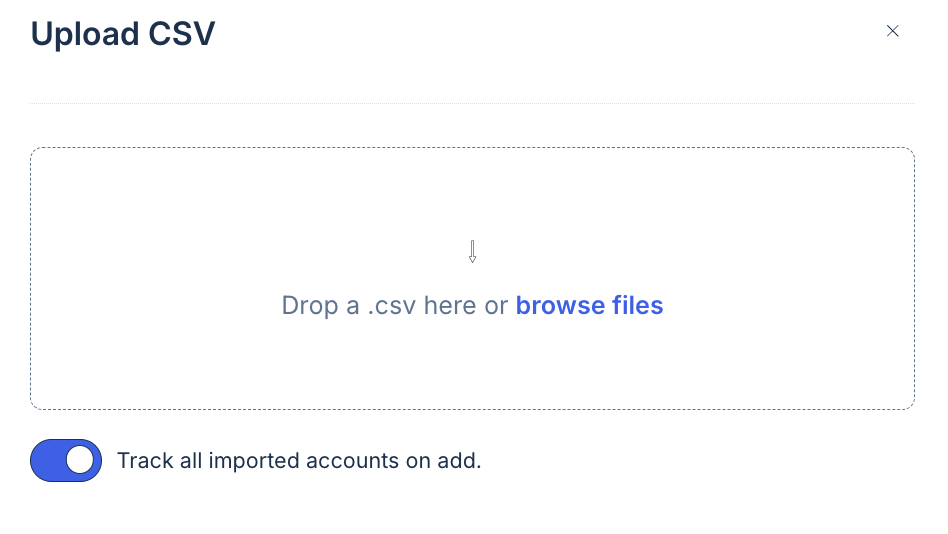
CSV/domain upload: Upload a static list of accounts using their domains. See our CSV formatting guide here.
Account search: Search for and select accounts directly within Vector.
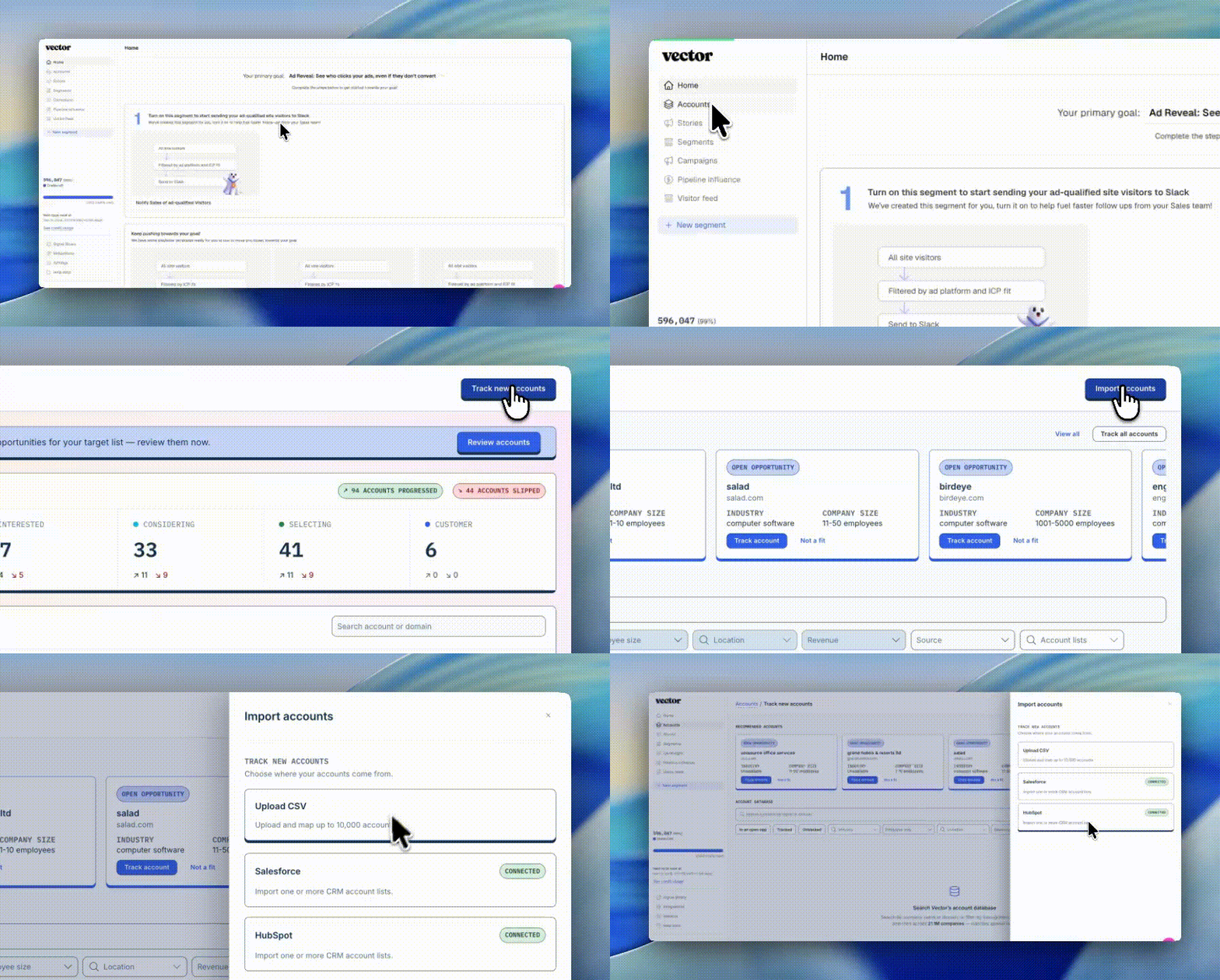
Navigate to Accounts > Track new accounts > Import accounts > Upload list(s)
Choose Which Accounts to Track
Once accounts are available in Vector, you can choose which ones you want to track.
Tracking an account starts Vector's signal processing and scoring for that company. This allows Vector to identify relevant activity, surface contacts engaging with the signals you're monitoring, and use AI to score and prioritise those contacts.
This is useful for accounts where you actively want to understand who is showing intent, what they're doing, and who your team should prioritise.
Importing or adding an account alone does not start this process. The account must be selected for tracking.
What Happens When You Track an Account?
For tracked accounts, Vector can process the signals you're monitoring and provide additional context to help your team understand and act on activity.
Depending on your CRM data and configuration, this can include:
Contact scoring and prioritisation: Identify contacts engaging with relevant signals and prioritise them based on their activity.
Account owner: Surface who owns the account in your CRM to help route activity to the right person.
Deal stage: Understand where an account sits in your sales pipeline.
Account stage: Understand the account's lifecycle, such as prospect, customer, or churned.
This makes it easier to focus your GTM workflows on the accounts and contacts that matter most.
Untracking an Account
You can also untrack an account when you no longer want Vector to process and score signals for it.
Untracking does not necessarily remove the account from its original list or source. It simply means the account is no longer selected for tracking.
This lets you adjust which accounts Vector actively monitors without needing to continually delete and re-import your account data.
Use Tracked Accounts in Segments
Starting September 16, you can use account tracking data as conditions within Segments.
Two account conditions are available:
Tracked Account: Filter based on whether an account is currently being tracked.
Account Stage: Filter based on the account's lifecycle stage.
You can combine these with Vector's other signals and conditions to build more precise audiences and workflows.
For example, you could create a Segment for contacts at tracked accounts showing specific intent signals, or use Account Stage to exclude existing customers from a prospecting workflow.
Common Ways to Organise Accounts
How you organise your account sources depends on your GTM strategy. Common approaches include:
Tiers: Tier 1, Tier 2, and Tier 3 accounts.
Segments: SMB, Mid-Market, and Enterprise.
Prospects: Accounts your sales team is actively pursuing.
Customers: Useful for lifecycle-specific targeting or exclusions.
Competitors: Accounts you may want available for exclusion from specific campaigns or workflows.
Your lists help organise the accounts available to you. Tracking is the separate step that determines which accounts Vector actively processes and scores.
Troubleshooting
I imported an account. Why isn't Vector processing signals for it?
Check whether the account has been selected as a tracked account. Importing an account makes it available in Vector but does not automatically start tracking.
What happens if I untrack an account?
Vector stops actively processing and scoring signals for that account. The account can remain available through its original source or list.
Do I need to re-upload an account to start tracking it again?
No. If the account is still available in Vector, you can select it for tracking again.
Quick Recap
Accounts can come into Vector through your CRM, CSV/domain uploads, or account search. Once they're available, you choose which accounts you want Vector to track.
Tracking is what starts signal processing and scoring.
From there, you can use tracked-account data throughout Vector, including the Tracked Account and Account Stage conditions in Segments starting September 16.