Building an Account-Level Score in HubSpot Using Vector Data
Last updated: September 17, 2025
Sometimes you want to zoom out from individual contacts and understand what’s happening across an entire account.
For example, if multiple people from the same company are poking around your site, that could be a sign of real buying intent.
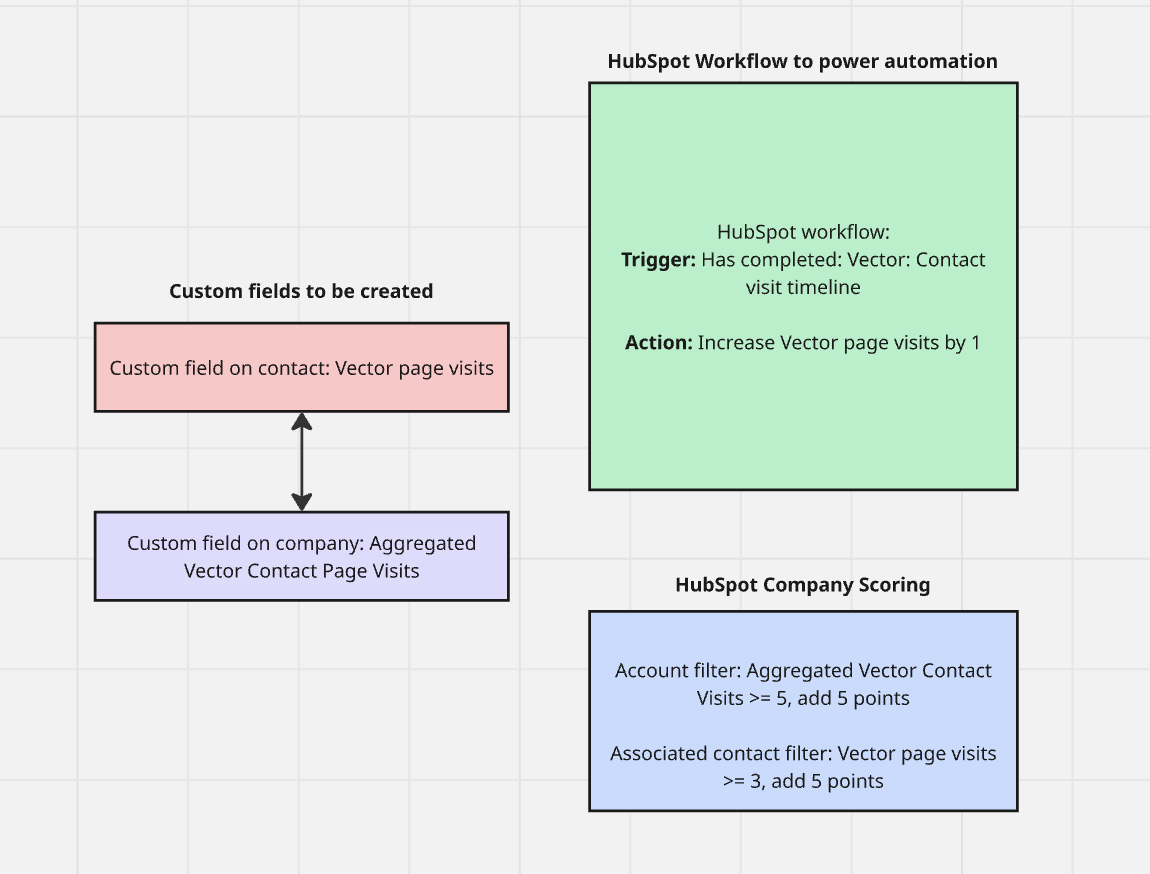
This guide walks you through one way to roll up Vector contact activity into an account-level score inside HubSpot. It’s not a native Vector feature — you’ll be setting this up in HubSpot with a bit of automation magic.
💡 Want to score individual contacts instead? Check out our guide: How to score HubSpot contacts with Vector Data.
Step 1: Capture Vector Page Visits
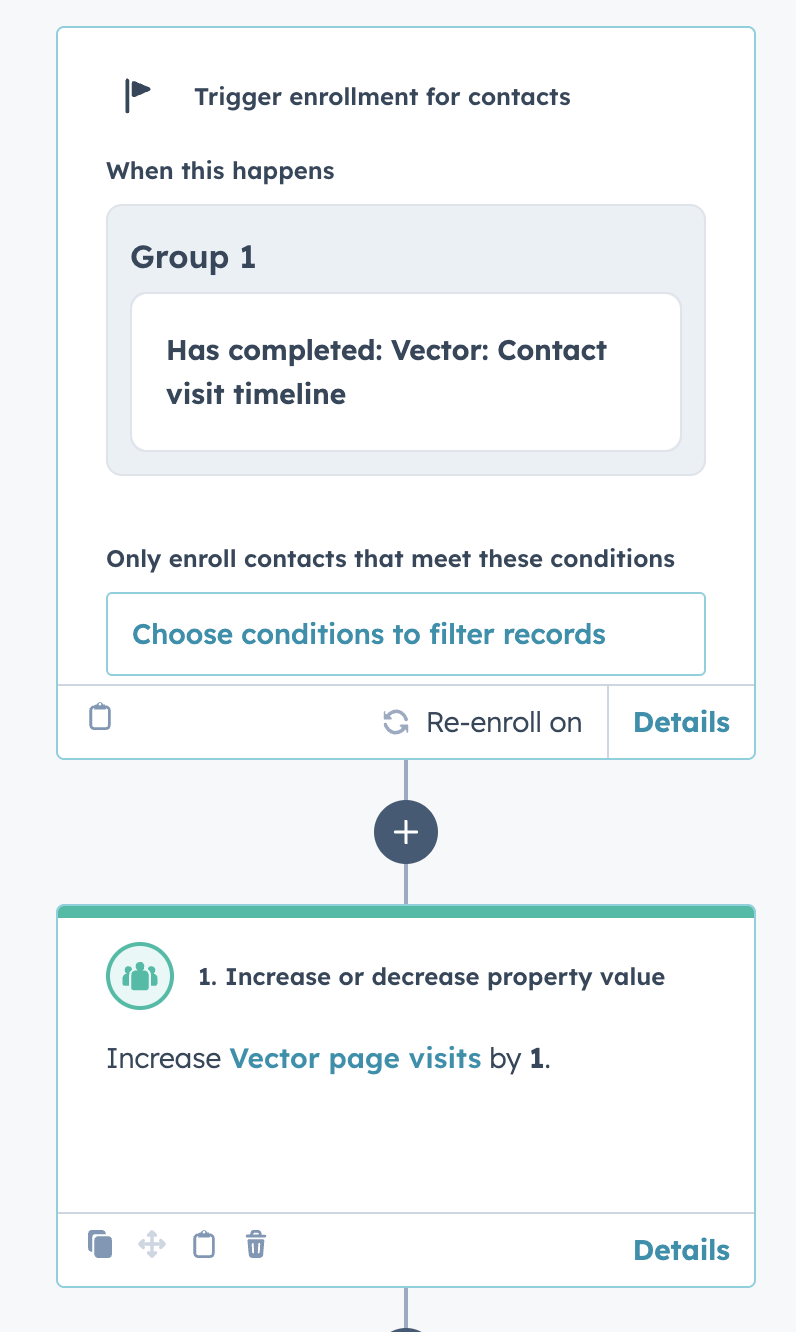
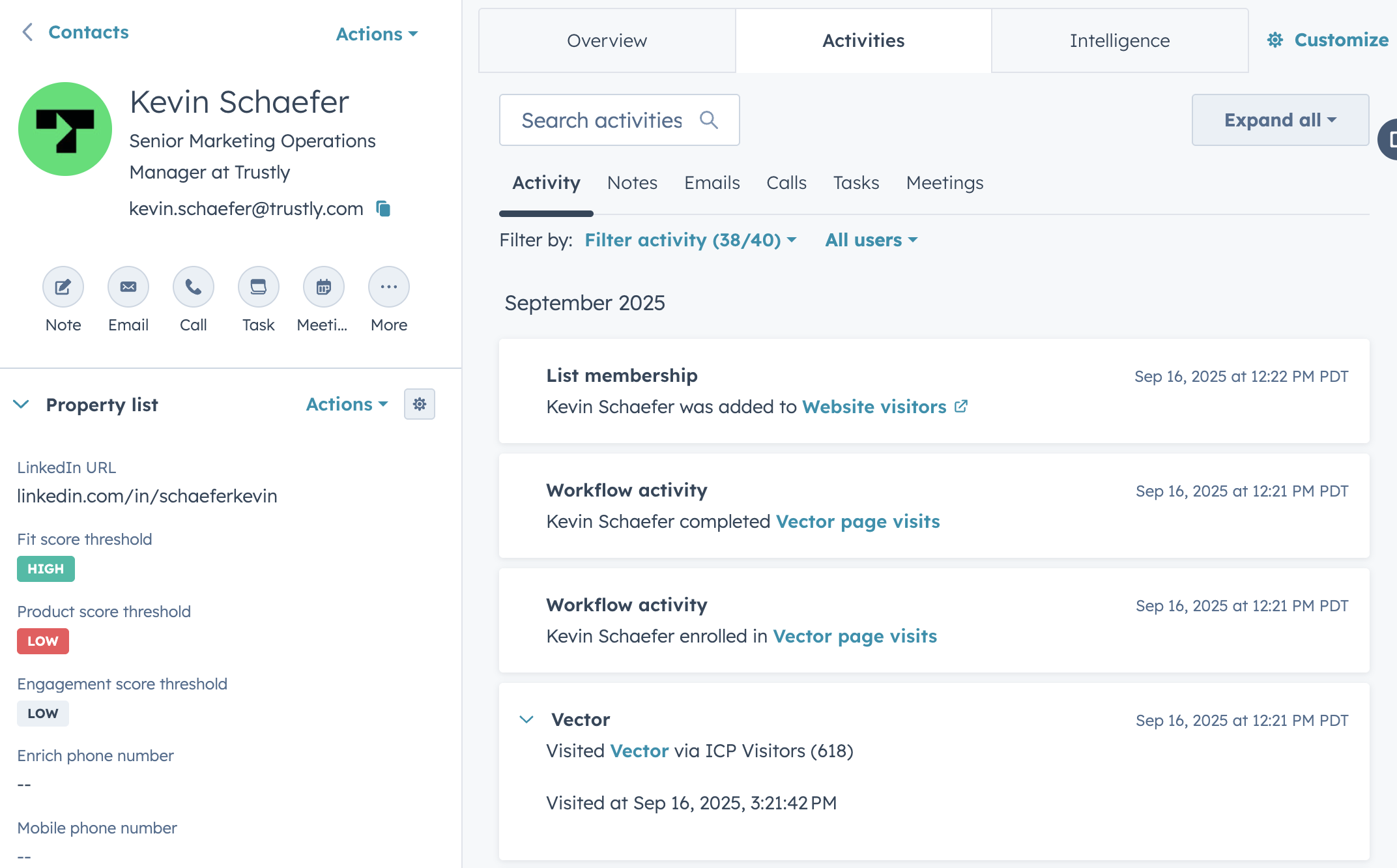
Use HubSpot Data Hub (via API connection) to pull in Vector page visit timeline events.
Create a workflow that stamps each visit into a custom Contact property (e.g., “Vector Page Visits”).
Step 2: Roll It Up to the Account
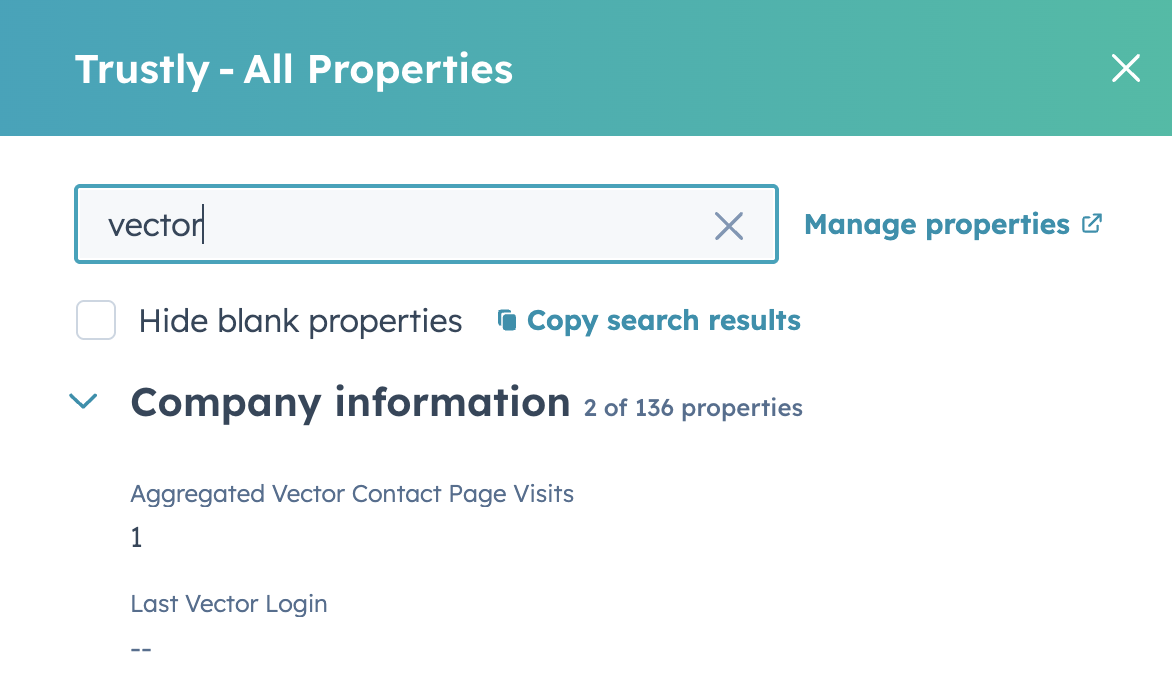
On the Company record, create a rollup property to collect all visits from associated contacts.
Now you’ll have a single field showing Aggregated Vector Contact Page Visits (basically, all sessions from everyone at that company).
Step 3: Turn It Into a Score
From here you’ve got two main paths:
Account-level score → Use the rollup field to weigh into your company score.
Contact-level score → Weigh individual visits into contact scores, then use those to bubble up accounts of interest.

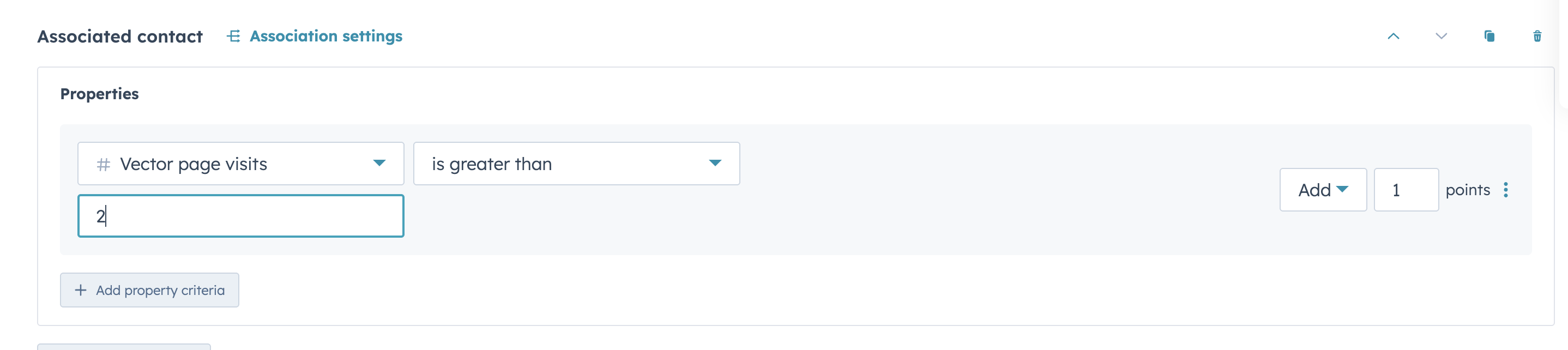
Step 3.5: Add Surge (Optional but Powerful)
If you want to catch spikes in activity, create an additional custom number property that only looks at visits in the last 7 days.
Build a workflow that increments this property whenever a new visit occurs.
Use this field in your scoring model to highlight accounts showing a surge in interest.
Step 4: Add Filters for Extra Precision
Want to highlight only certain kinds of visits? You can filter by:
Pricing page visits → e.g., URL contains
/pricingSpecific themes or product areas → use naming conventions in your custom properties
Things to Keep in Mind
Sessions vs. visits: HubSpot may group multiple pageviews on the same day into a single session. If this happens in your instance, consider renaming your property to Vector Sessions instead of Vector Page Visits.
Recency/surge scoring: A dedicated 7-day rolling property can help you catch hot accounts before they cool off.
Testing is key: This is a v1 setup. Start with a smaller dataset, confirm the rollups and scoring behave as expected, and then scale.
Why This Matters
With this setup, you’ll start to see which accounts are truly leaning in — not just one enthusiastic contact. That makes it easier to prioritize outreach, align with sales, and build more focused plays.
👉 Pro Tip: Pair this with your existing HubSpot scoring rules for a fuller picture of account health and intent.