Visitor Feed
Last updated: September 15, 2026
The Visitor Feed gives you a contact-level view of the people Vector identifies visiting your website.
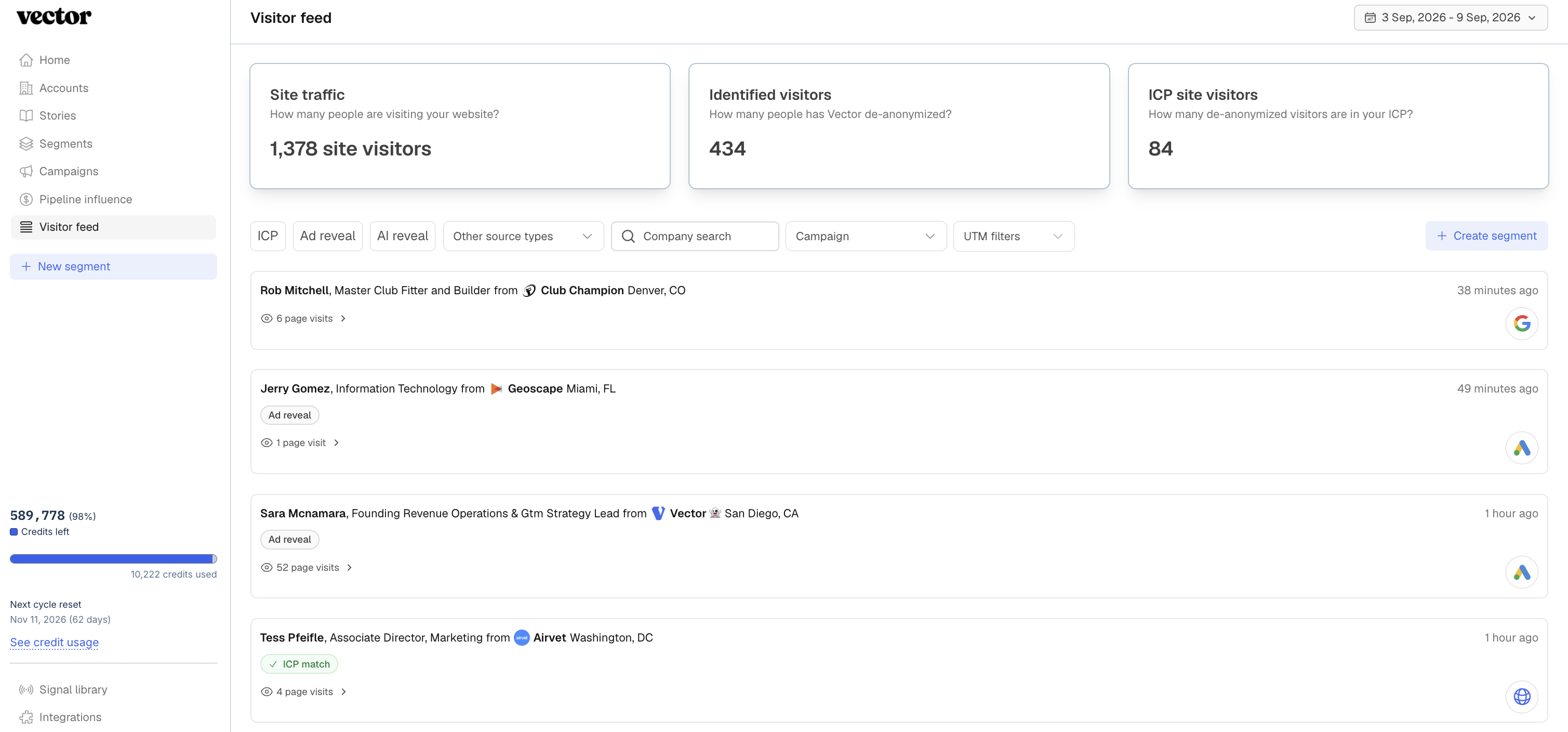
Use it to answer:
Who visited my website, how did they arrive, and what did they do?
You can review identified visitors, traffic sources, ICP match, repeat visits, and individual page activity in one place.
Looking for a different level of insight?
Use Account Journeys to understand the broader signals and evidence Vector sees across a tracked account. Click here to learn more about Account Journeys.
Use Campaign Reporting to understand how a specific paid campaign performed.
Accessing the Visitor Feed
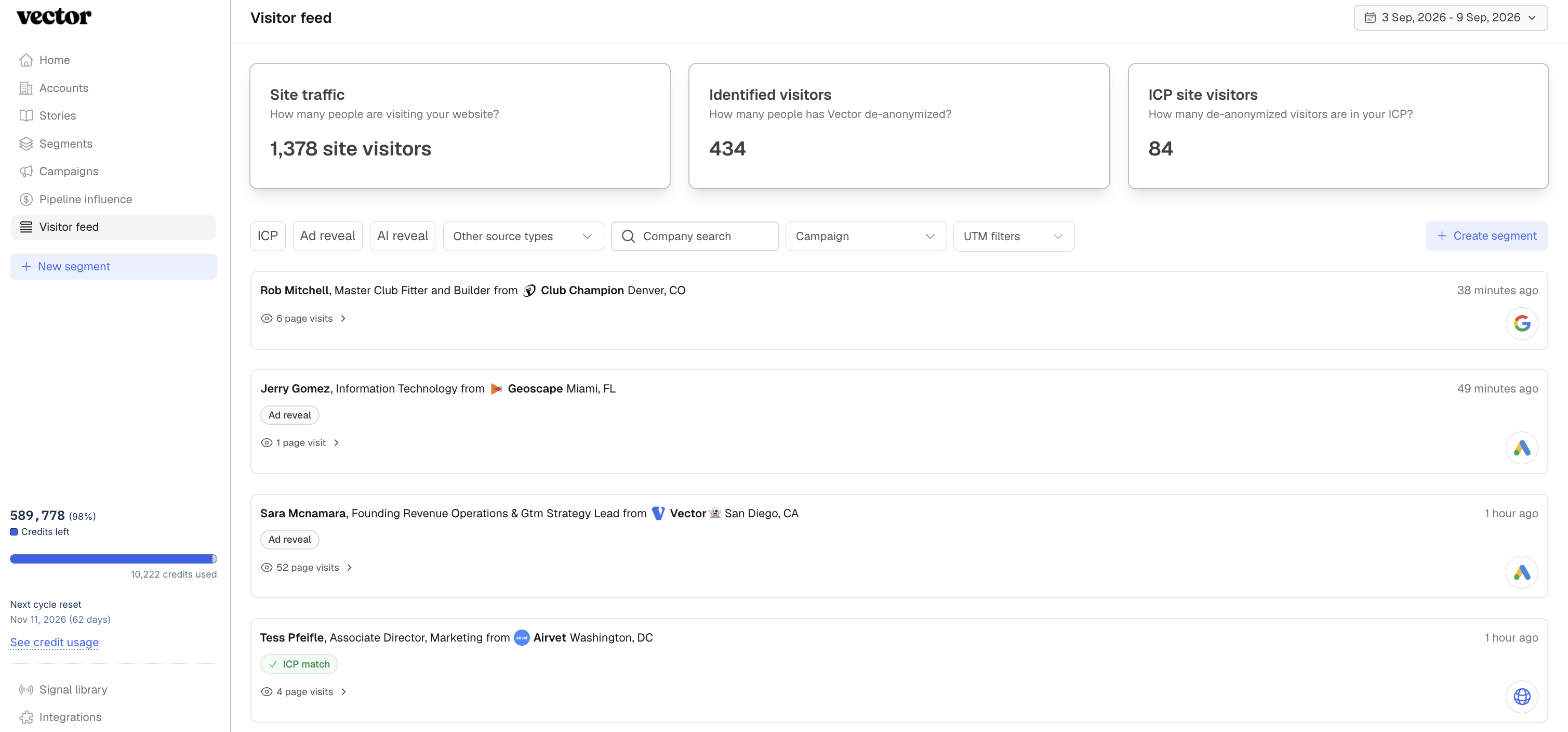
Navigate to the Visitor Feed via the top left corner > Visitor Feed.
Not seeing website activity?
Make sure the Vector pixel is installed correctly on your site.
Use the date picker (top right corner) to control the time period shown in the feed. Available ranges can include:
Last 7 days
Last 14 days
Last 30 days
Last 3 months
Last 6 months
Last year
🗒 The date picker controls the data shown. To see activity outside the selected window, update the date range.
Understanding the Summary Metrics
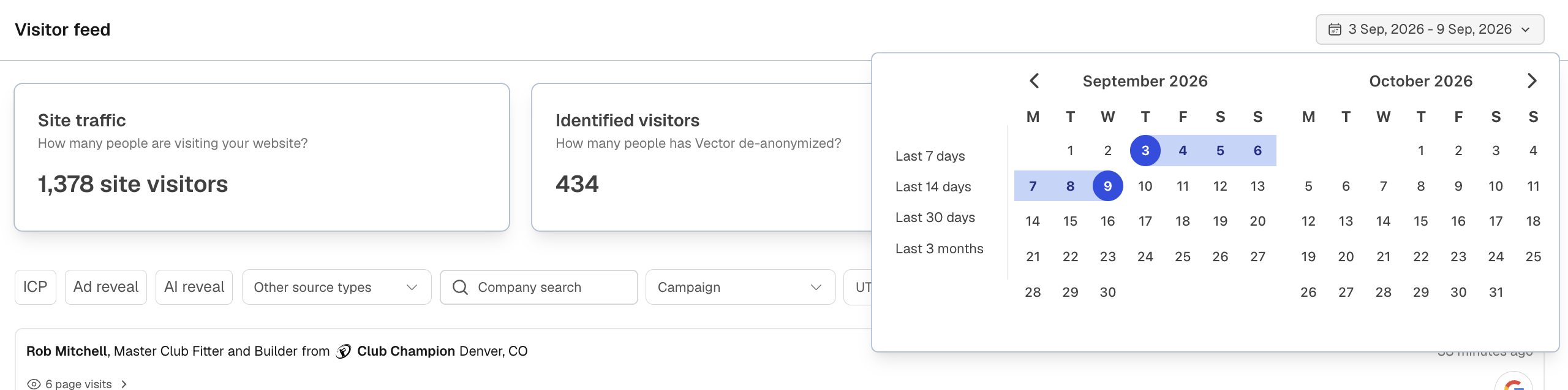
At the top of the Visitor Feed, you'll see a snapshot of your website traffic and identification performance.
Site Traffic
The total website traffic observed during the selected timeframe.
This can include repeat visitors and traffic that Vector is not able to identify at the contact level.
Match Rate
The percentage of website traffic Vector is able to match to known contacts.
Your match rate will not equal your total website traffic. Identification depends on factors including visitor location, browser and privacy settings, consent configuration, and the traffic Vector is able to resolve.
ICP Match
The number of identified contacts who also match the Ideal Customer Profile criteria you've configured in Vector.
Not seeing ICP matches?
Filtering Website Visitors
Beneath the summary metrics, you'll see the individual contacts Vector has identified.
Use filters to narrow the feed to the activity most relevant to you.
Depending on the data available, these can include:
ICP – Show contacts that match your ICP
Repeat Visitors – Focus on contacts who have returned to your website
Paid / Ad-Engaged Traffic – Show visitors who arrived through paid campaigns
Campaign
Source
Medium
Company Search – Look for identified visitors from a particular company
💡 Tip: Combine filters to narrow your view. For example, use ICP + Repeat Visitors to find good-fit contacts who are returning to your site.
Viewing Contact and Page Activity
Each identified visitor includes additional context about their website activity via various filters.
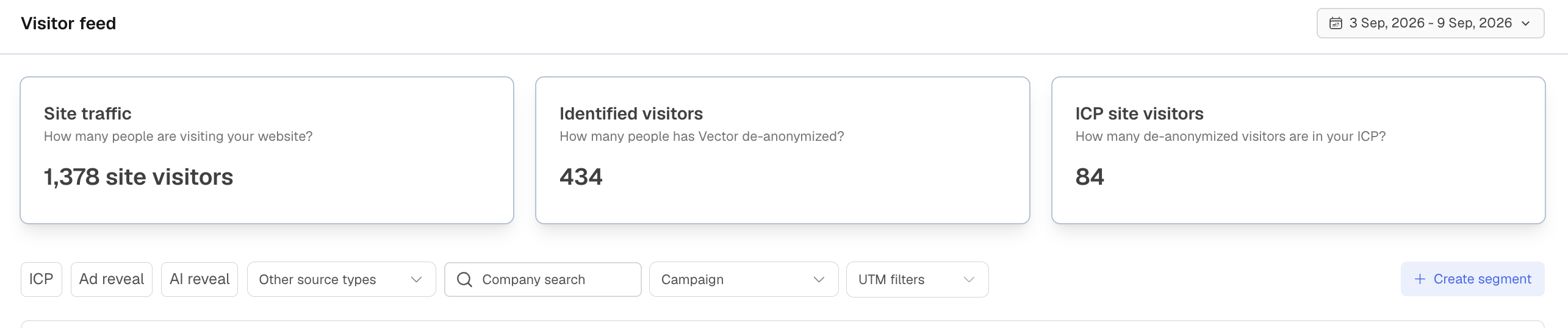
Traffic Source
See how a visitor arrived on your website, such as:
Paid campaign
Organic search
Direct traffic
Social
Other identifiable traffic sources
Campaign, source, and medium data can provide additional context where available.
Contact Details
Review enriched contact information to better understand who is visiting your site and whether they're relevant to your team.
Page Visit History
Expand a contact to see the pages Vector observed them visiting.
Page history can help you understand what an individual was interested in, whether they returned multiple times, and which parts of your site they explored.
For example, you may notice that a contact:
Returned to your site several times
Viewed a pricing or product page
Arrived through a specific campaign
Matches your ICP
The Visitor Feed gives you the underlying contact-level website activity without requiring you to infer account-level buying stage from an individual visit.
Data Freshness
The Visitor Feed is designed to provide a near-real-time view of identified website visitors.
Visitor activity may take approximately 15 minutes to appear in the feed.
The timestamp on an activity reflects when the visit occurred, even if the visitor appears in Vector slightly later.
Why doesn't my Visitor Feed match my Segment immediately?
Visitor Feed and Segment processing happen on different cadences.
The Visitor Feed may surface website activity before a Segment has completed its next sync, so temporary differences between the feed and Segment membership are expected.
Visitor Feed vs. Account Journeys
The Visitor Feed and Account Journeys both contain engagement data, but they answer different questions.
Visitor Feed
Use the Visitor Feed when you want to know:
Who visited my website and what did they do?
It focuses specifically on contact-level website activity, including:
Identified visitors
ICP match
Traffic source
Campaign information
Repeat visits
Pages viewed
Account Journeys
Use Account Journeys when you want to know:
What is happening across this account, and what evidence is Vector using to understand it?
Account Journeys brings together signals across a tracked account, rather than showing website activity in isolation.
This can include website engagement alongside other activity Vector observes across marketing, advertising, CRM, intent, and other connected signal sources.
[Learn more about Account Journeys →]
Visitor Feed vs. Campaign Reporting
The Visitor Feed can show when an identified visitor arrived through paid traffic, but it is not your campaign-performance dashboard.
Visitor Feed
Use it to understand the person:
Who visited, where did they come from, and which pages did they view?
Campaign Reporting
Use Campaign Reporting to understand the campaign:
How did this campaign perform?
Campaign Reporting brings together metrics such as impressions, clicks, identified visitors, ICP visitors, cost, and other supported campaign-performance data.
[Learn more about Campaign Reporting →]
Troubleshooting
I'm not seeing any website visitors
First, confirm that the Vector pixel is installed and firing correctly.
Review pixel installation instructions →
My match rate seems low
Vector will not identify every website visitor.
Your match rate can vary based on your traffic mix, visitor geography, browser and privacy settings, and consent configuration.
My numbers don't match Google Analytics
That's expected.
Google Analytics and Vector serve different purposes and may also operate under different consent or tracking conditions.
Google Analytics is primarily designed for aggregate web analytics. Vector's Visitor Feed is designed to help you understand the known contacts behind a portion of your website activity.
The two should not be expected to match one-to-one.
I don't see ICP matches
Make sure you've configured your ICP criteria in Settings > Ideal Customer Profile.
A visitor must first be identified and then match your configured criteria to appear as an ICP match.
I want to understand everything happening at this company, not just its website visits
Open the company in Account Journeys.
Account Journeys combines the evidence Vector sees across the tracked account and provides the account-level context behind its activity.
I want to understand how my paid campaign performed
Use Campaign Reporting.
The Visitor Feed can tell you which identified contacts arrived through campaign traffic. Campaign Reporting is where you evaluate the broader performance of the campaign itself.
Quick Recap
Use the Visitor Feed to understand:
Who Vector identified on your website
Whether they match your ICP
How they arrived
Whether they've returned
Which pages they viewed
For broader account-level evidence, use Account Journeys.
For paid campaign performance, use Campaign Reporting.