Campaign Reporting Dashboard
Last updated: September 15, 2026
Vector's Campaign Reporting Dashboard helps you understand how individual ad campaigns are performing and whether they're reaching the people you care about.
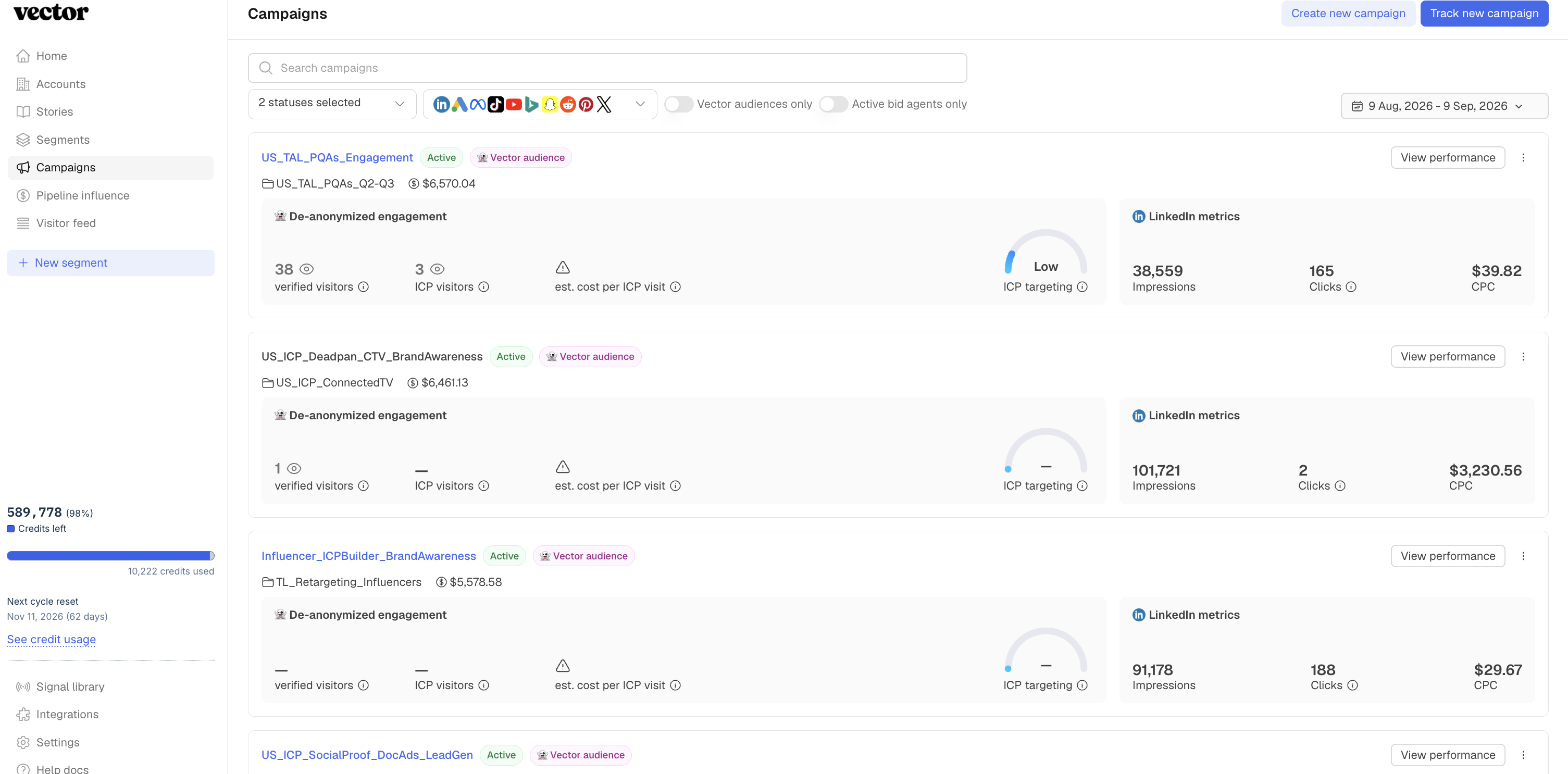
Use it to answer:
How did this campaign perform?
You can review campaign engagement, identified visitors, ICP engagement, cost metrics, and performance data from your connected ad platforms.
Looking for pipeline impact instead?
Campaign Reporting answers "How did this campaign perform?"
Before You Start
For the most complete reporting, connect your supported ad platforms in Integration Setting by navigating to Integrations (bottom left corner).
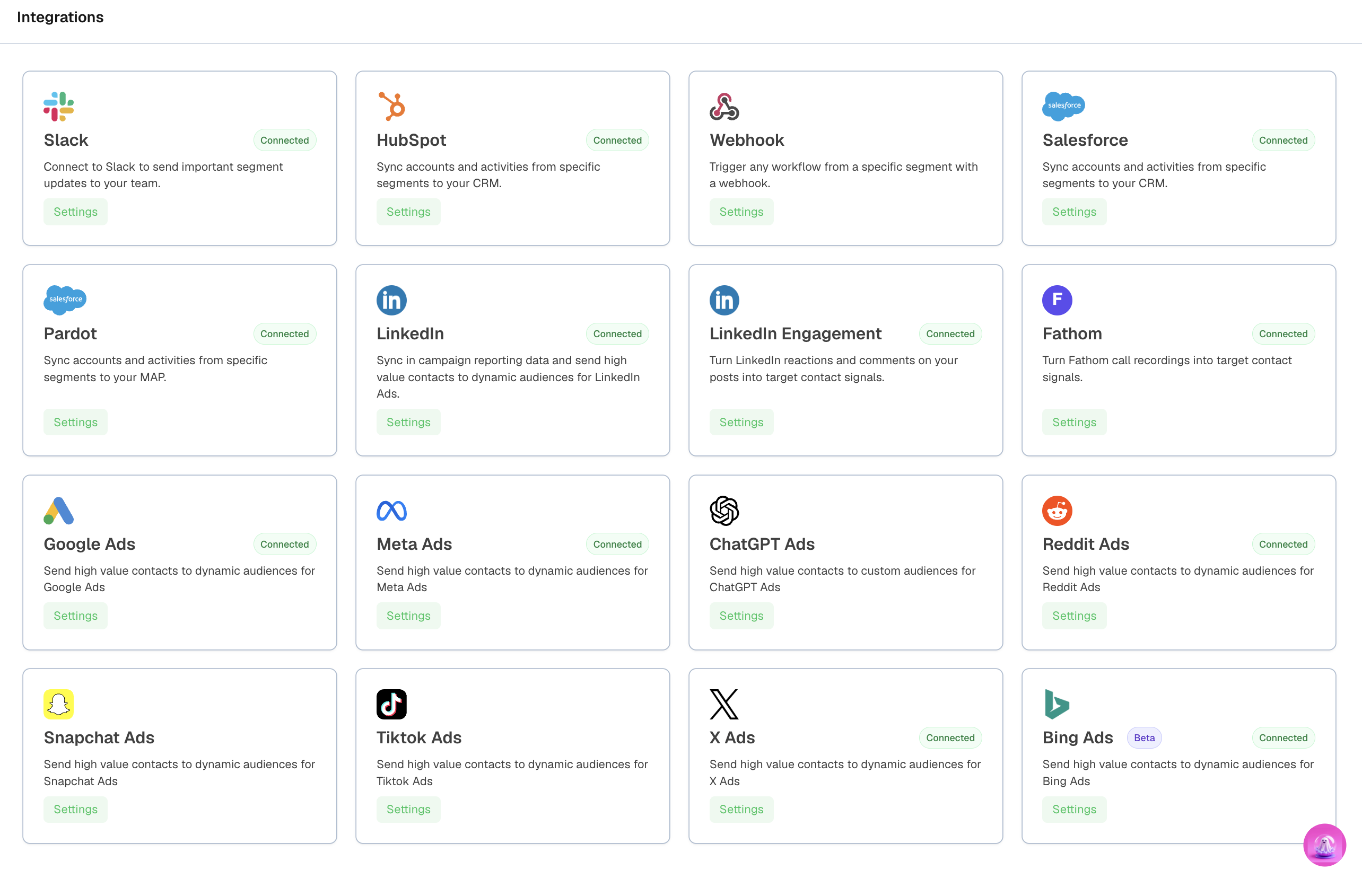
Vector can identify campaigns through:
Connected ad platforms, such as Google or LinkedIn
UTM activity detected from your website traffic
Campaigns connected directly through an ad integration can include platform-reported metrics in addition to the engagement Vector identifies.
If a campaign is detected through UTMs without a connected integration, the reporting available may be more limited.
What You'll See
The Campaign Reporting Dashboard brings together Vector engagement data and ad-platform performance data.
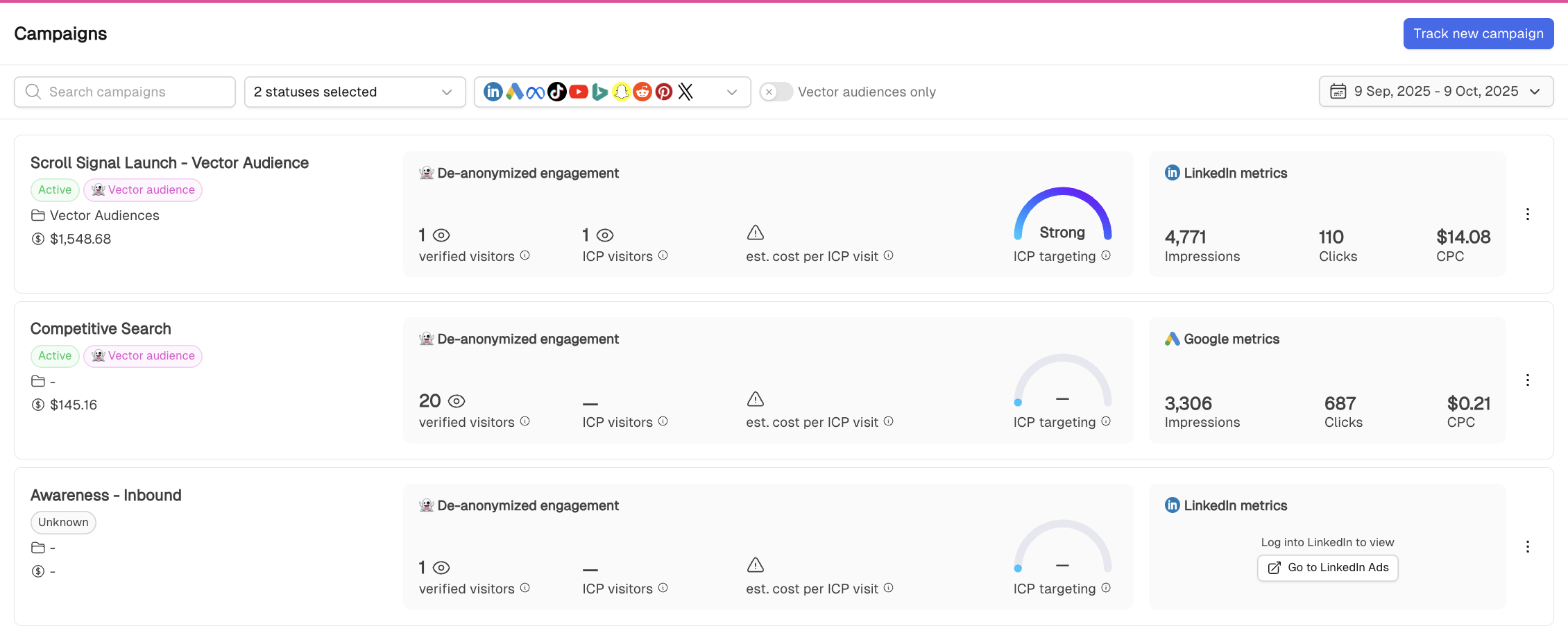
Vector Metrics
Depending on the campaign, you can review metrics such as:
Engaged Contacts
Unique contacts Vector has identified from campaign traffic.
Because visitor identification does not represent every website visitor, this number may differ from the total clicks reported by your ad platform.
ICP Visitors
Identified visitors who also match the ICP criteria you've configured in Vector.
Cost per ICP Visit
The estimated cost of generating a visit from someone who matches your ICP.
⚠ Cost per ICP Visit appears once the campaign has enough identified ICP visitors to calculate the metric.
ICP Performance
Use ICP engagement to understand whether campaign traffic is reaching the types of buyers your team wants to attract, rather than evaluating click volume alone.
Ad Platform Metrics
For campaigns connected through supported ad integrations, you can also see platform metrics such as:
Impressions
Clicks
Cost per Click (CPC)
Other campaign performance data available through the connected platform
This gives you campaign performance and Vector's identified visitor data in one view.
Navigating and Filtering Campaigns
When you open Campaign Reporting, you'll see your campaigns in a list.
Use the available filters to narrow what you're viewing.
Depending on the campaign data available, these can include:
Status – Active, inactive, completed, deleted, or unknown
Platform – Filter by ad platform
Vector Audiences Only – Show campaigns using a Vector audience
Search – Find a campaign by name
An Unknown campaign status typically means Vector has identified campaign activity through UTMs but does not have a connected ad integration providing its platform status.
Campaign Sources
Campaigns can appear in the dashboard in two ways.
Integration-Based Campaigns
Campaigns from connected ad platforms can include the fuller set of platform metrics alongside Vector engagement data.
If you're running Google or LinkedIn campaigns but don't see them, confirm that the appropriate ad integration is connected under Integration Settings.
💡 LinkedIn may have separate integrations depending on whether you're bringing data into Vector or pushing audiences out, so make sure the reporting connection you need is enabled.
UTM-Detected Campaigns
Vector can also identify campaigns based on UTM activity from website traffic.
If you want to track a campaign that isn't coming from a connected integration, you can add its UTM information manually.
Enter:
Campaign name
Platform
Campaign UTM
Regex is supported.
Then click Save Campaign.
Viewing Campaign Details
Open an individual campaign to dig deeper into its performance.
You can use campaign detail to understand:
How much traffic and engagement the campaign generated
How many visitors Vector identified
How many identified visitors matched your ICP
Campaign cost and efficiency metrics
Platform-reported impressions and clicks
Where available, you can also open the visitor details to see the contacts Vector identified.
Use the Verified Visitors view to see identified contacts from the campaign.
Use the ICP Visitors view to see identified contacts who also match your configured ICP.
Setting Up Your ICP
ICP reporting helps you look beyond total clicks and understand whether your campaign is reaching relevant buyers.
If you aren't seeing ICP visitor data, review your Ideal Customer Profile settings by navigating to Settings (bottom left corner) > Ideal Customer Profile.
Your ICP can include criteria such as:
Job titles to include or exclude
Seniority
Other fit criteria available in your ICP settings
Once configured, Vector can identify which campaign visitors also match that definition.
Learn more about configuring your ICP →
Troubleshooting
I don't see a campaign
First, check whether the relevant ad platform is connected under Integration Settings.
If the campaign isn't coming through an integration, confirm that Vector is seeing the expected UTM traffic or add the campaign's UTM manually.
My Vector visitor count doesn't match my ad-platform clicks
That's expected.
The ad platform reports total clicks, while Vector reports the visitors it is able to identify. These numbers measure different things and should not be expected to match one-to-one.
I don't see ICP Visitors
Check that your ICP is configured and that the campaign has identified visitors who match those criteria.
I don't see Cost per ICP Visit
This metric requires enough identified ICP visitors before Vector displays an estimate.
Quick Recap
Use the Campaign Reporting Dashboard to understand campaign-level performance, including:
Ad-platform impressions and clicks
Identified campaign visitors
ICP engagement
Cost and efficiency
Which contacts Vector identified from your campaigns