How to add Account Lists
Last updated: October 29, 2025
Account Lists are your VIP rosters inside Vector — the companies you care about most (or least). They’re the backbone of how you filter, target, and exclude data across segments.
Why Account Lists Matter
Adding account lists makes Vector work smarter for you. Here’s what you can do with them:
Ad Reveal: See which of your target accounts are clicking into your paid ads. If we know the account owner, you can send that signal straight to your sales team for retargeting.
Website traffic: Track if your top accounts are poking around your pricing or demo pages (or any page, really) — and notify account owners at the perfect moment.
Intent topics: Watch which of your priority accounts are researching the topics that matter most to your business.
Exclusions: Keep ads efficient by filtering out customers, competitors, or any group you don’t want to waste impressions on.
Basically, lists are flexible — include, exclude, tier, or slice however you need.
Best Practices We’ve Seen from Customers
The cookie really does crumble in different ways, but here are common approaches:
Tiered strategy: Upload lists split into Tier 1, 2, and 3 accounts, or SMB vs Enterprise.
Prospects: A running list of the accounts your sales team is chasing.
Customers: To either keep tabs on retention/upsell or exclude them from prospecting campaigns.
Competitors: Filter them out so you’re not serving ads (or signals) to the wrong audience.
How to Add Account Lists
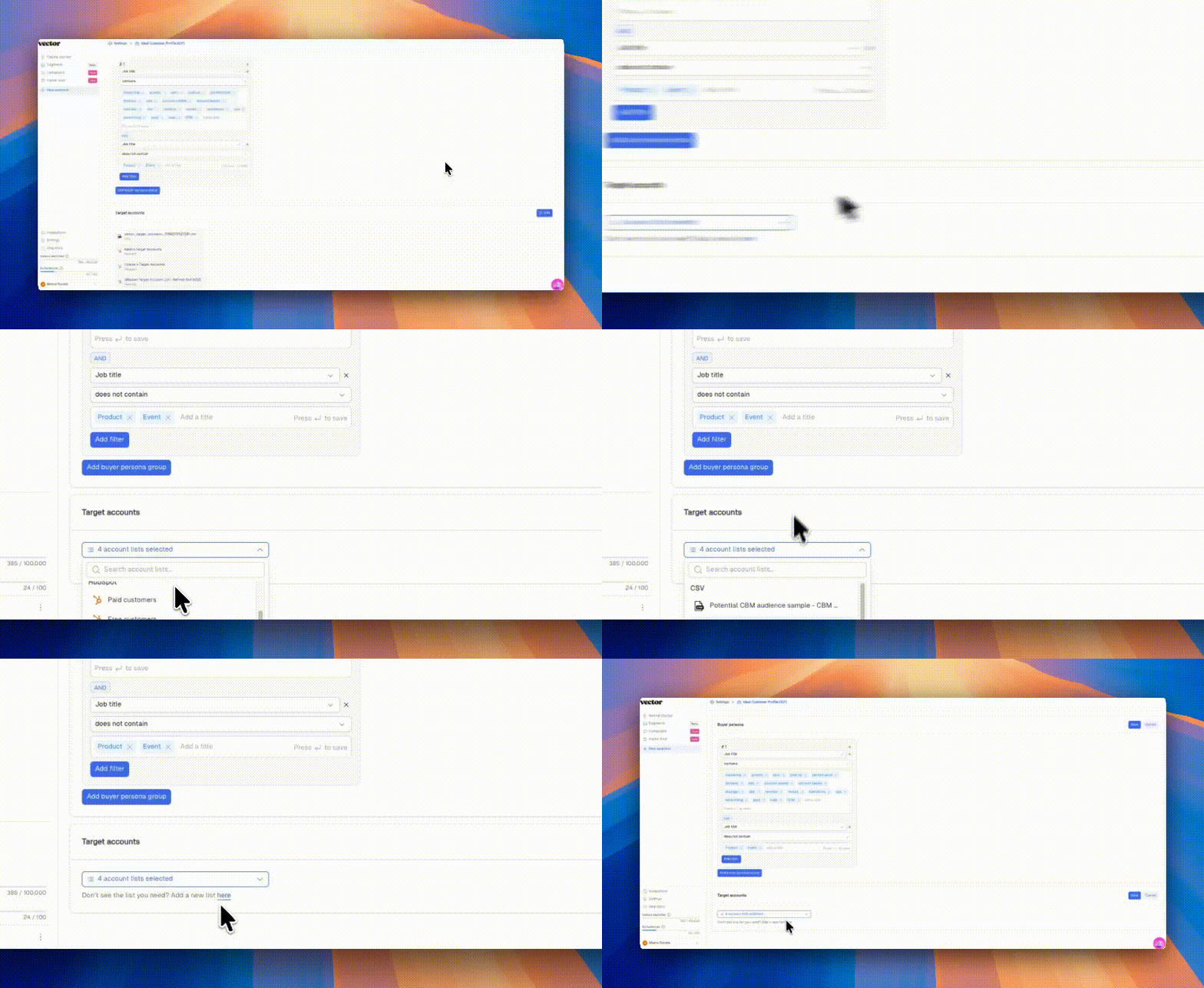
Vector gives you two ways to add lists, depending on your workflow. Both require navigating to Settings > Account Lists > Upload
Static CSV Upload: Great for one-off or fixed lists you update manually. Guide here on how to upload a CSV file (formatting requirements).
Dynamic CRM Lists (HubSpot or Salesforce): Pulls lists directly from your CRM and keeps them synced automatically.
Target Account Lists (Extra Magic ✨)
When you mark a list as a Target Account List, Vector unlocks more context for you:
Account owner: We surface who owns the account in your CRM, so you know exactly who to route signals to.
Deal stage: Map accounts to their spot in your sales pipeline (prospect, demo, closed-won, etc.).
Account stage: Identify if they’re a customer, churned, or somewhere in between.
These fields become filterable inside segments, so you can layer your targeting by pipeline stage, customer lifecycle, or ownership.
Example:
If someone from your target account list clicks a paid ad → Vector ties it to the account owner and stage → you can ping sales right away.
If someone from a key account visits your demo page → you can use Segments to route that signal for retargeting.
Quick Recap
Add accounts via CSV or CRM.
Use them for reporting: Ad Reveal, Campaigns, Visitor Feed
Use them for segmentation: Account List, deal stage, account stage
Eg, filter by top accounts, filter by closed lost opps, exclude customers from existing web traffic, and more
Slice and dice however you need (tiers, SMB vs Enterprise, customers, competitors).