Send a Webhook by Segment
Last updated: November 6, 2025
Follow the steps below to set up a webhook and connect it to your segments.
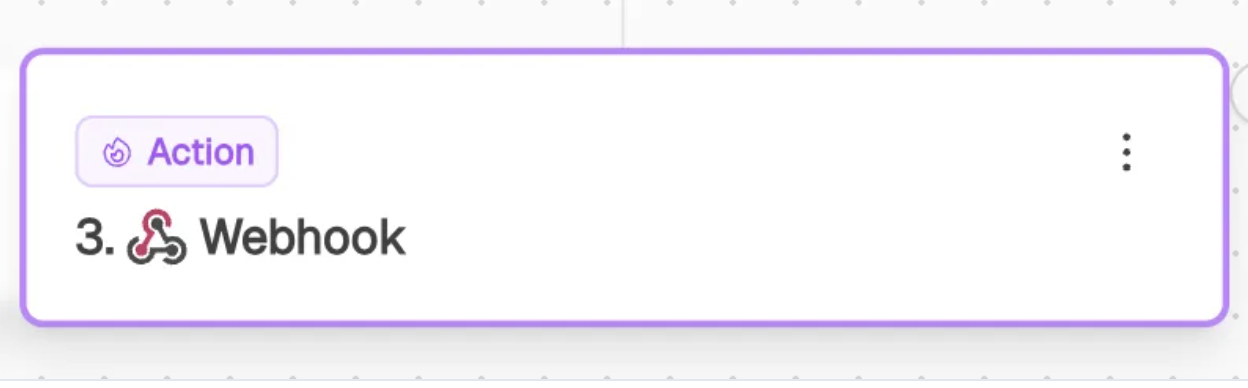
1. Add the “Webhook” Action to a Segment
Navigate to the segment you'd like to track and click “+ Add Action.”
Choose “Webhook” from the list and save your changes.
2. Note the Segment ID
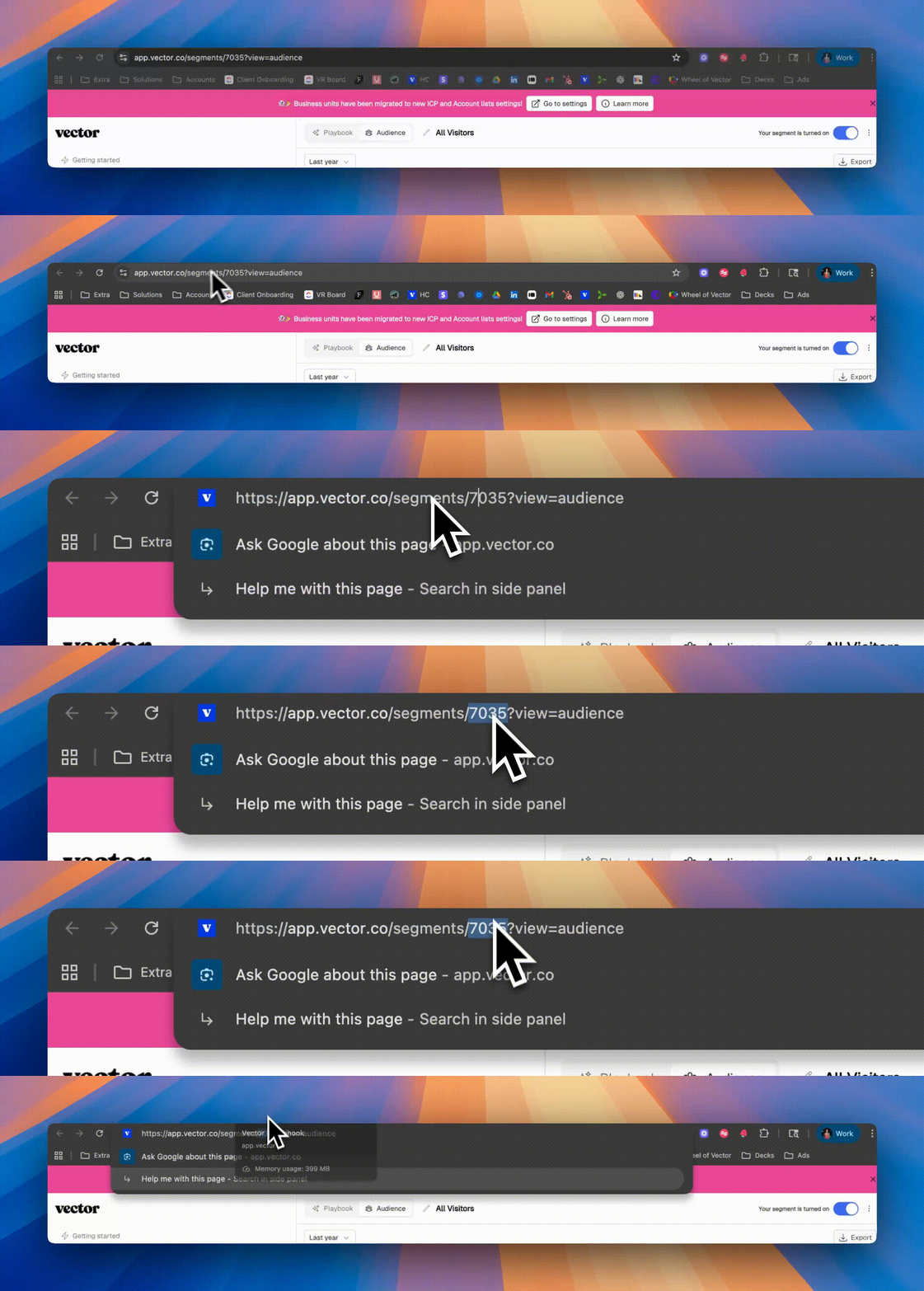
While still on the segment page, take note of the segment ID.
You’ll find it in the URL, like so:
https://app.vector.co/segments/12345
In this case, the segment ID is 12345.
3. Go to Webhook Settings
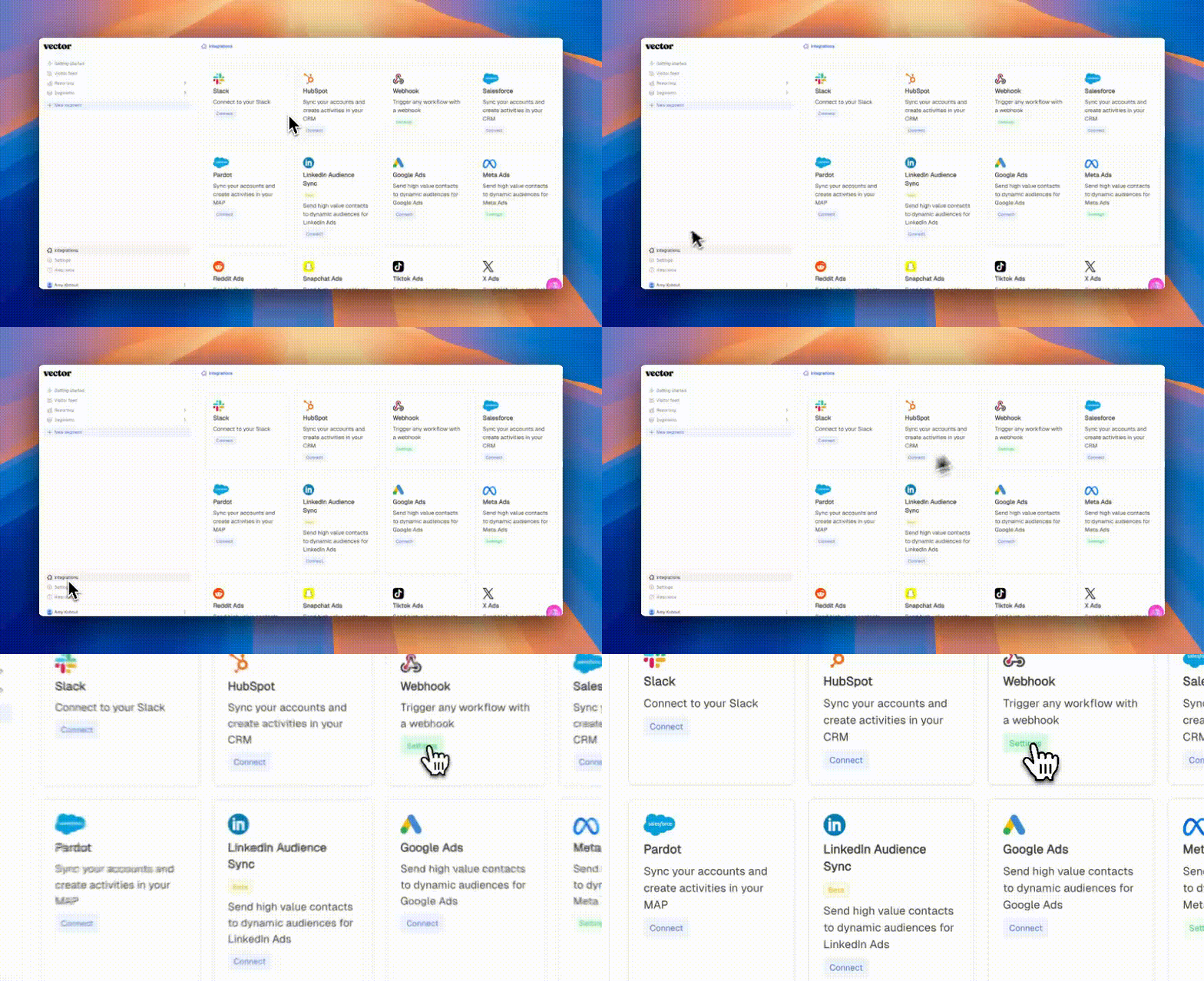
Head to Integrations (bottom-left of your Vector dashboard) → Integrations → Webhook
4. Add a New Endpoint
Click the + Add Endpoint button.
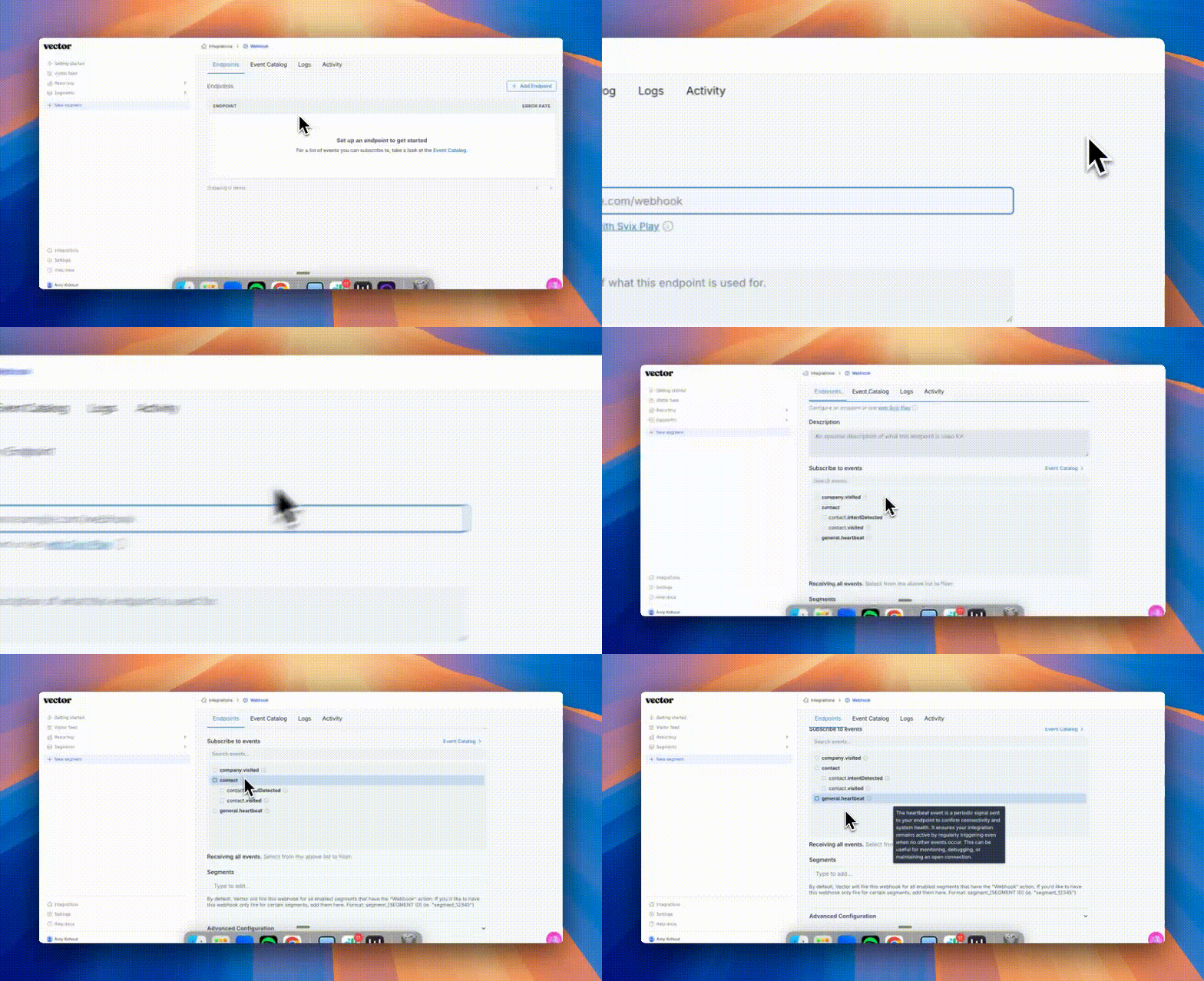
Choose the event types you’d like to track (e.g.,
contact.visited,contact.intent)
Connect the endpoint to a segment
You can connect up to 10 segments to one endpoint! 💪
Option 1 (Recommended — Fastest)
Save the endpoint.
Add “Webhook” as an Action to an existing or new segment.
The Action tells Vector where to send data for that segment.
Actions are segment-by-segment — intentionally designed so you can control where each play’s data is pushed.
When adding the Webhook Action, select your endpoint from the dropdown.
This automatically connects the segment to the endpoint.
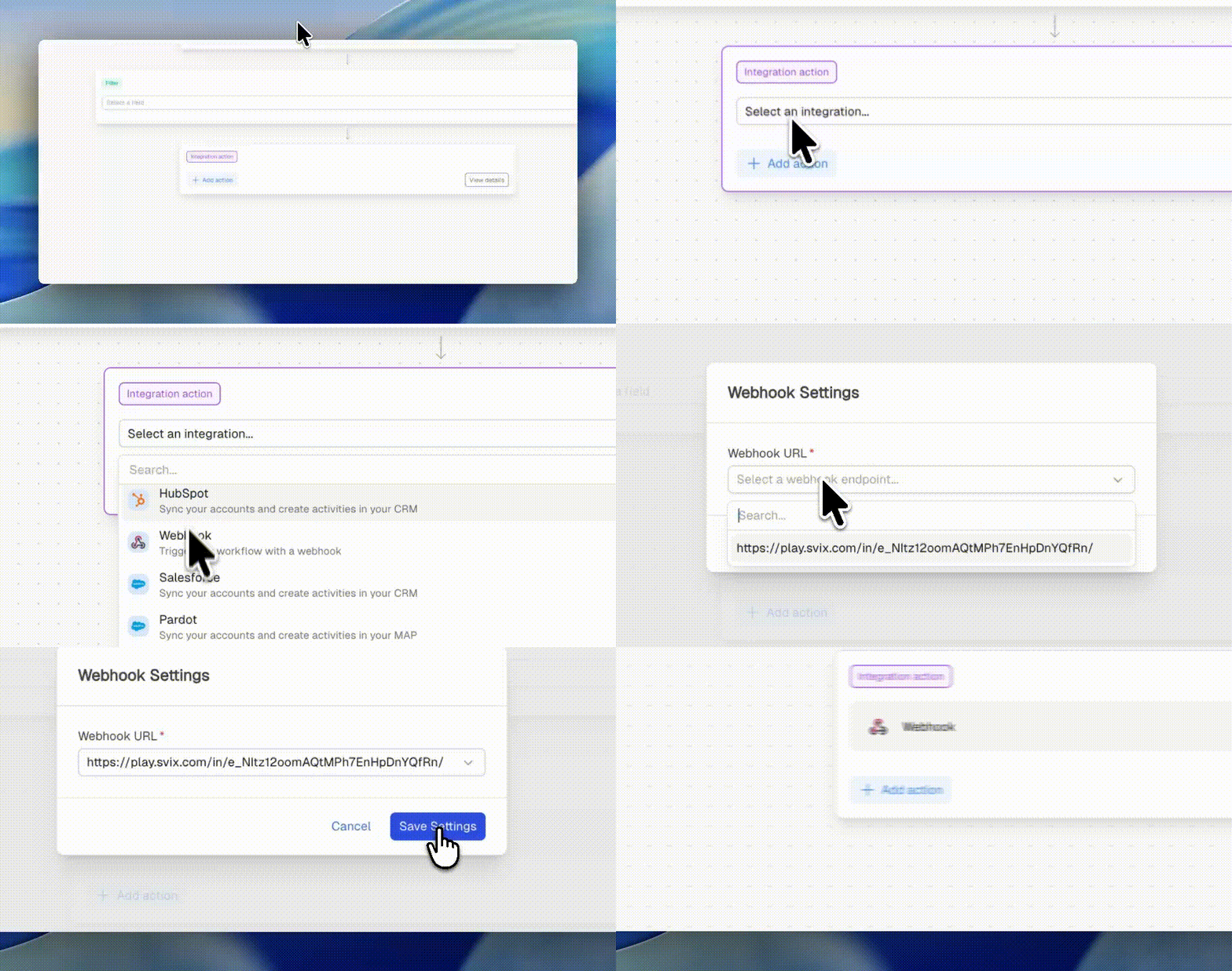
Option 2 (Manual Connection)
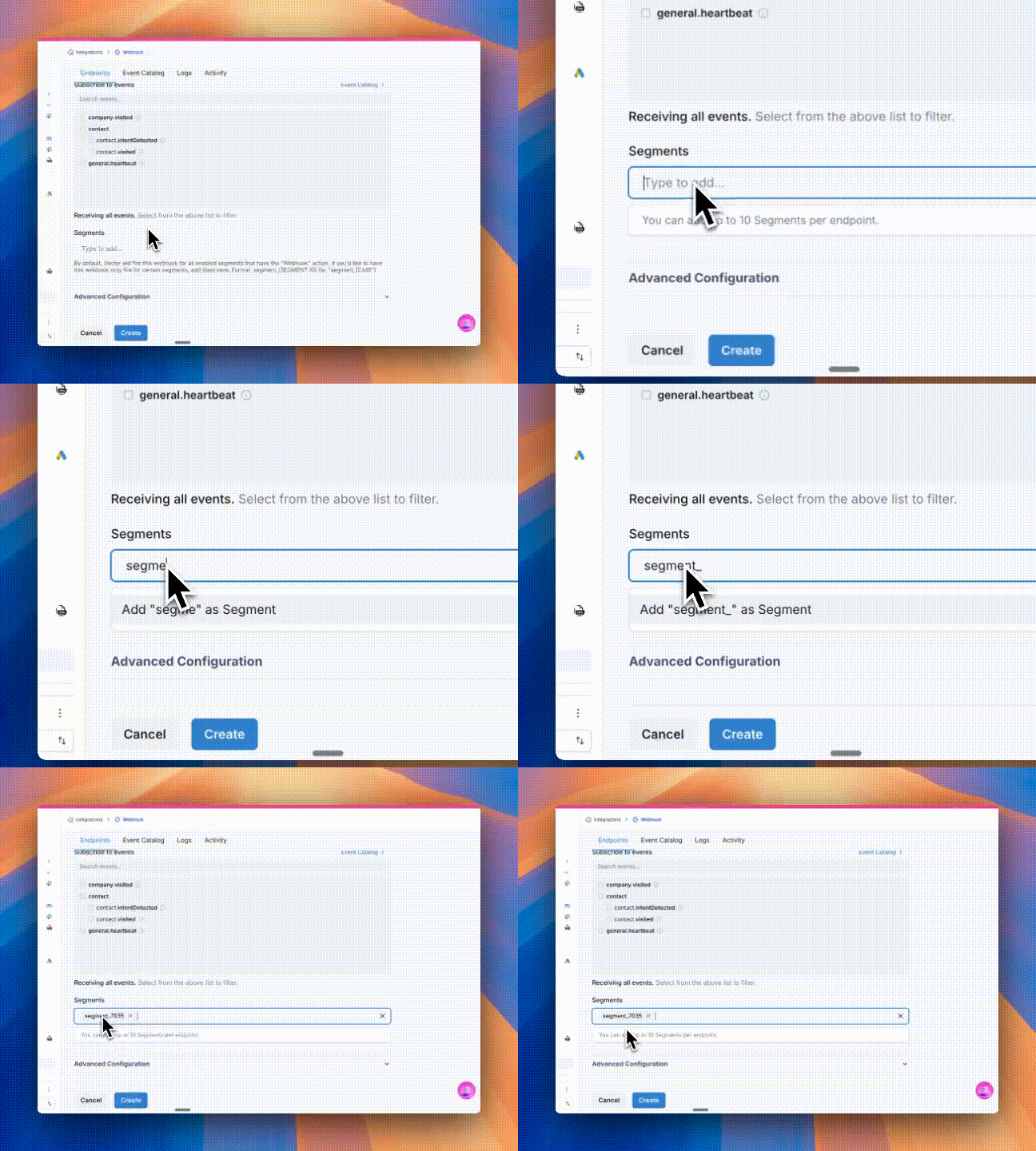
If you prefer, you can still manually associate segments while creating the endpoint:
In the Segment field, list the segments you want to connect (using the format below).
Example:segment_12345 segment_67890
In the Segment section, enter any segments you’d like to limit the webhook to. Use this format:
segment_12345 segment_67890
Save the endpoint once complete!
Important Tips:
If this Segment field is left blank, the webhook will apply to all active segments with the “Webhook” action.
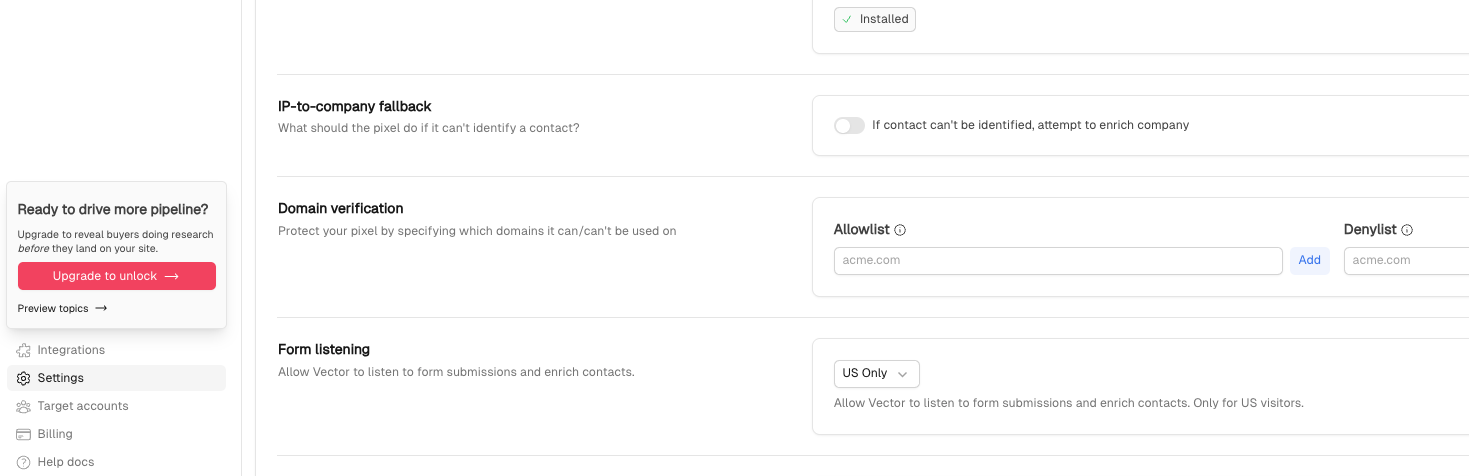
If you select company.visited as your event type, make sure the IP to company fallback toggle is turned on.
You’ll find this setting under Settings (bottom-left corner) > Pixel API > IP to Company Fallback.
Turning this on helps Vector identify anonymous traffic at the company level.