Set up a Webhook to push to Snowflake
Last updated: October 19, 2026
Sending Vector Webhooks Directly into Snowflake
This guide streams Vector events into a Snowflake table with no infrastructure to host. Vector’s webhook system (powered by Svix) calls Snowflake’s SQL API directly, authenticated with a Snowflake Programmatic Access Token (PAT).
Setup time: ~15 minutes
You’ll need: a Snowflake role that can create users, roles, warehouses, and network policies (typically ACCOUNTADMIN), and admin access to your Vector workspace.
How it works

Every event type (e.g.
visitor.identified) lands in one table, with the full payload stored asVARIANT. Event types have different fields, so you model each type with a view (Step 12).Delivery is at-least-once: retries can create duplicate rows, so query through the
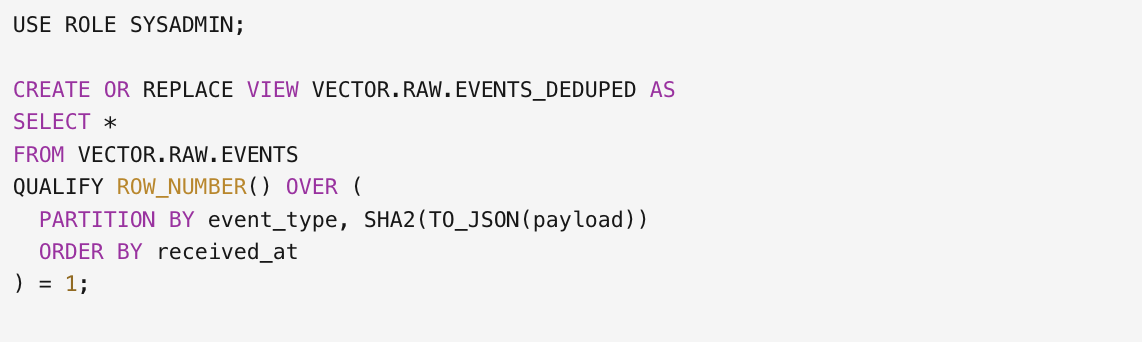
EVENTS_DEDUPEDview (Step 6).A small dedicated warehouse runs the inserts. Read Cost before going live.
Part 1 — Snowflake Set Up
Run each block in a Snowsight worksheet. Names in UPPER_CASE can be changed, but if you change them, update the transformation in Step 10 to match.
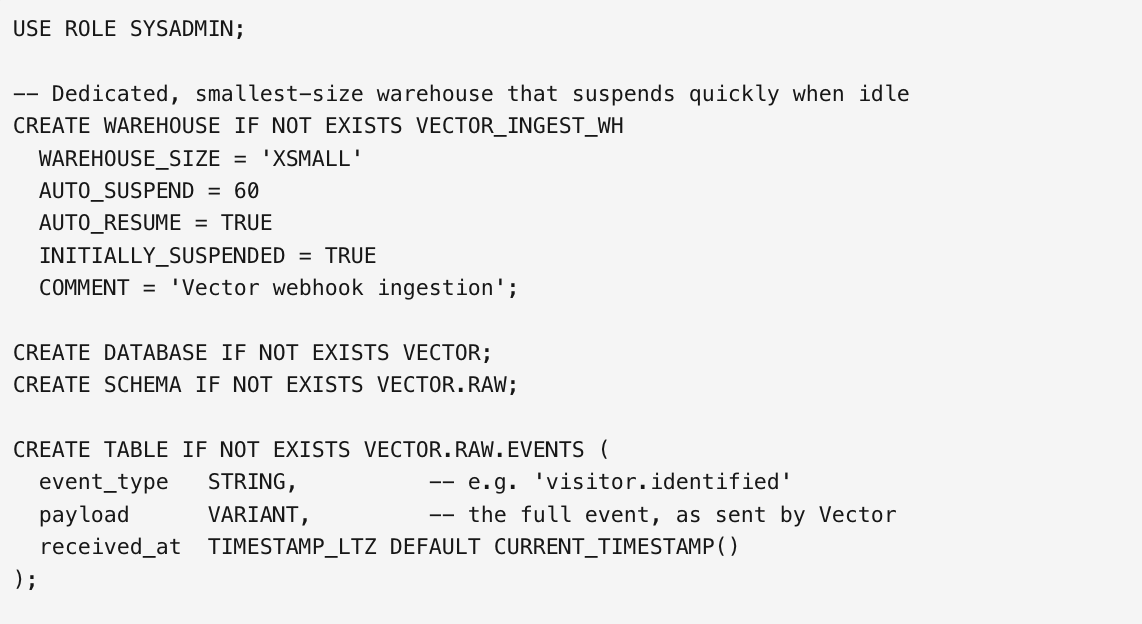
Step 1. Create the warehouse, database, and table
USE ROLE SYSADMIN;

-- Dedicated, smallest-size warehouse that suspends quickly when idle
CREATE WAREHOUSE IF NOT EXISTS VECTOR_INGEST_WH
  WAREHOUSE_SIZE = 'XSMALL'
  AUTO_SUSPEND = 60
  AUTO_RESUME = TRUE
  INITIALLY_SUSPENDED = TRUE
  COMMENT = 'Vector webhook ingestion';

CREATE DATABASE IF NOT EXISTS VECTOR;
CREATE SCHEMA IF NOT EXISTS VECTOR.RAW;

CREATE TABLE IF NOT EXISTS VECTOR.RAW.EVENTS (
  event_type   STRING,          -- e.g. 'visitor.identified'
  payload      VARIANT,         -- the full event, as sent by Vector
  received_at  TIMESTAMP_LTZ DEFAULT CURRENT_TIMESTAMP()
);
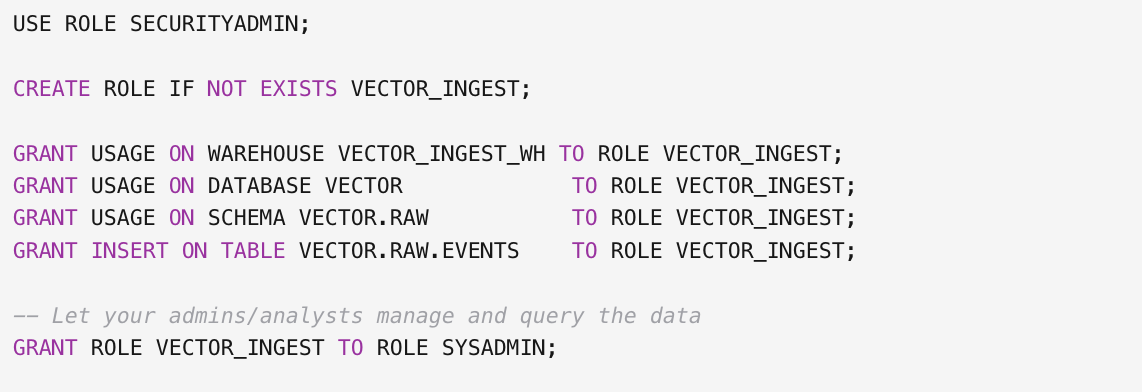
Step 2. Create a least-privilege role
This role can only insert into the events table. It cannot read or change anything else.
Step 3. Allowlist Vector’s webhook IPs (network policy)
Snowflake requires a network policy before a service user can authenticate with a PAT. This one only allows connections from the IPs Vector’s webhooks are sent from.
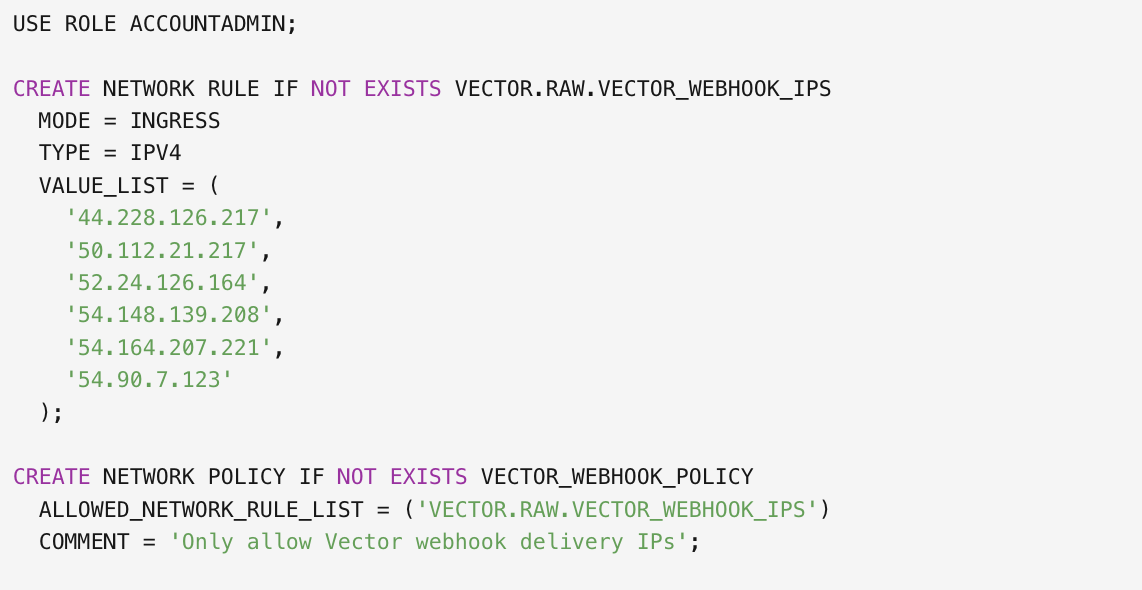
The current list is published at https://docs.svix.com/webhook-ips.json. If deliveries start failing with 403, check that list for changes and update the rule: ALTER NETWORK RULE VECTOR.RAW.VECTOR_WEBHOOK_IPS SET VALUE_LIST = ( ... );
Step 4. Create the service user
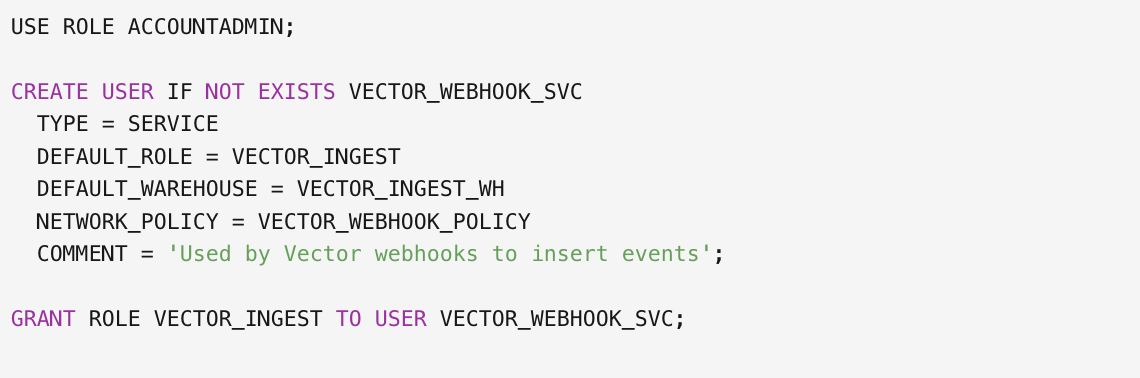
Step 5. Generate the Programmatic Access Token

The output includes a token_secret column. Copy it now. Snowflake shows it only once. You’ll paste it into Vector in Step 9.
If you get an error about expiry, your account’s authentication policy may cap PAT lifetime below 365 days. Use the allowed maximum, and set a calendar reminder to rotate before it expires (see “Rotating the token”).
Step 6. Create the deduplicated view
Retried deliveries send an identical payload, so duplicates are removed by hashing the payload.
Step 7. Get your account URL

Your endpoint URL is:

At the end of Part 1 you should have:
[ ] Endpoint URL (
https://<account_host>/api/v2/statements)[ ] PAT
token_secret
Part 2 — Vector Set Up
Step 8. Create the webhook endpoint
In Vector, go to Integrations → Webhook (https://app.vector.co/integrations/webhook) and click Add Endpoint.
Endpoint URL:
https://<account_host>/api/v2/statementsDescription:
SnowflakeSubscribe to events: select the event types you want in Snowflake (e.g.
visitor.identified), or leave all selected.Click Create.
Step 9. Add the authentication headers
On the endpoint’s Advanced tab, under Custom Headers, add:
Header | Value |
|---|---|
|
|
|
|
|
|
Step 10. Add the transformation
On the Advanced tab, enable Transformations, then replace the default code with:
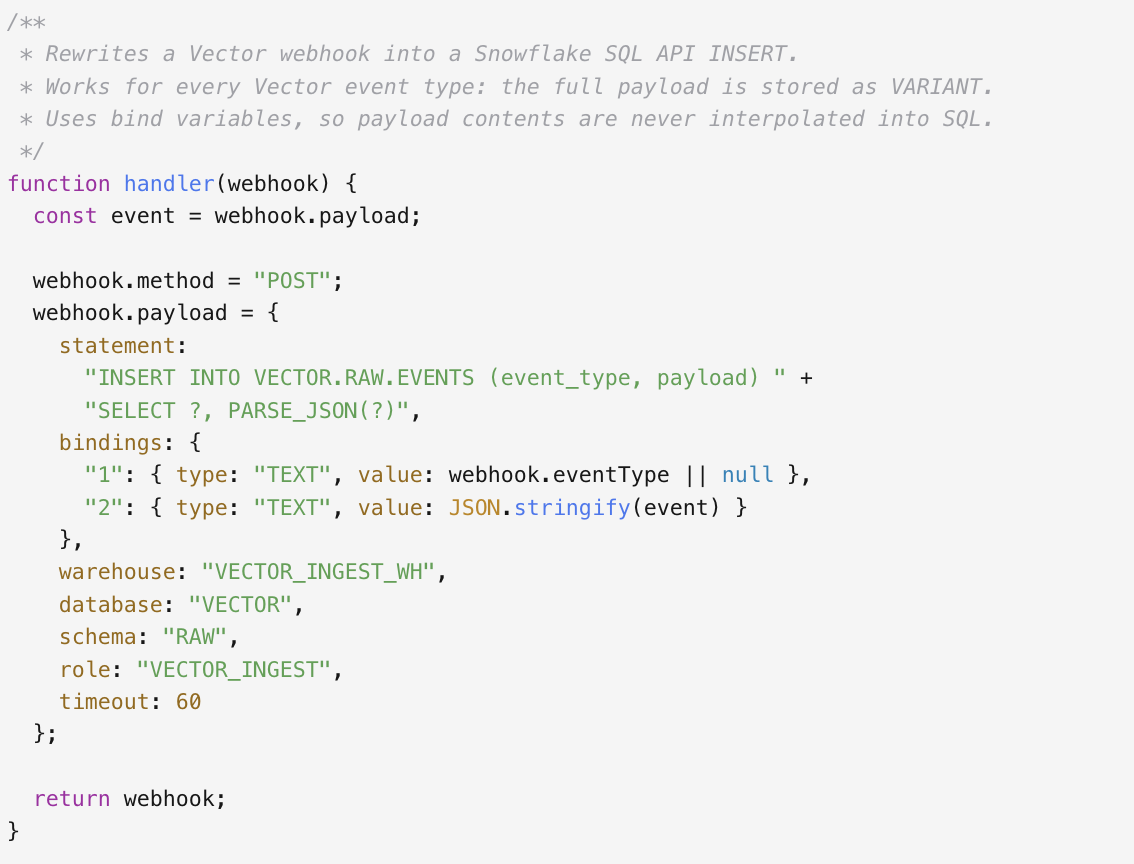
Click Save.
Step 11. Send a test event
Open the endpoint’s Testing tab, pick an event type (e.g.
visitor.identified), and click Send Example.Check the delivery attempt. A
200(or202) response means success.In Snowflake, confirm the row arrived:

You’re live. 🎉
Part 3 — Modeling the data
Step 12. Create a typed view per event type
Every event type has its own fields. Here’s a ready-made view for visitor.identified:
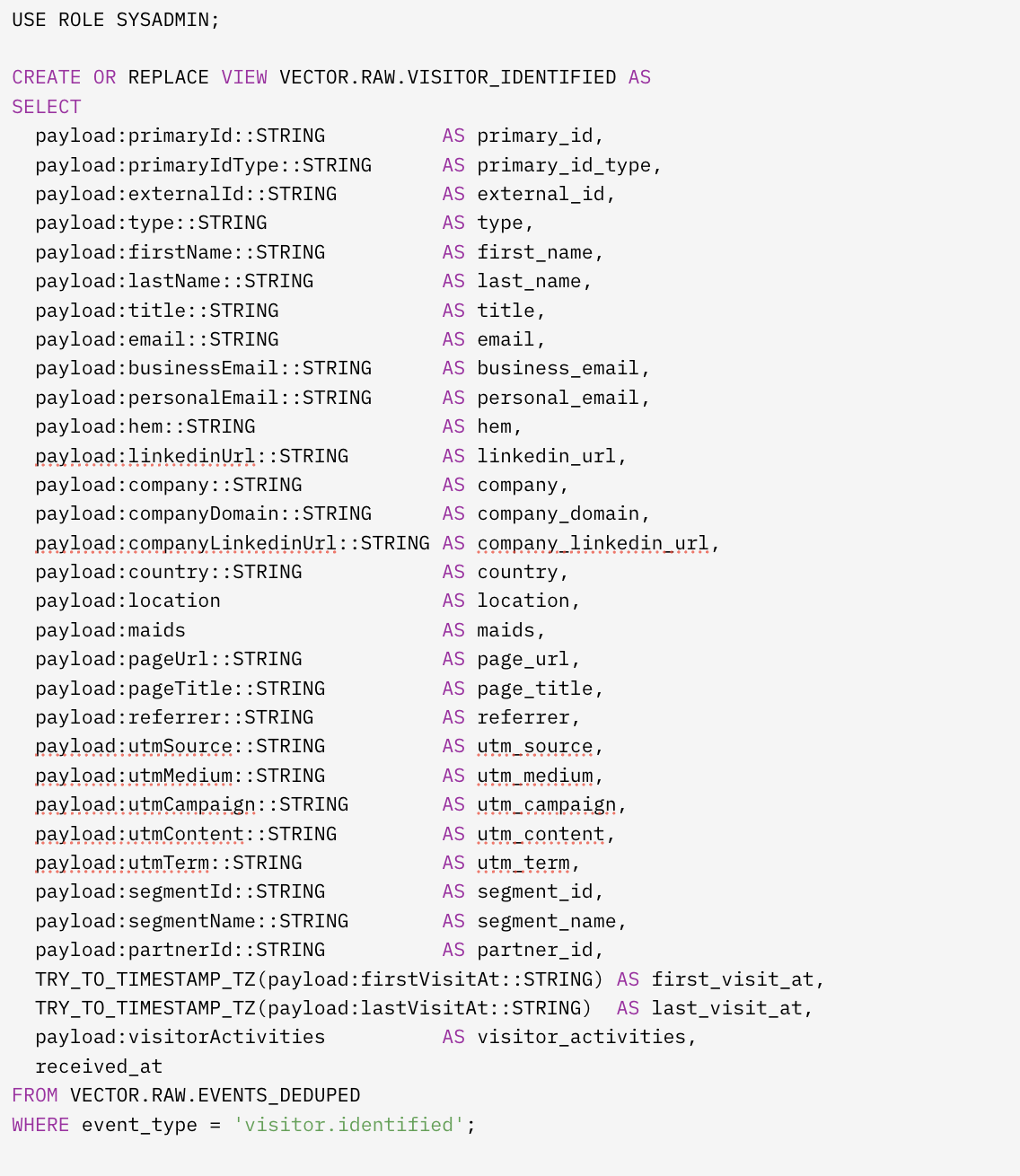
All fields are optional, so missing values come through as NULL. Nested fields (location, maids, visitorActivities) are kept as VARIANT. To get one row per activity:

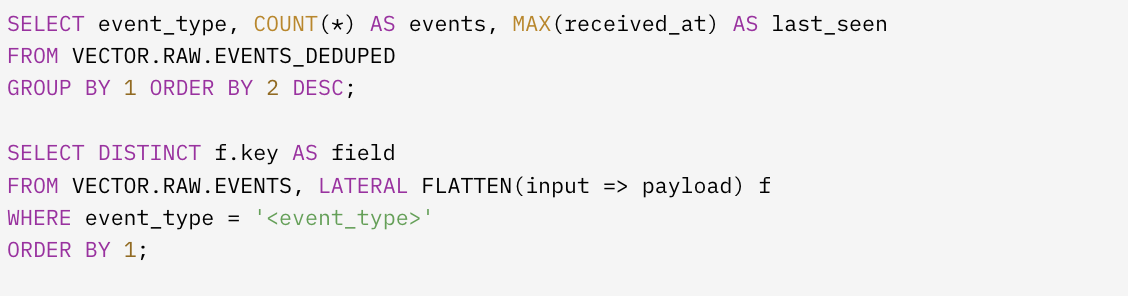
To see which event types you’re receiving and what fields they contain:
Cost
Each delivered event briefly runs VECTOR_INGEST_WH. The warehouse suspends after 60 idle seconds, but if events arrive continuously it may never suspend, and an X-Small warehouse running all day uses ~24 credits per day.
Recommended guardrail (requires ACCOUNTADMIN):
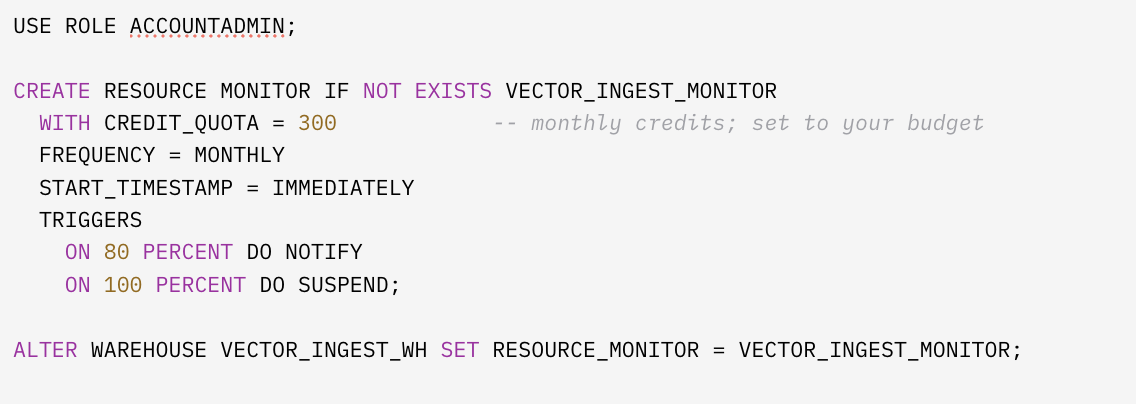
If the monitor suspends the warehouse, deliveries fail and Vector retries them on its retry schedule. Events that run out of retries can be replayed from the endpoint’s delivery log in Vector.
Check actual usage:

Rotating the token
PATs expire. To rotate without downtime:
Generate a second token:

In Vector, update the
Authorizationheader toBearer <new token_secret>.Send a test event and confirm it arrives.
Remove the old token:

Check expiry dates any time:

Troubleshooting
Symptom in Vector’s delivery log | Likely cause | Fix |
|---|---|---|
| Token wrong, expired, or missing | Re-check Step 9; rotate the token if expired |
| Delivery IP not in the network rule | Compare Step 3 against https://docs.svix.com/webhook-ips.json and update |
| Object name mismatch or missing grant | Confirm names in the transformation match Part 1; re-run Step 2 grants |
| Warehouse suspended by resource monitor, or missing USAGE grant | Raise the quota or re-grant |
Timeouts | Warehouse resuming under load | Usually resolves on retry |
| Event type not passed to the transformation | Send a test event and check the transformation’s test output in Vector |
Duplicate rows | Expected under at-least-once delivery | Query |
Removing the integration
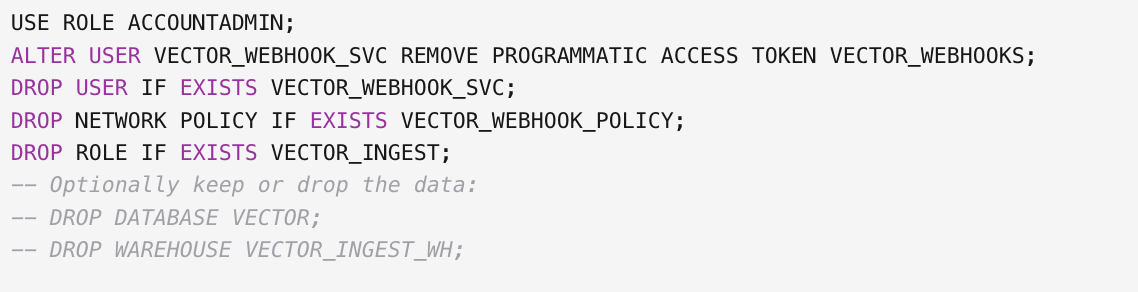
Then delete the Snowflake endpoint in Vector under Integrations → Webhook.