Segments Overview
Last updated: September 15, 2026
Segments help you define which contacts you care about and decide what should happen when they qualify.
They combine three core building blocks:
Source → Filters → Actions
Use Segments to narrow an audience, activate contacts through your connected tools, and monitor whether data is syncing as expected.
⚠ Segments do not auto-save. Make sure to click Save in the top-right corner before leaving the Segment builder.
What Is a Segment?
A Segment is a group of contacts that meets the criteria you define.
Each Segment includes:
A source – where the contacts come from
Filters – additional criteria that determine who qualifies
Actions – what Vector should do with qualifying contacts
Status – whether the Segment is currently active or disabled
Sync activity – information about when and how data was most recently pushed
This lets you create workflows around the contacts most relevant to your team.
Navigating the Segments Page
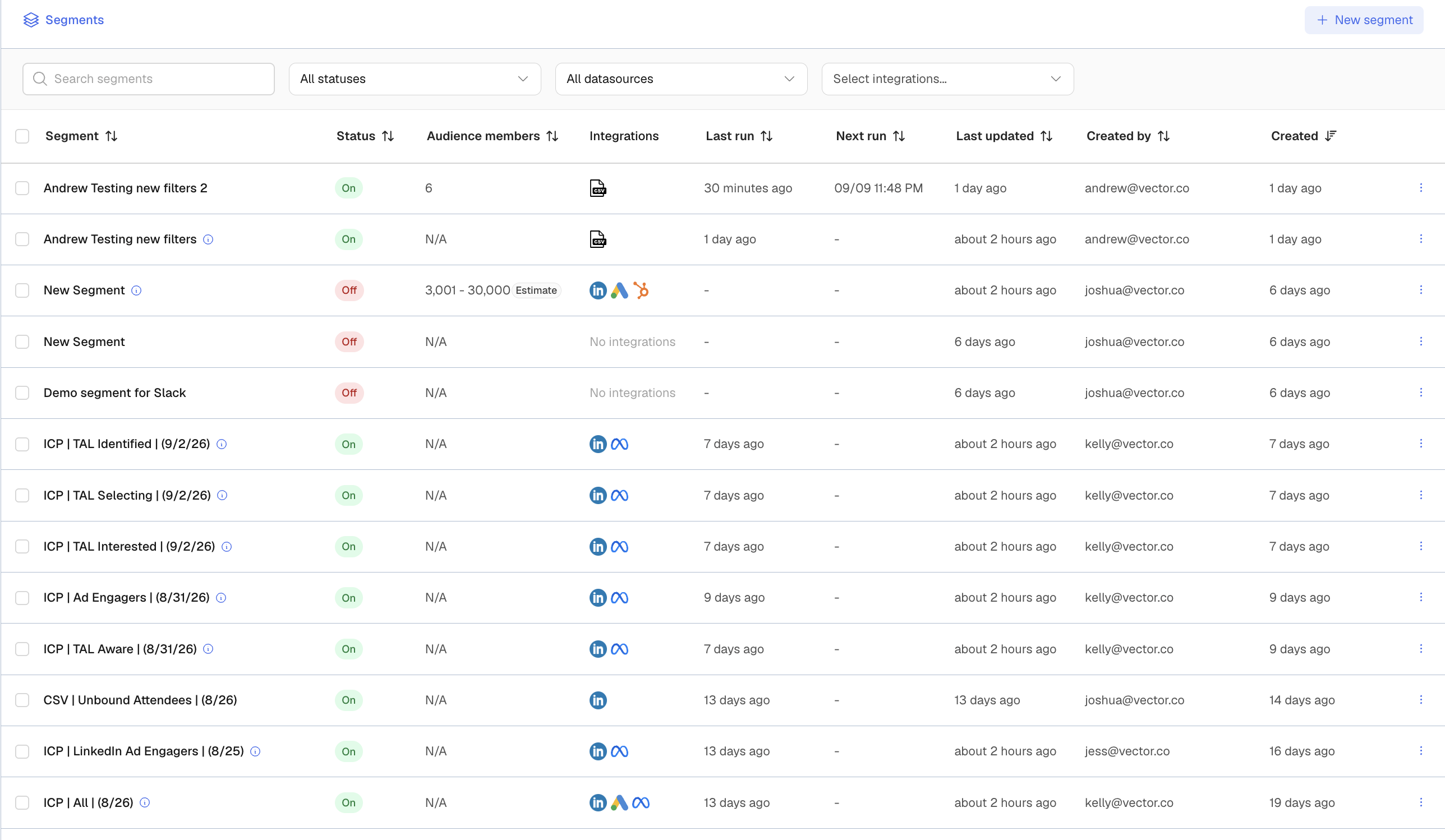
When you open Segments, you’ll see your existing Segments in one place.
Depending on your workspace, each Segment can show information such as:
Segment Name
Status – On or Disabled
Last Sync Size
Active Integration
Last Run
Updated Date
Created Date
You can also search and filter your Segments to quickly find the workflow you’re looking for.
What Changes on September 16?
The core Segment workflow remains the same.
You’ll still:
Choose a source → apply filters → add actions → save → activate
The main change is that Segments can now use two pieces of account-level context:
Tracked Account
Filter contacts based on whether their company is one of the accounts your team is actively tracking in Vector.
For example:
Site Visitors + Tracked Account = Yes
This helps you focus a workflow on visitors from accounts that are already part of your ABM motion.
Account Stage
Filter contacts based on the buying stage Vector has assigned to their account. To learn more about account stages, click here.
For example:
Site Visitors + Tracked Account = Yes + Account Stage = [selected stage]
This lets you combine individual contact activity with broader account-level readiness.
Segments vs. the Signals Library
The Signals Library and Segments work together, but they serve different purposes.
Signals Library
The Signals Library is where you configure the activity Vector should monitor across accounts.
These signals help Vector understand what is happening within an account and contribute to its account-level intelligence and buying stage.
To learn more about the Signals Library, click here.
Segments
Segments are used to activate contacts.
They determine which contacts qualify for a workflow and what Vector should do with them.
Important for September 16
The new Signals Library does not become a general library of Segment filters at launch.
For example, turning on a new signal does not mean that signal automatically becomes a standalone Segment criterion.
Instead, the primary way Segment workflows use the new account intelligence at launch is through:
Tracked Account
Account Stage
Common Segment Patterns
Here are a few simple ways to think about building Segments.
Prioritise visitors from important accounts
Site Visitors
Tracked Account = Yes
→ Send to your chosen destination
Focus on contacts from accounts further along in the buying journey
Site Visitors
Tracked Account = Yes
Account Stage = selected stage
→ Activate through CRM, webhook, or another available action
Reach contacts that match your ICP
ICP
additional firmographic or job filters
→ Activate through your selected action
Work from an existing contact list
CSV or Integrated List
additional filters
→ Push to the destination your team uses
The best Segment structure depends on the play you’re trying to run, but the basic model stays the same: start with the right source, narrow it with filters, then choose the action.
Viewing Members
The Segment builder can preview members as you apply your source and filters, helping you understand who may qualify before activation.
Once the Segment is turned on, contacts continue to populate based on the criteria and data collected.
⚠ Segments do not auto-backfill. Contacts begin populating after the Segment is turned On.
Segment Status and Syncing
A Segment must be active for Vector to begin collecting qualifying contacts and running its configured actions.
Use the Segment overview to monitor:
Whether the Segment is active
When it last ran
How many contacts were included in its most recent sync
Which integrations or actions are connected
If a Segment is active but data is not reaching the expected destination, review the Segment source, filters, and connected action.
Related Guides
Ready to build one?
You may also want to review:
Quick Recap
Segments remain Vector’s contact activation layer on September 16.
Use them to:
Choose the contacts you want to start with
Narrow them using filters
Add Tracked Account or Account Stage context
Send qualifying contacts through your selected actions
Monitor status and sync activity
The new Signals Library helps Vector understand account behaviour and determine buying stage, but its individual signals are not general Segment filters at launch.