Connect Fathom to Vector
Last updated: September 15, 2026
Connect Fathom to Vector to bring conversation intelligence from your customer and prospect calls into Vector.
Once connected, Vector can use available call and transcript data as additional evidence about what's happening across your accounts and buyer journeys.
Depending on the data available from Fathom, this can help provide context from conversations alongside the marketing, sales, and buyer activity already available in Vector.
Before you begin
You'll need access to the Fathom account you want to connect.
Depending on how Fathom has been provisioned for your Vector organization, you may connect using the authentication option available in Settings → Integrations.
Note: Fathom is a flag-gated beta, not GA: the integration card is not available unless requested. Reach out to Vector Support (support@vector.co) for more information on the beta.
Connect Fathom
In Vector, go to Settings → Integrations.
Find Fathom.
Select Connect.
Follow the prompts to authorize your Fathom account or provide the required credentials.
Return to Vector.
Confirm that Fathom shows as Connected.
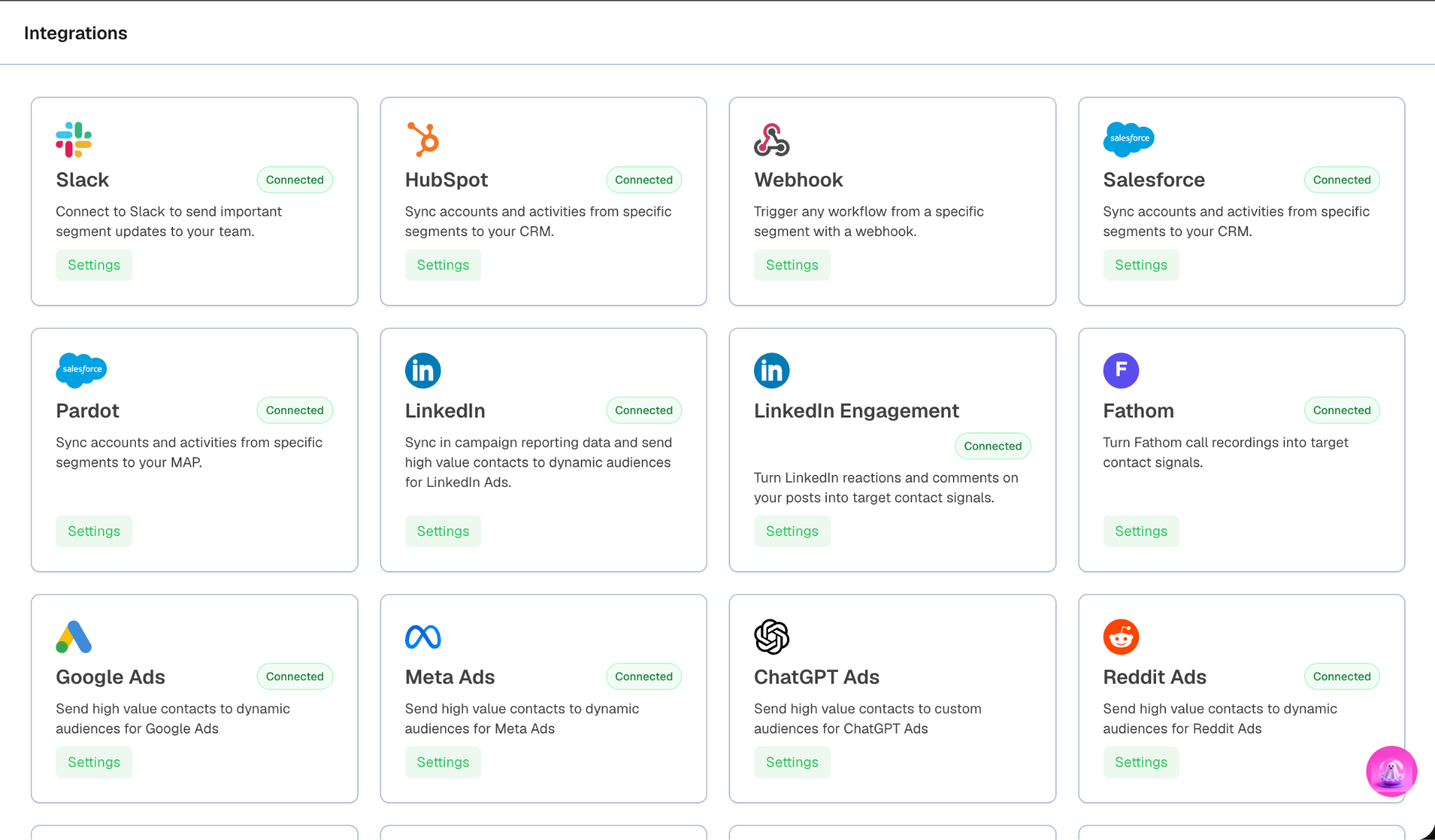
Once connected, Vector can begin syncing the applicable conversation data from Fathom.
What Vector uses from Fathom
Vector can use available Fathom conversation data such as:
Call records
Conversation transcripts
Transcript-derived activity
This information can provide additional sales and conversation context across the buyer journey.
Where applicable, conversation activity may appear alongside other account evidence in Vector.
Verify your Fathom connection
After connecting Fathom:
Return to Settings → Integrations.
Confirm that Fathom shows as Connected.
Check the most recent sync information, if shown.
Review an account where you expect recent conversation activity.
Confirm that applicable call or conversation information is appearing.
Transcript availability
Vector uses the transcript data Fathom makes available through the integration.
Very large transcripts may be shortened when processed. If this happens, Vector can still use the available portion of the conversation without requiring the complete transcript.
Fathom and Account Journeys
Conversation activity can provide additional context alongside other evidence associated with an account.
For example, an Account Journey may contain activity from:
Your CRM
Marketing automation
LinkedIn
Research signals
Website behavior
Conversations
This makes it easier to review sales and marketing activity in one account context rather than treating call data as a separate system.
Related: Understanding account stages and journeys
Fathom and Signals
Connecting Fathom makes applicable conversation data available to Vector, but connecting an integration and enabling signals are separate actions.
If conversation-based signals are available in your Signal Library, manage them from Signal Library rather than from the Fathom integration itself.
Related: Using the Signal Library
Troubleshooting
I don't see Fathom in Integrations
The integrations available can depend on your organization's configuration.
If you expect Fathom to be available but don't see it, contact Vector Support.
Fathom shows as connected, but I don't see conversation activity
Confirm that:
The connected Fathom account contains the calls you're expecting
The integration has completed a recent sync
The calls are associated with accounts or people Vector can use where applicable
If the expected data still isn't appearing, contact Vector Support.
Some transcript content appears to be missing
Very large transcripts may be shortened during processing.
The rest of the call information can still be available even when the full transcript isn't processed.
My Fathom connection stopped working
Go to Settings → Integrations and review the Fathom connection status.
If Vector indicates that the integration needs attention, reconnect it if that option is available or contact Vector Support.