Setting up SSO (Single Sign-On)
Last updated: September 11, 2026
Single Sign-On (SSO) lets your team securely access Vector using your organization’s existing identity provider, such as Okta, Google, or Azure. Instead of managing a separate Vector login, users can authenticate through the same system your organization already uses.
Setting up SSO requires a little coordination between your identity provider and Vector:
Your identity provider (IdP): This is where your IT team configures the SAML settings.
Vector: This is where a Vector Owner completes the in-app setup and enters the details from your IdP.
Best practice is to have both your IT team and someone with Owner access to Vector involved in the setup.
Step 1: Confirm you’re an Owner
Only Owners get the keys to the SSO kingdom. Are you an Admin or Members? Great people, just not the ones holding the keys.
Here’s how to check your role:
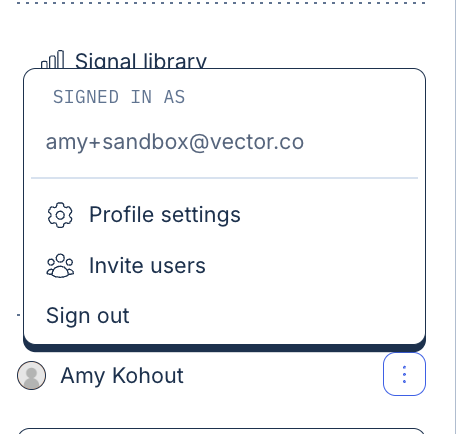
Head to the bottom left corner of Vector.
Hover over your name or click the three dots.
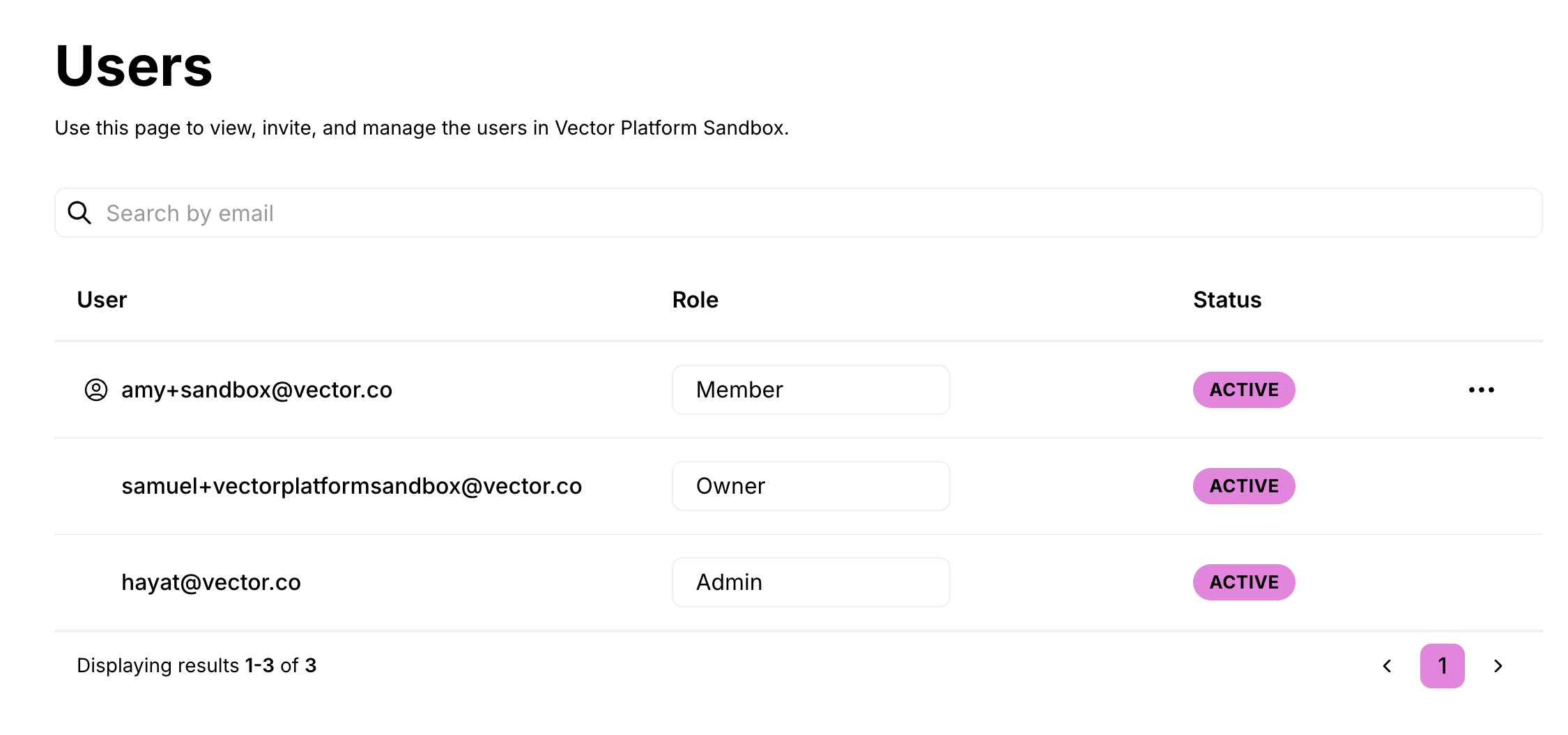
Select Invite users.
This will show a list of everyone in your org and their roles.
If you see Owner next to your name, congrats — you’re in.
If not, tap an existing Owner on the shoulder and ask them to upgrade you.
Step 2: Make sure SSO access is enabled
Go back to the bottom left corner.
Hover over your name and click Profile settings.
Peek under Organization settings for a tab called Settings.
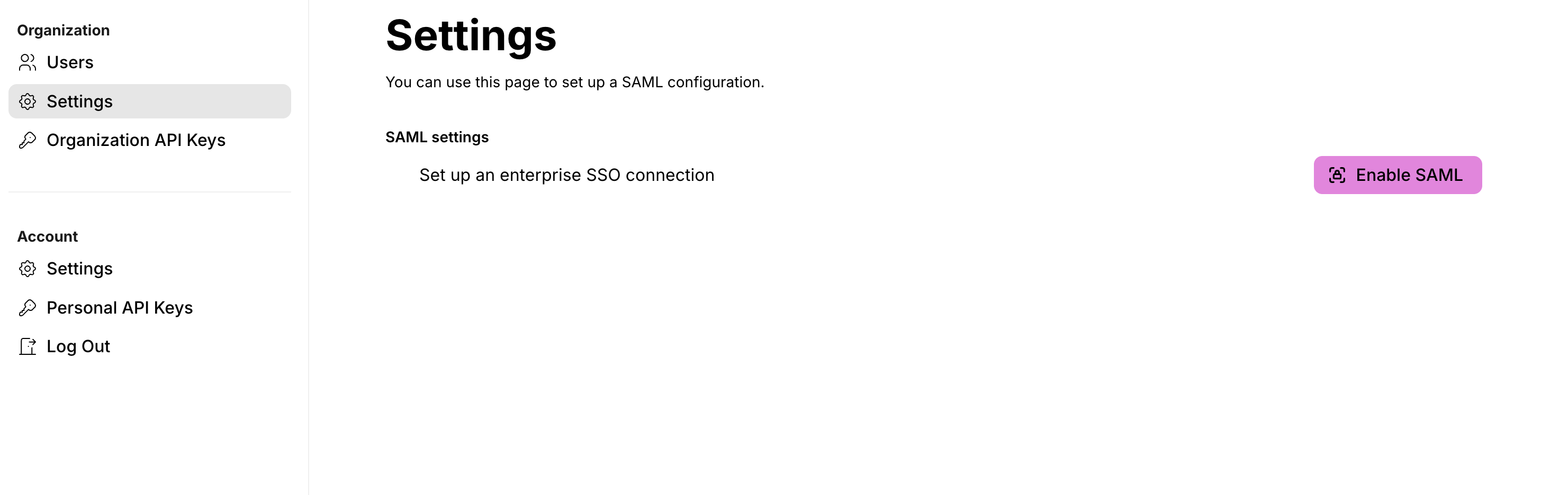
If you see Settings, you’re golden.
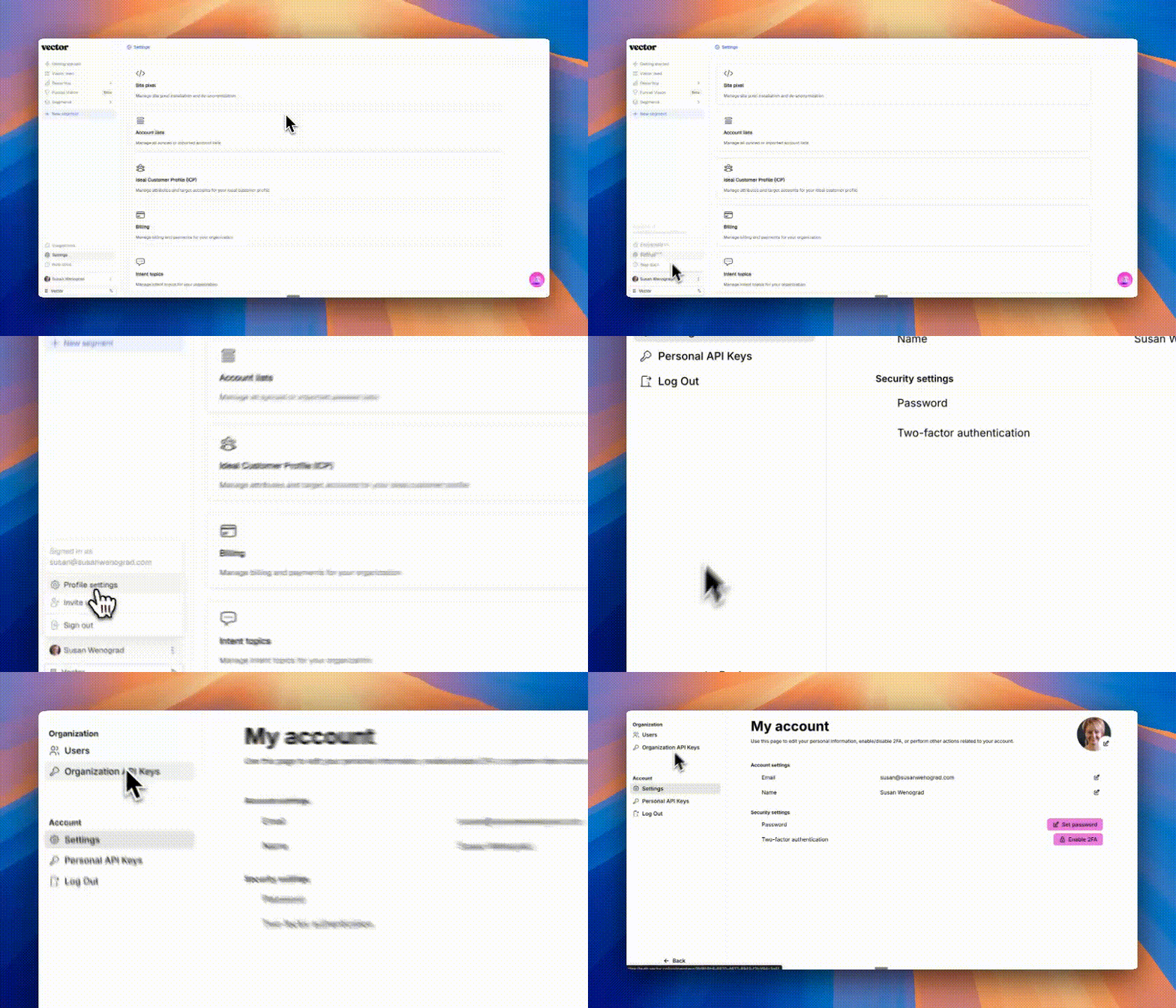
If you don’t, that just means we need to flip a hidden switch on our side (see GIF below.)
Email support@vector.co and we’ll take care of it. Once it’s on, refresh your page and check again.
Step 3: Start the setup
From Profile settings, click into Settings under Organization settings.
Click Enable SAML.
Select the Identity Provider
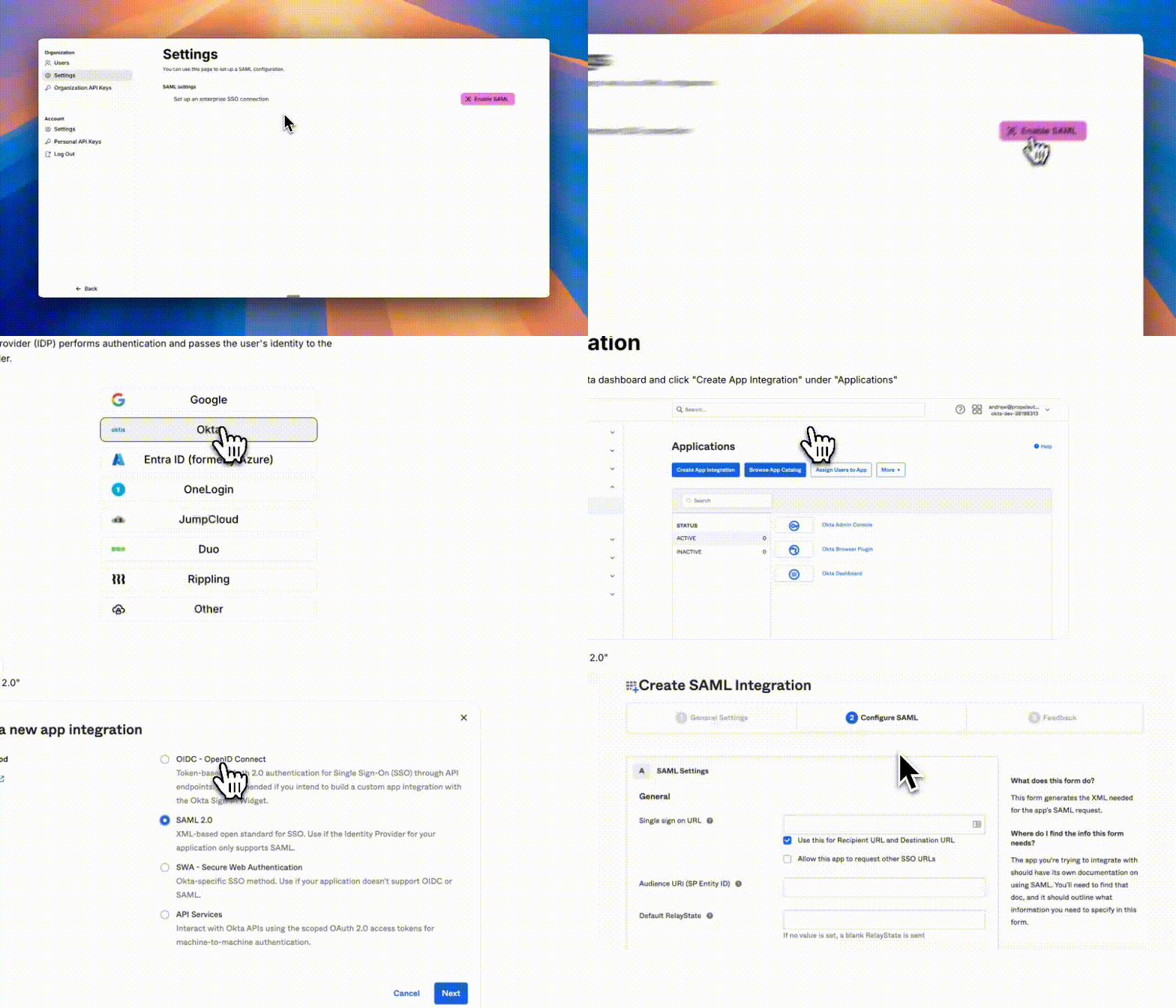
This will launch a slide-out guide. It’s not just instructions — it’s the actual implementation flow.
Here’s the flow you’ll follow:
Step 1: In your IdP (Okta, Google, Azure, etc.), create a new SAML app.
Step 2: Copy a couple of values from Vector into your IdP (like the Single Sign-On URL and Audience URI).
Step 3: In your IdP, map attributes like email, first name, last name — and if you want, role (Owner, Admin, Member).
Step 4: Copy values back from your IdP into Vector (like the SSO URL, Issuer, and Certificate).
Step 5: Save everything, then test to make sure the handshake works.
Think of it as a back-and-forth conversation: Vector tells your IdP what it needs, and your IdP tells Vector what it needs.
Step 4: Test it out
Don’t just take our word for it — make sure it works.
Refresh the page to confirm your changes saved.
Open a private or incognito window and try logging in with SSO.
If it doesn’t work, double-check the values on both sides. Nine times out of ten, it’s a sneaky typo in a URL or certificate.
Contact support
If you’re missing the Settings tab, not sure about your plan, or just feel stuck, email support@vector.co and we’ll help get you unstuck fast.