Understanding account stages and journeys
Last updated: October 16, 2026
Vector brings the activity happening across an account into one evidence-backed view so you can understand where an account is in its buying journey, who is involved, and what activity supports that assessment.
For each tracked account, Vector combines an account stage and score with the underlying signals and buyer activity that explain what’s happening.
The Account Journey is where you can explore that evidence in detail.
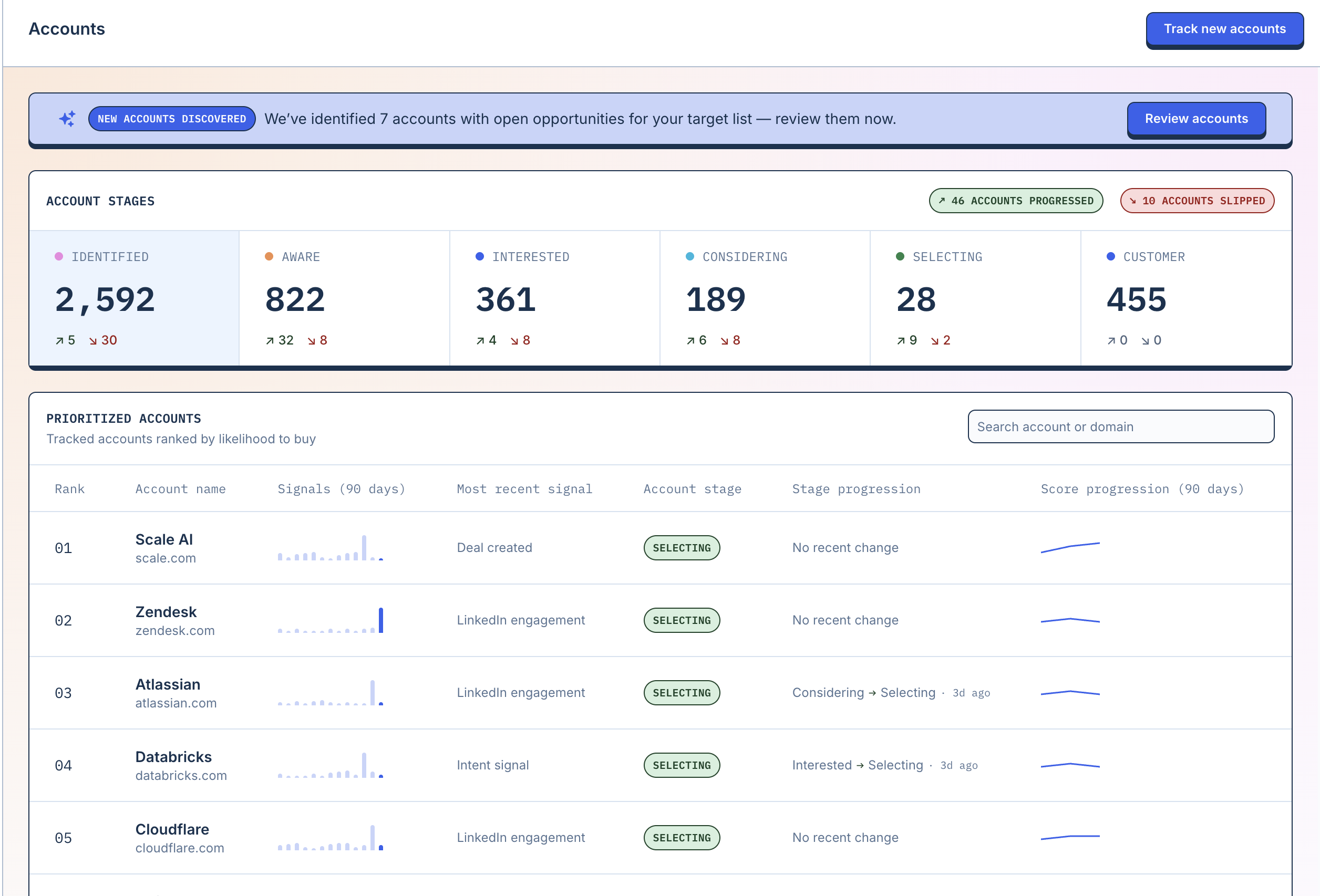
Account stages
Vector uses AI to assess where each tracked account appears to be in its buying journey, based on the signals and activity available for that account.
Accounts are organized into six stages:
Stage | What it means |
|---|---|
Identified | You're tracking these accounts, but Vector hasn't observed meaningful activity from them yet. |
Aware | These accounts are expressing signals that indicate they're aware of your brand. |
Interested | These accounts are expressing signals that indicate they're interested in your product. |
Considering | These accounts are expressing signals that indicate they may be about to enter the buying process. |
Selecting | These accounts are actively in the buying process. |
Customer | These accounts are current customers. |
You’ll see the current stage anywhere Vector surfaces account prioritization, including on the Accounts page and within the Account Journey.
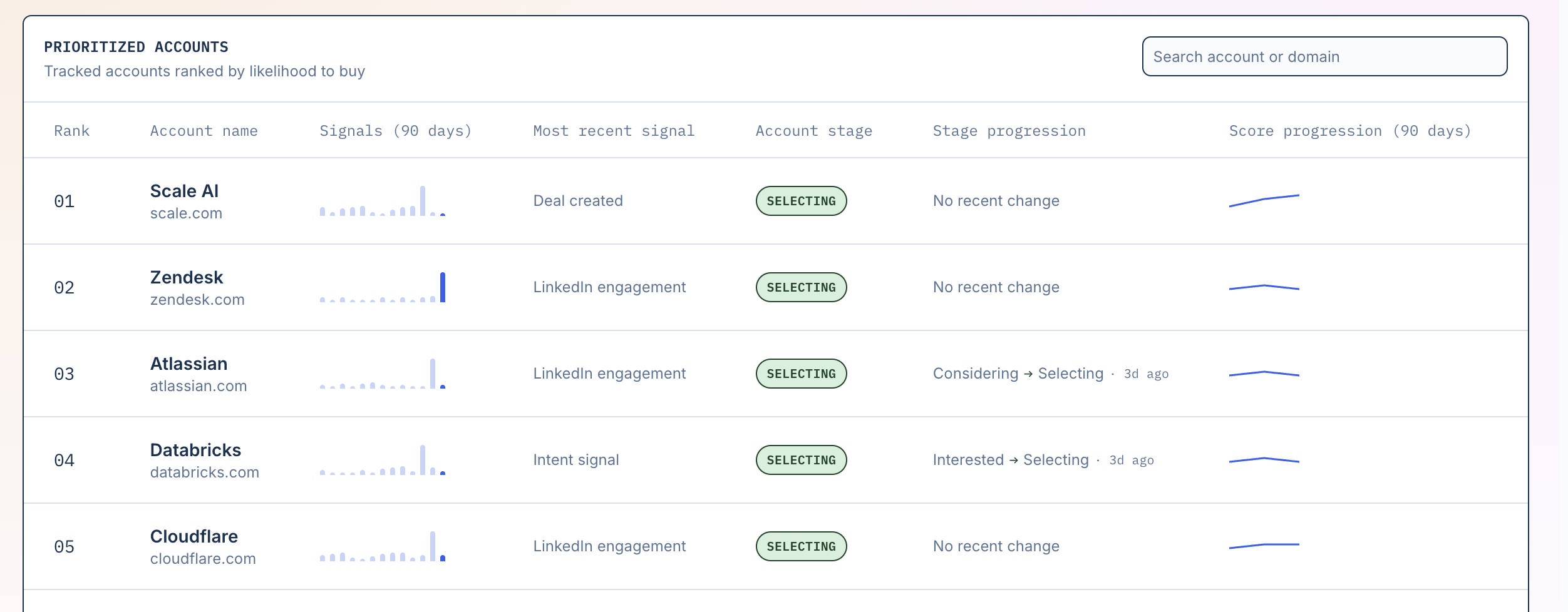
An account’s stage is based on the evidence Vector has about that account. Rather than relying on a single activity or intent score, Vector can use activity from multiple signal families to form its assessment.
Good to know: A stage is an assessment of the account’s current activity based on the evidence available to Vector. It does not mean that a particular marketing or sales activity caused the account to move.
How does Vector's AI scoring work?
Vector uses a machine learning model trained on historical buying activity to identify which accounts are most likely to open a new opportunity within the next 30 days.
Every day, the model analyzes the previous 90 days of account activity across 30+ signals and 70+ behavioral features, including company fit, research intent, website engagement, and sales and marketing interactions.
Unlike traditional lead scoring, Vector doesn't assign fixed points to individual actions. Instead, the model learns which patterns and combinations of activity are most meaningful.
For example, a website visit alone may not indicate much. But repeated visits, a sudden increase in relevant research, and engagement from multiple buyers could tell a much stronger story, especially when those activities happen close together.
Vector then uses an LLM to interpret the broader account context, assign a buying stage, and provide an evidence-backed explanation of the assessment.
The result: A directional, AI-powered assessment that helps you prioritize accounts based on observed buying behavior, without manually configuring scoring rules.
Open an Account Journey
To investigate an account:
Go to Accounts (top right corner).
Find the account you want to review.
Select the account or View journey.
Review the account’s current stage, score, deal information, contacts, and activity.
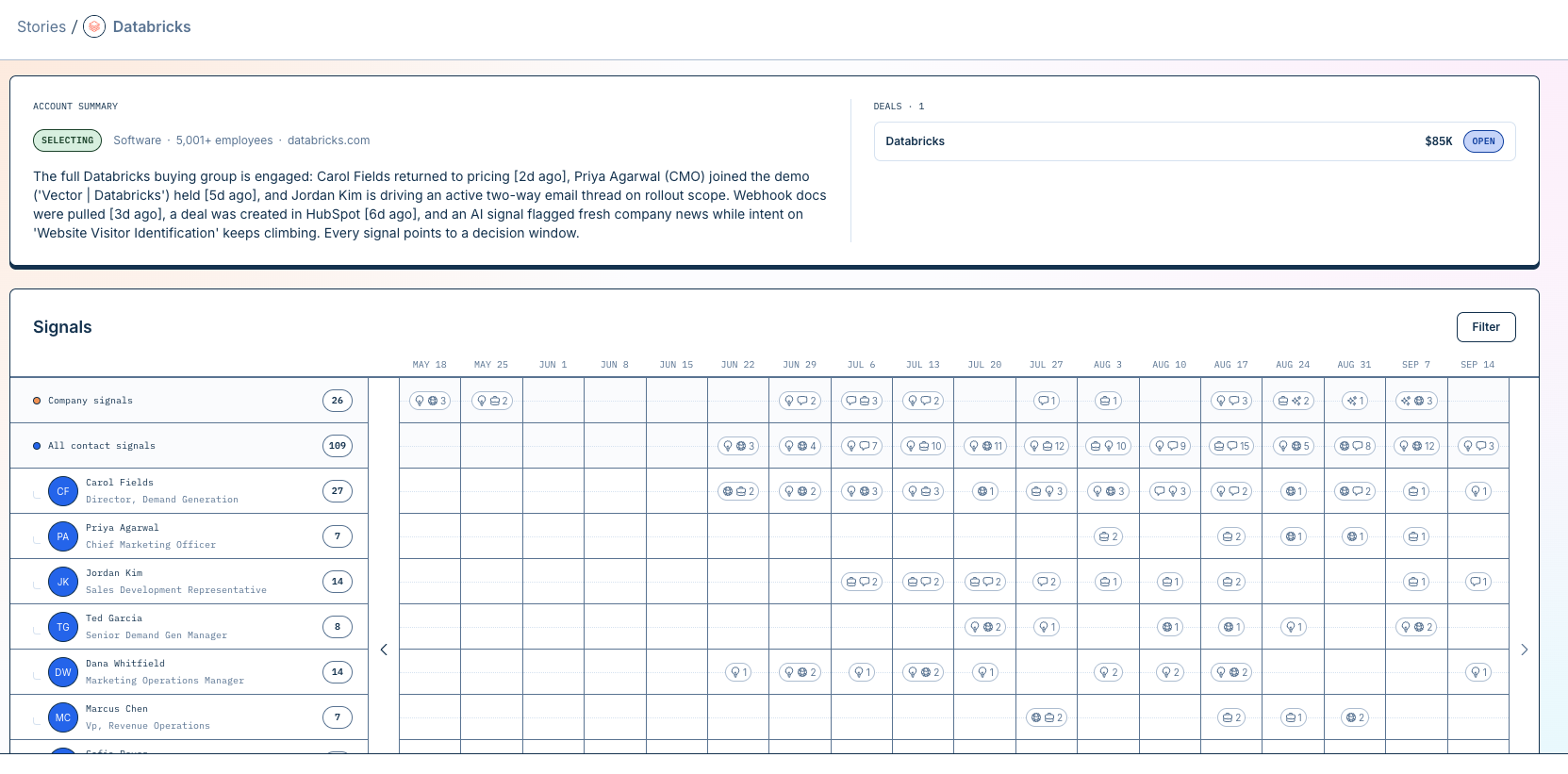
The Account Journey brings activity from across the account together chronologically so you can see how engagement develops over time.
Understand why an account is in a stage
The Journey header includes a Account Summary explanation.
Select Account Summary to see the evidence Vector used to support its current assessment of the account.

Rather than presenting a stage as a black-box score, Vector provides a rationale tied back to activity from the account.
The explanation can reference the underlying events that support the assessment, so you can inspect the evidence yourself.
For example, the rationale might point to activity such as:
Website engagement
Research activity
Marketing engagement
Sales activity
LinkedIn engagement
Relevant buyer or company changes
Select the cited activity to investigate further where available.
Why the rationale can change
As Vector receives new activity from the account, the evidence associated with the account can change.
That means the account’s stage, score, or explanation may change over time as new information becomes available.
Read the Account Journey
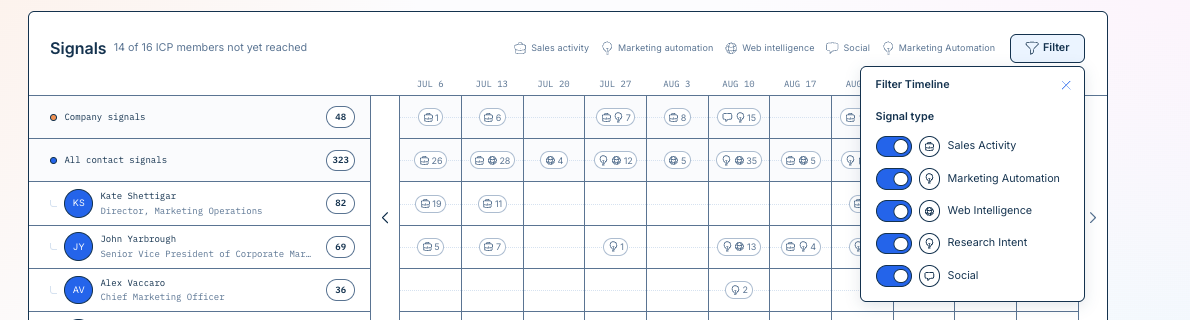
The timeline organizes account activity by signal family and time.

Instead of displaying every event as an individual point, Vector groups activity together when there are multiple events in the same area of the timeline.
A number in a timeline cell indicates that multiple pieces of activity occurred during that period.
Select a cell or event to open the underlying activity and review more detail.
This allows you to move between:
The pattern
What types of activity are increasing or appearing across the account.
and
The evidence
The individual events behind those patterns.
Signal families
The Journey can include activity from different parts of your go-to-market motion, depending on the signals and integrations enabled for your organization.
These may include activity from areas such as:
Research intent
Website behavior
Marketing automation
Sales activity
LinkedIn
Job changes
Company events
Other signals configured in your Signal Library
Related: Using the Signal Library
Focus the journey using filters
You can filter the Journey to focus on specific kinds of activity or people.
Filter by signal family
Use the signal-family filters to show or hide different types of activity in the timeline.
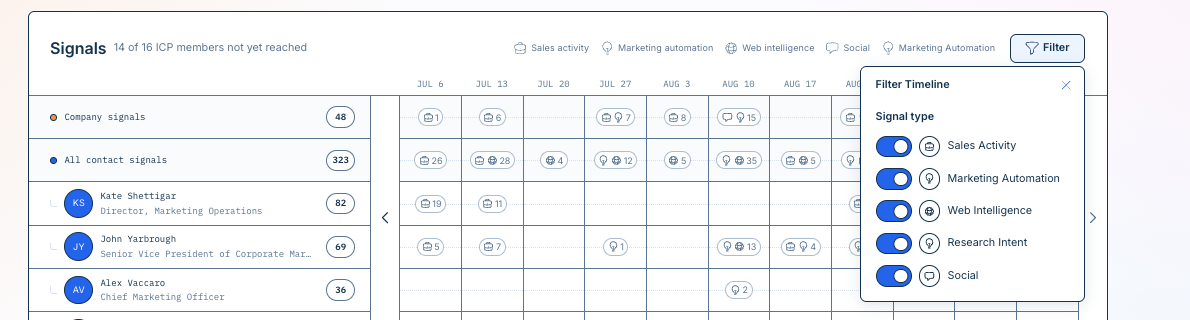
For example, you might narrow the view to sales and marketing engagement if you want to understand the activity surrounding an open opportunity.
Filtering the timeline helps you investigate the evidence without changing the underlying account data.
Filter by people or persona
You can also focus the Journey on the people and personas that matter to you.
Contacts in the Journey may include persona labels that help you understand the role each person plays in your buying committee.
Understand the buying committee
Contact-level activity in the Journey helps you see who is participating in the account’s activity, not just that something happened at the company.
Where Vector can associate activity with a known person, the Journey can show the contact and the persona associated with them.
This can help you answer questions like:
Which buyers are engaging?
Are multiple members of the buying committee active?
Which personas are showing activity?
Is activity limited to one contact or spreading across the account?
Which buyers were active around important opportunity milestones?
Not every signal is necessarily associated with an individual person. Company-level evidence can also appear in the Journey.
Review opportunity activity
When CRM opportunity data is available, the Journey's Account Summary card lists all deals for that account side by side, including the deal name, amount, and status (Open or Closed).
If an account has multiple deals, they'll all appear together in this list so you can review each opportunity's details at a glance.
This makes it easier to compare marketing, sales, and buyer activity with relevant opportunity milestones without treating that activity as proof that one caused the other.
Ask Vector about an account
You can ask a question about the account directly from the Journey.
For example, you might ask:
What activity supports this stage?
Who has been most active recently?
What happened before the opportunity was created?
Which marketing interactions are visible in this journey?
Vector answers using evidence available within that account’s Journey and provides supporting activity so you can inspect the source of the answer.

Vector's answer is limited to the account information available in the Journey. Review the cited evidence when using an answer to inform a decision.
Account Journeys vs. Account Stories
Both experiences use the account journey, but they serve different purposes.
Account Journey is the detailed evidence view. Use it when you want to investigate the signals, contacts, activity, stage, and opportunity context behind an account.
Account Story turns important moments from that journey into a more concise narrative that is easier to review and share.
A simple framing could be:
Journey shows the evidence. Story helps you make sense of the sequence.
Related: Using Account Stories
Troubleshooting
I don't see much activity in an Account Journey
First, confirm that:
The account is tracked
The relevant signals are enabled
Required CRM, marketing, LinkedIn, or other integrations are connected
Any required signal configuration has been completed
The amount of activity available will vary by account and by the signals your organization has enabled.
I filtered the Journey, but the account stage didn't change
Journey filters help you investigate specific activity. They do not change the underlying account assessment.
In particular, filtering people or personas hides contact rows from your current view but does not recalculate the account-level stage, score, or aggregates.
Why did an account's stage change?
An account's assessment can change as Vector receives new evidence about the account.
Use Why this stage to review the evidence supporting the account's current stage.
I don't see a person associated with an event
Not every signal is contact-level. Some evidence represents activity or changes at the company level and may not be associated with an individual buyer.