Understanding Webhooks: Endpoints, Events, Logs and More
Last updated: October 3, 2025
Webhooks in Vector let you automatically send real-time data to other platforms. Think of them as event-driven notifications you configure once and let run.
This article covers the complete webhook journey: creating an endpoint, choosing events, using segment filters, configuring advanced options, testing, checking logs, and troubleshooting.
👉 If you want to jump directly to sending a webhook by segment, see Send a Webhook by Segment.
1. Access Webhook Settings
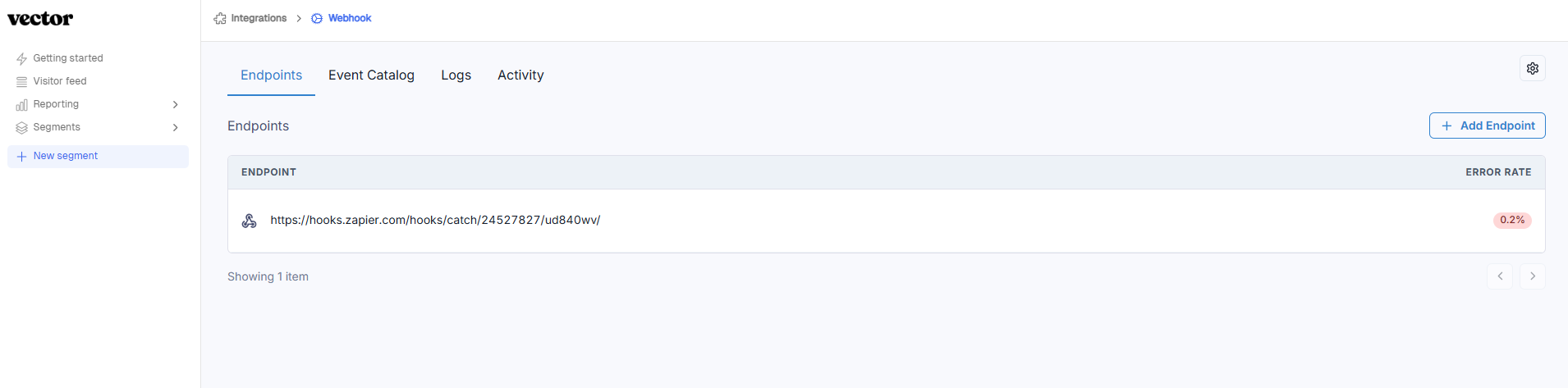
Go to Integrations → Webhooks in your Vector dashboard.
You’ll see a list of existing endpoints, or an empty state if none have been created.
2. Create a New Endpoint
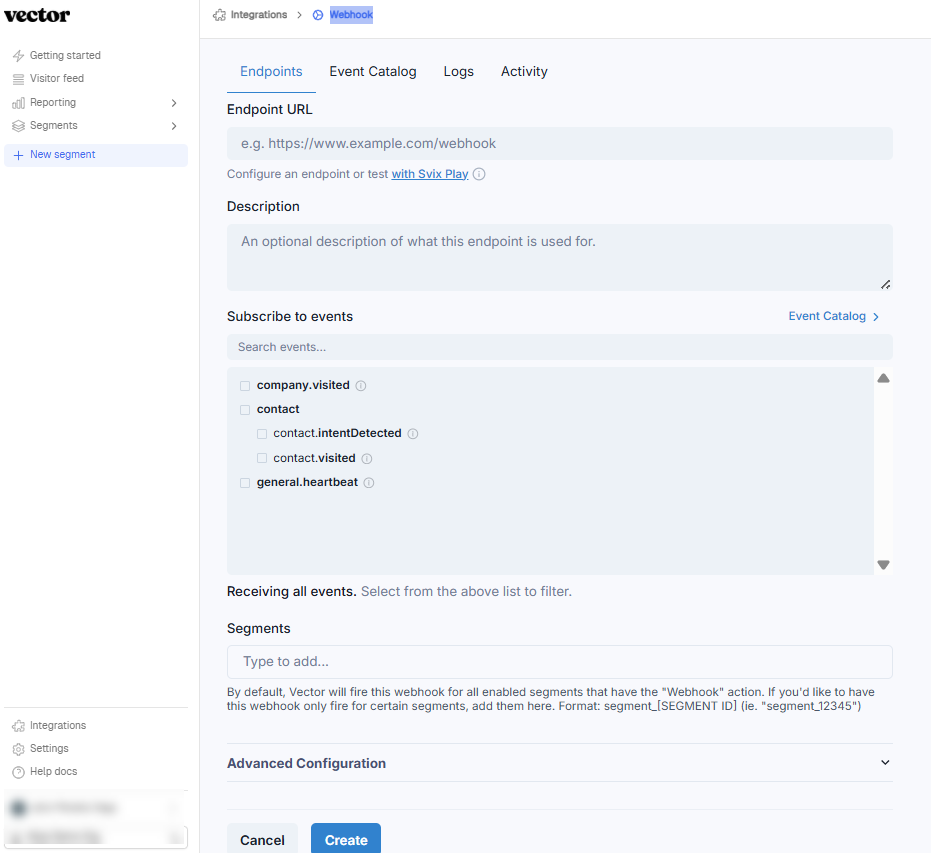
Click Add Endpoint.
Fill in the following:
Description – Give it a clear name (e.g., Zapier – Google Sheets).
Endpoint URL – The receiving system’s URL.
Events – Select at least one event to subscribe to.
Segments – Add a segment ID (optional) or leave it blank.
(Optional) Configure advanced settings such as headers or rate limits.
We recommend checking your server configuration (or the platform receiving the webhooks) to confirm any rate limits or header requirements. Setting these from the start helps avoid failed delivery attempts if the other system has restrictions.
3. Review the Endpoint Settings
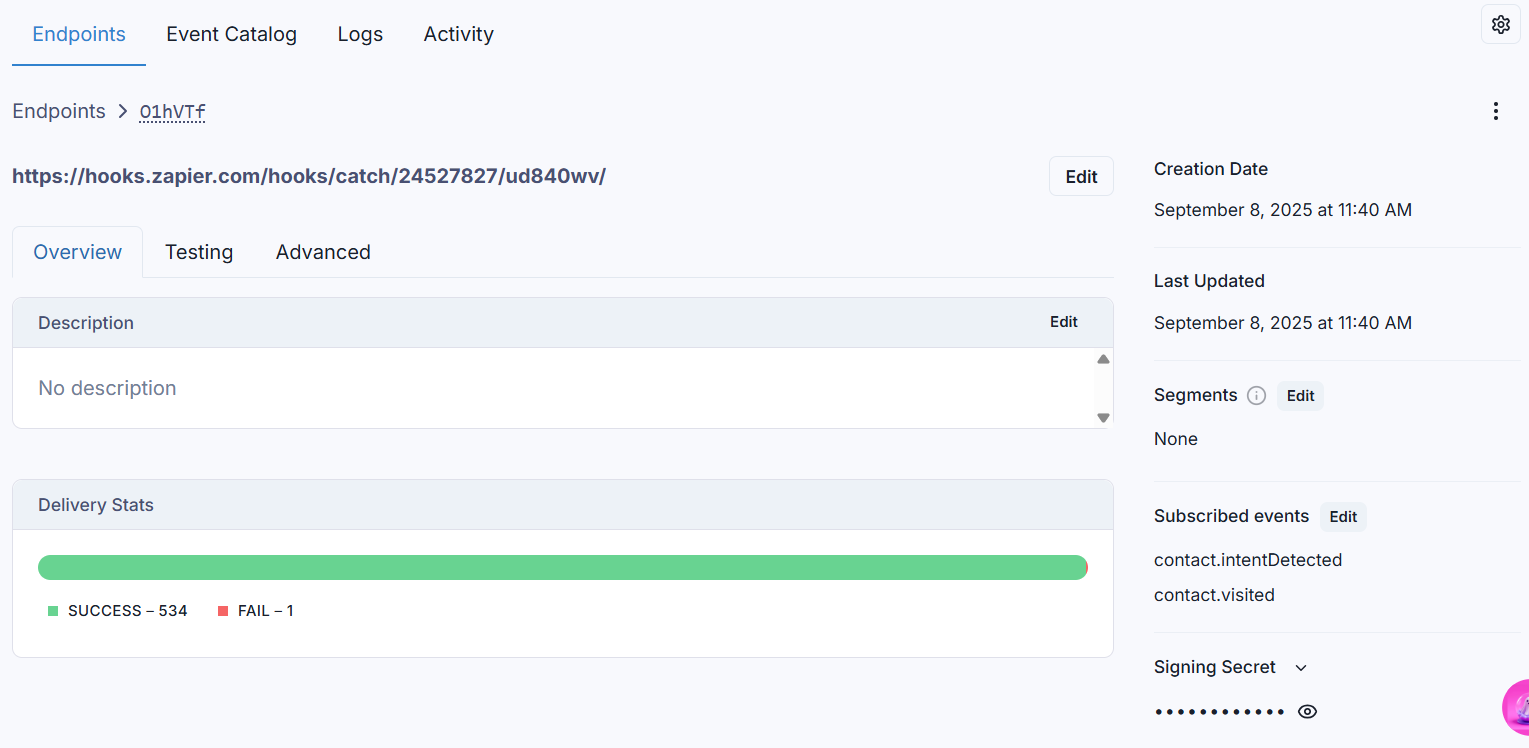
Each endpoint page includes:
Overview tab – Shows description and delivery stats.
Testing tab – Lets you send sample events to confirm setup.
Advanced tab – Options to modify rate limits and headers.
Right column – Metadata such as creation date, last updated, segments, subscribed events, and signing secret.
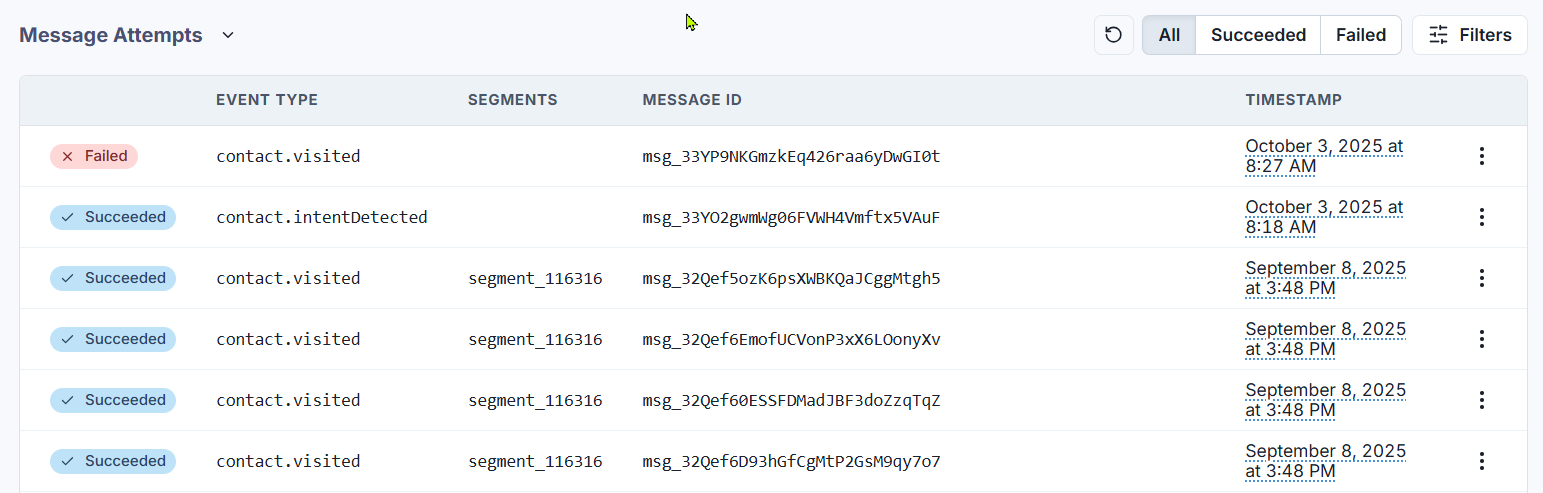
Message Attempts – A clickable list of webhook deliveries with status, URL, and timestamps.
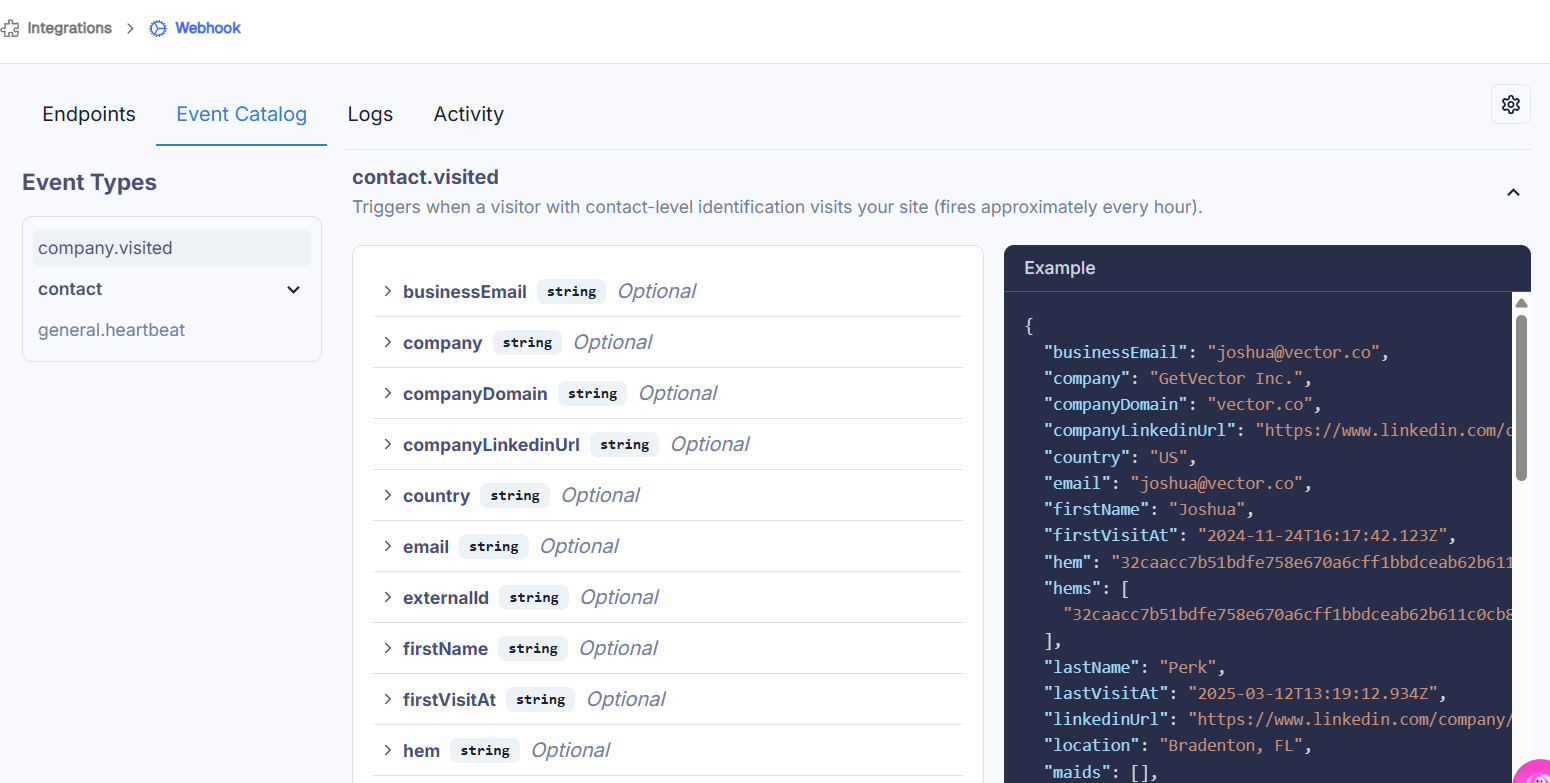
4. Review the Event Catalog
Use the Event Catalog tab to explore available events.
Each entry includes:
Schema & Payload – Fields in the JSON payload with sample values.
Description – When the event fires and typical use cases.
Examples:
contact.visited,contact.intent
5. Review the Logs
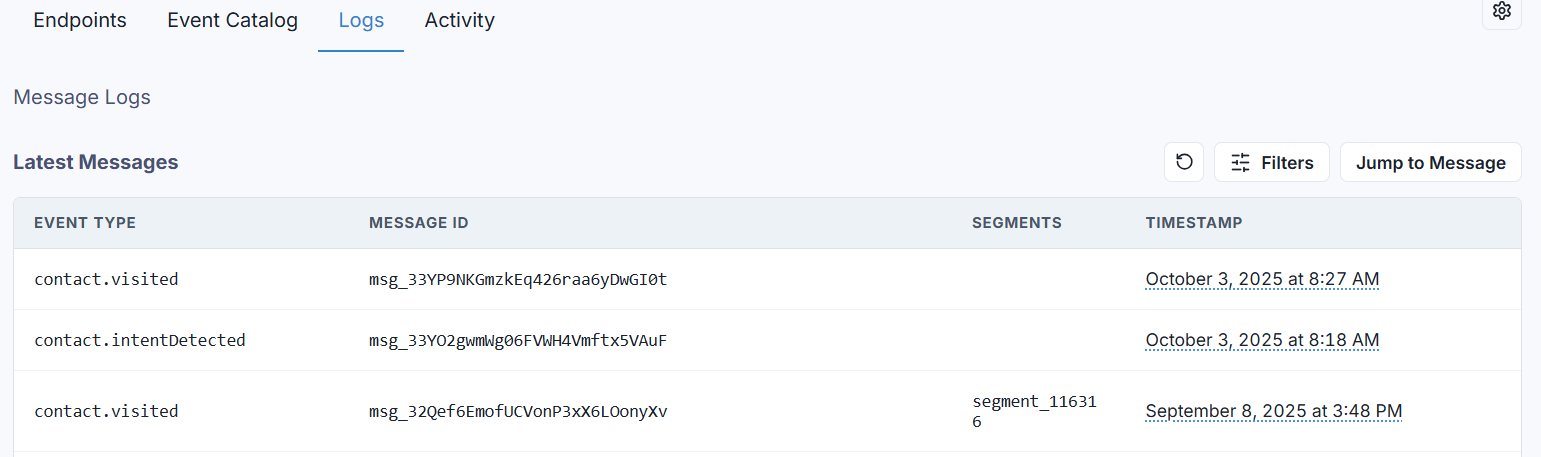
The Logs page shows a list of all messages sent to endpoints.
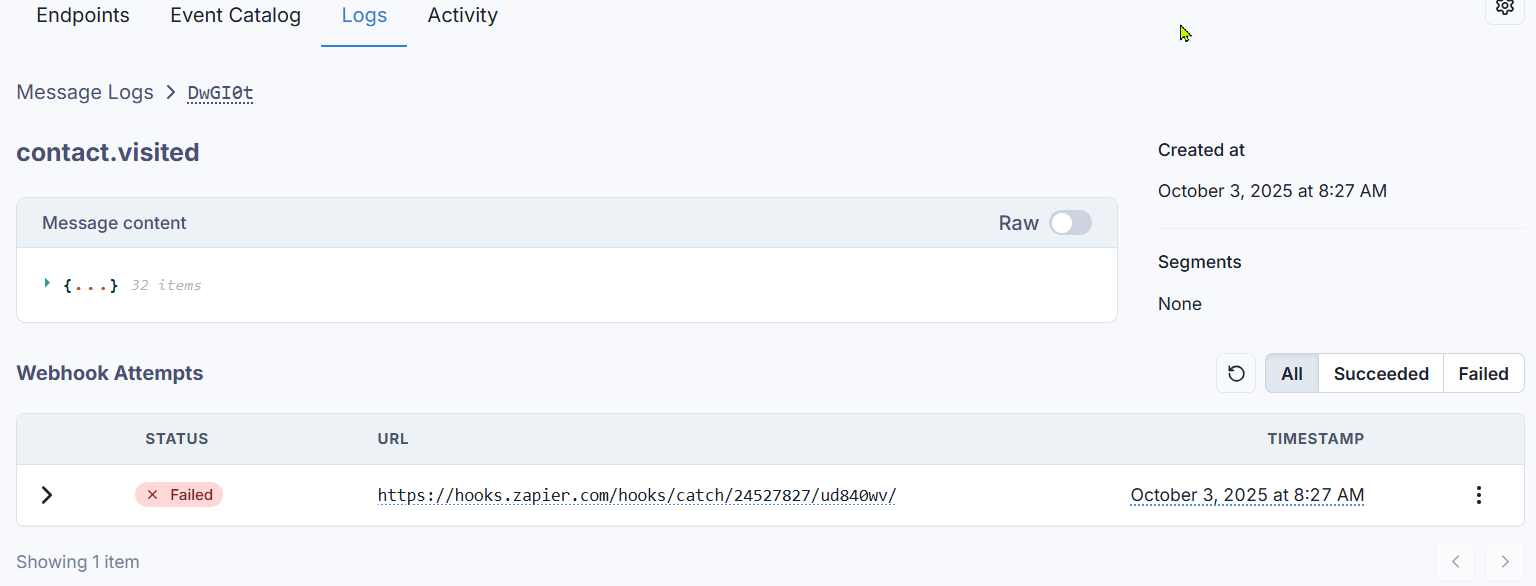
Clicking a message opens detailed logs with:
Event name
Creation date
Segments
Message content
Attempts with status, URL, and timestamps
6. Review the Activity
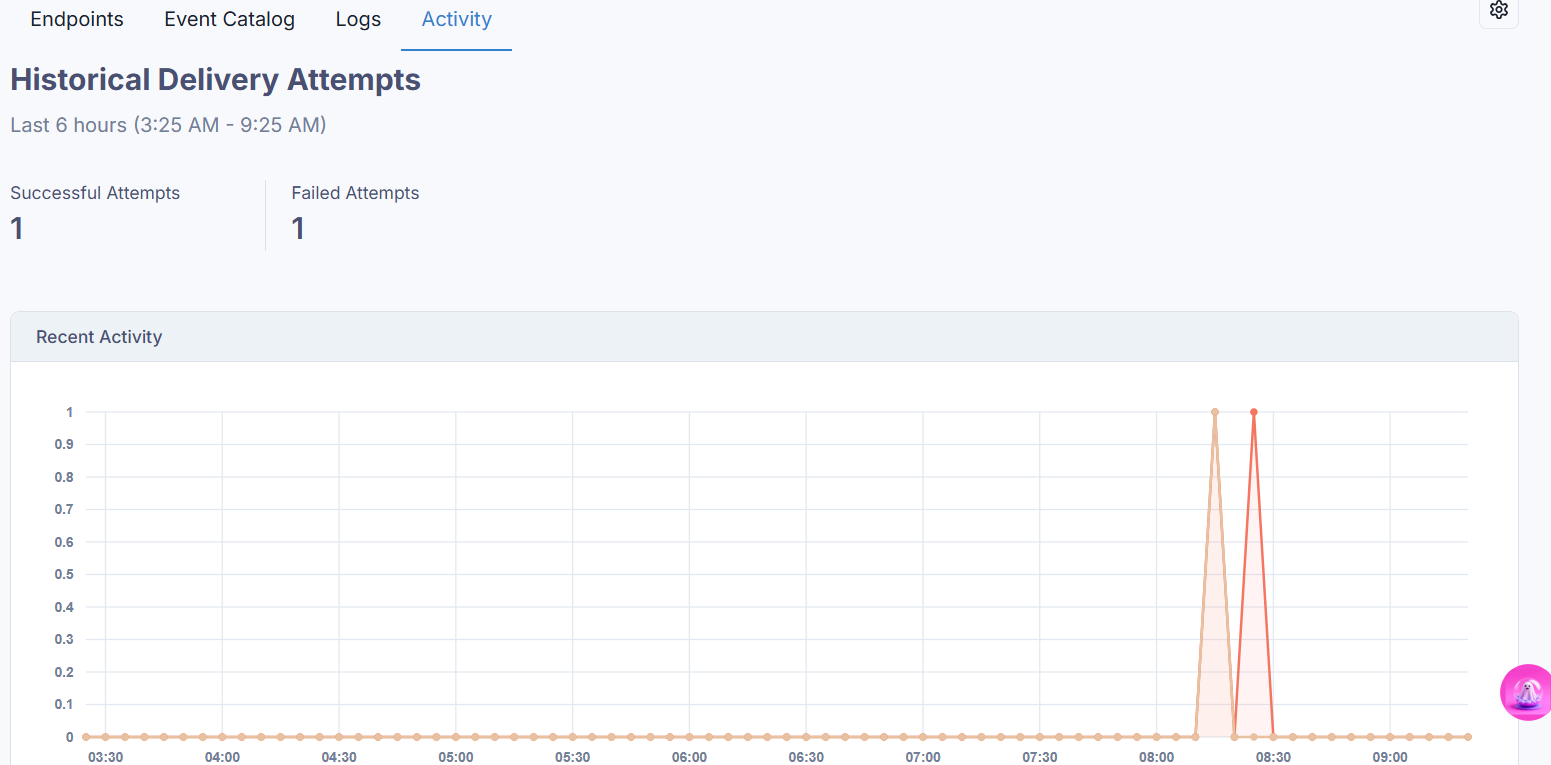
The Activity tab shows historical delivery attempts.
It includes:
A graph of recent activity
Counts of successful and failed deliveries
7. Limit by Segments (Optional)
Find Segment IDs: Copy the ID from the segment page URL (e.g.,
…/segments/12345).Enter IDs: Use
segment_12345 segment_67890for multiple segments.Important: Leaving this blank means the webhook fires for all active segments with a Webhook action.
Special case: For
company.visited, enable IP to Company Fallback under Settings → Pixel API.
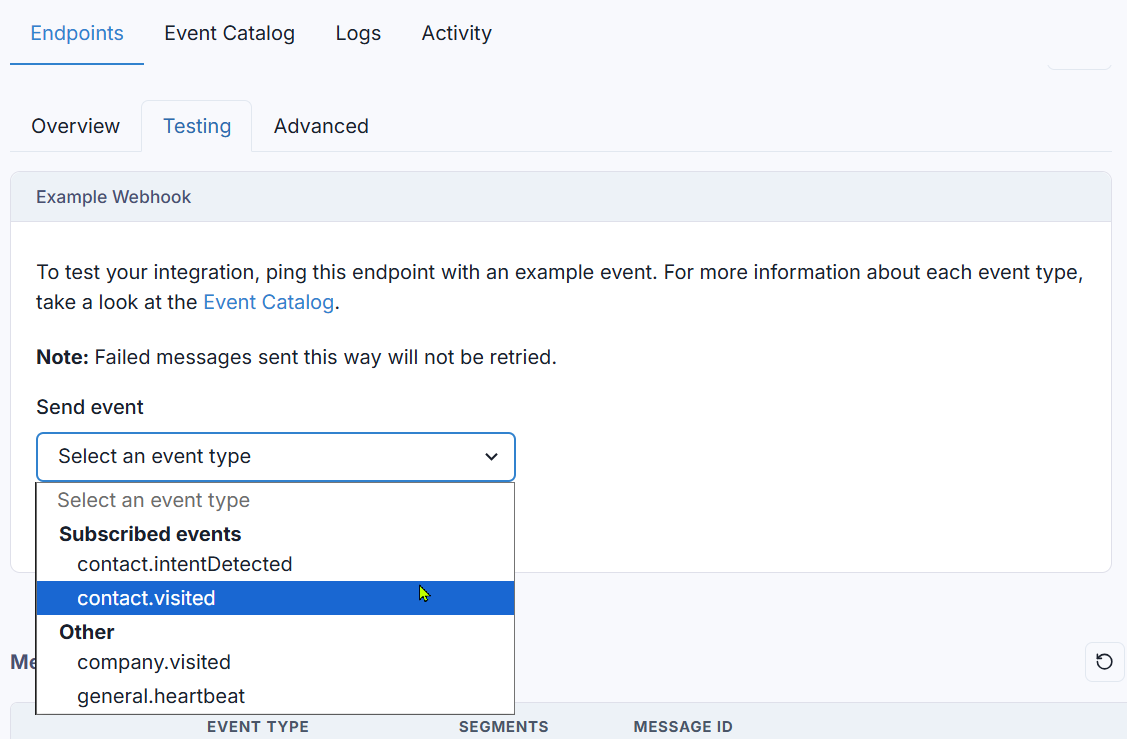
8. Test Your Endpoint
Select an event type
Click Send Test to push a sample payload.
Confirm the receiving system responds with 200 OK.
9. Configure Advanced Settings
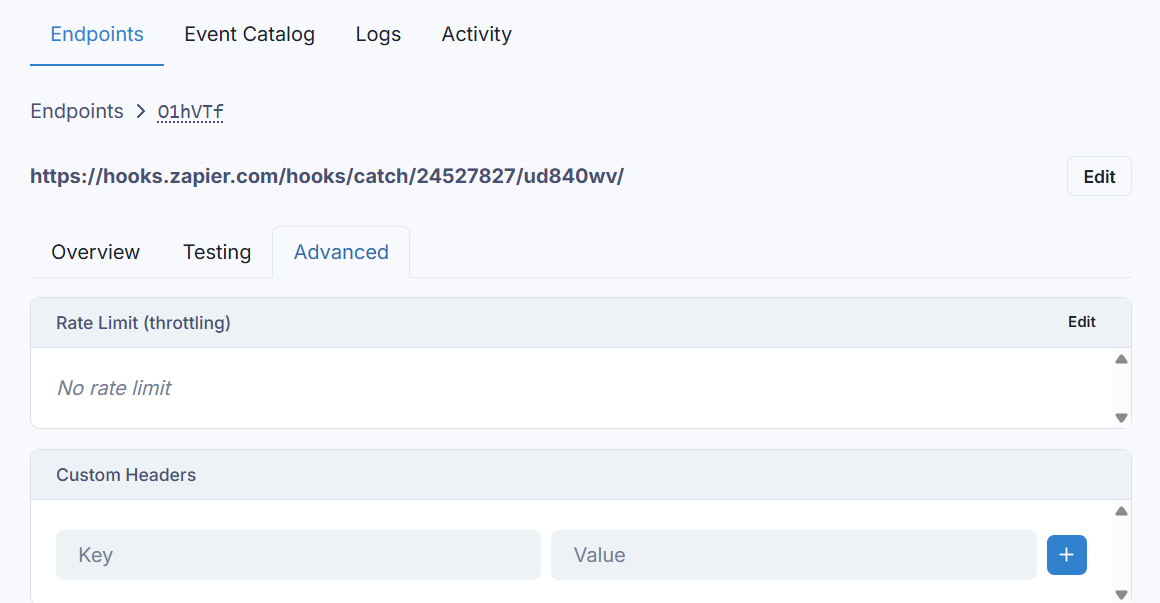
Vector offers extra options under Testing & Advanced:
Rate limiting – Control requests per second (e.g., 10–20/s). Prevents overload and 403 errors.
Custom headers – Add tokens or API keys required by your destination.
Tip: Frequent 403/404 errors are often fixed by lowering the rate limit or updating headers.
10. Inspect Message Attempts
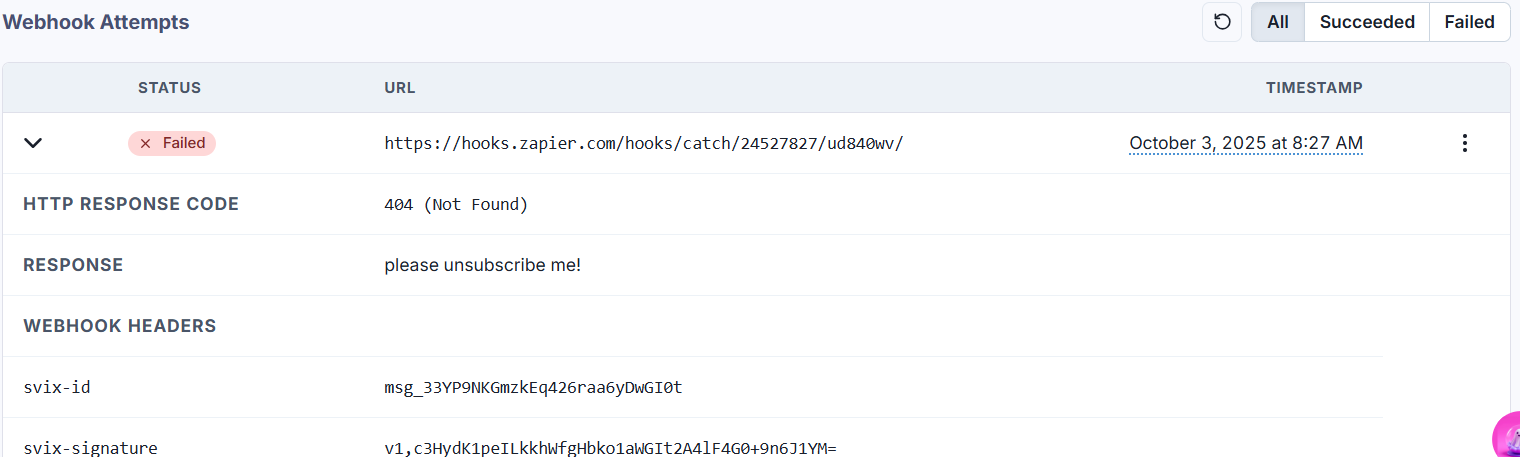
Each webhook delivery appears in the Message Attempts list.
Each entry includes event type, status, timestamp, and URL.
Click to see request body and HTTP response.
Tip:
200 = Success
4xx = Configuration or endpoint issue
11. Additional Settings
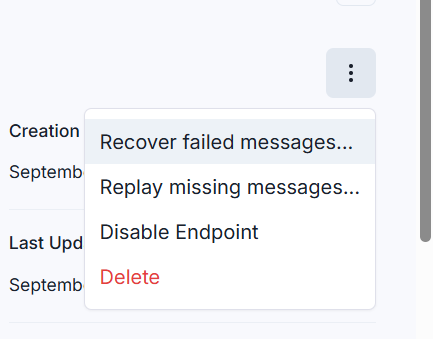
From the endpoint page, you can access more actions:
Recover failed messages – Resend all failed messages.
Replay missing messages – Resend any messages never attempted.
Disable endpoint – Pause webhook deliveries.
Delete endpoint – Remove permanently.
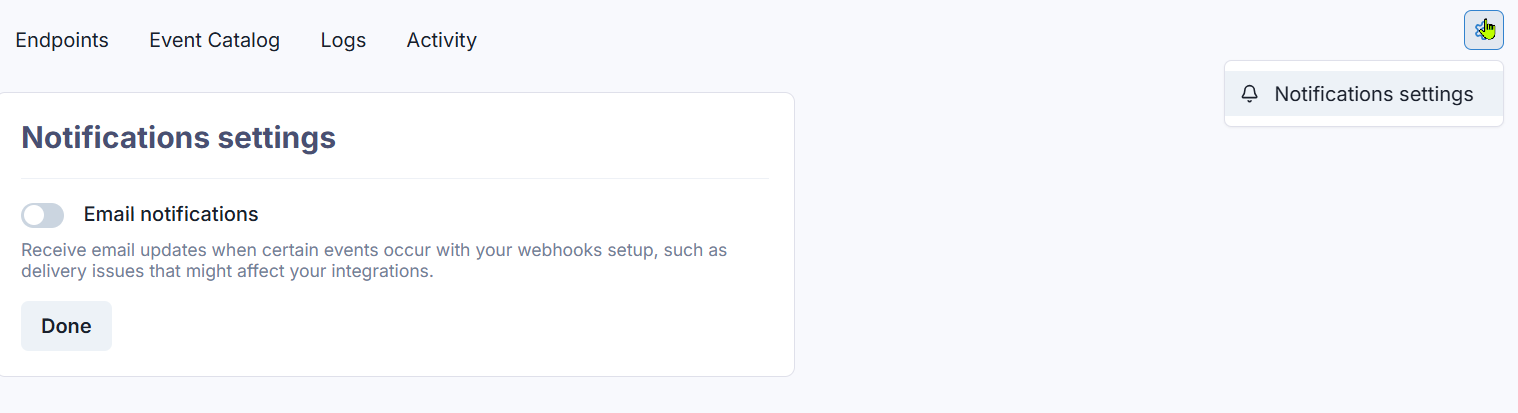
From the settings icon (top right):
Enable email notifications for delivery issues and integration problems.
🔧 Common Issues & Fixes
Webhook fires for all segments.
Cause: The Segment field was left blank.
Fix: Specify segment IDs (e.g.,
segment_12345 segment_67890) or remove the Webhook action from unwanted segments.
403 “rate limit exceeded” or 404 errors.
Cause: Receiving server rejects requests or endpoint URL is incorrect.
Fix: Use Advanced settings to throttle requests (e.g., 10–20/s) and verify your endpoint URL. Ensure any required custom headers (e.g., API keys) are added.
company.visited event isn’t firing.
Cause: IP to Company fallback isn’t enabled.
Fix: Turn on IP to Company Fallback under Settings → Pixel API → IP to Company Fallbacklearn.vector.co.
Payload is empty or missing fields.
Cause: Subscribed to the wrong event or your integration expects a different schema.
Fix: Review the Event Catalog to confirm the payload and select the appropriate eventloom.com.
Delivery stats show failed messages.
Fix: Drill into Message attempts to see the HTTP response and error details. Adjust your endpoint server or authentication, then re‑test.
Webhook not triggering at all.
Cause: Webhook action missing from segments, or endpoint disabled.
Fix: Ensure the segment has the “Webhook” action and that the endpoint is enabled in the Webhooks dashboard