Segments Overview
Last updated: April 22, 2026
The segments overview introduces a streamlined, intuitive interface to help you manage, filter, and activate your audiences faster than ever.
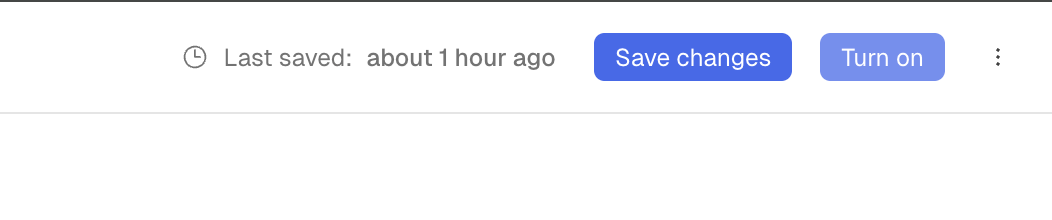
⚠ Segments do not auto save. Ensure to click the "save" button in the top right corner of your segment builder before losing changes to your segment!
🧭 Navigating the Segments Page
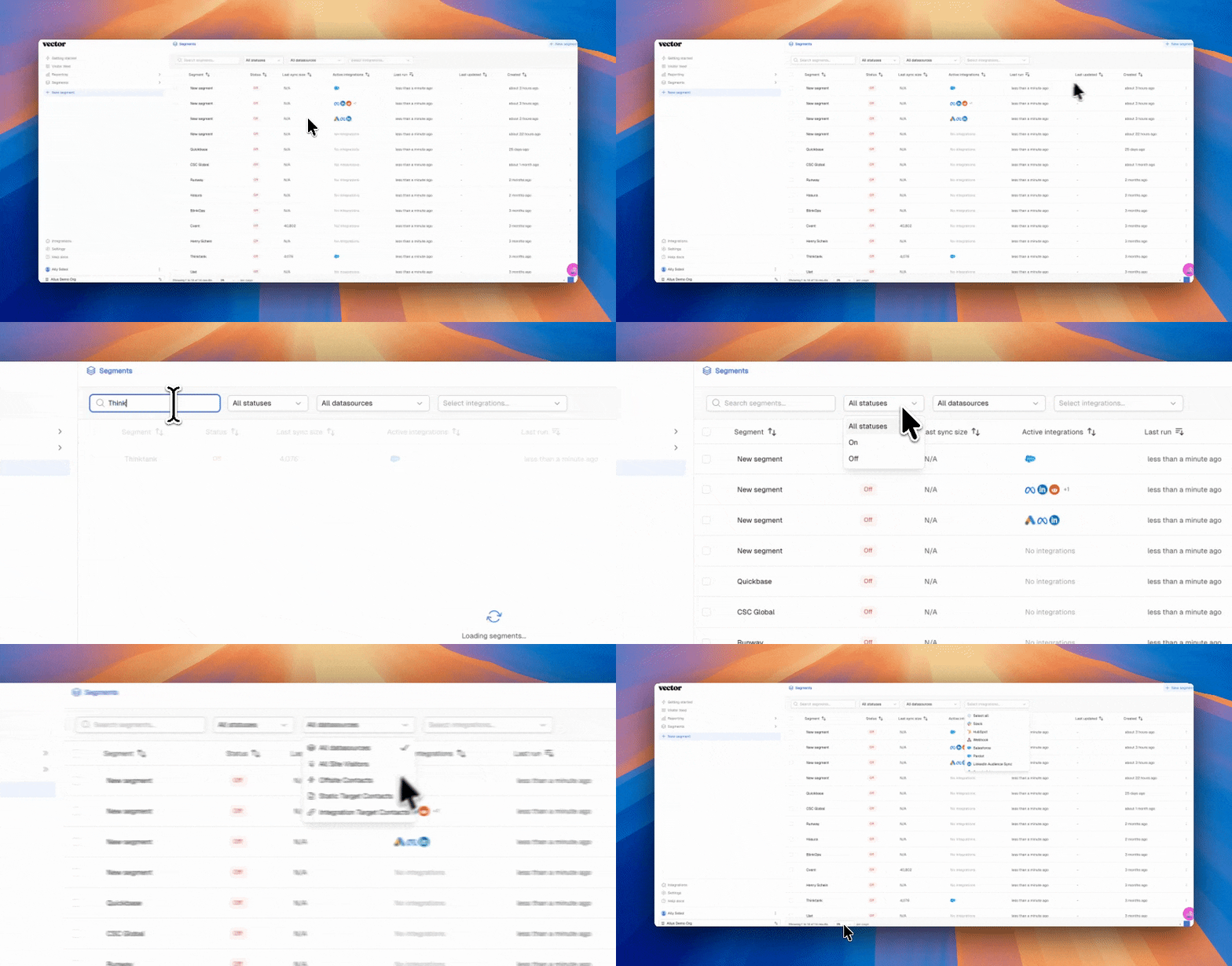
When you open Segments, you’ll see a list view displaying all your segments in one place.
Each row includes key information to help you understand performance and status at a glance:
Segment Name – The title of your segment.
Status – Whether the segment is currently On or Disabled.
Last Sync Size – The number of contacts synced during the most recent run.
Active Integration – The connected platform(s) receiving this segment.
Last Run / Updated / Created Dates – Quick timestamps for tracking activity.
You can also:
Search for a specific segment by name.
Filter by status (active, disabled, etc.).
Filter by Data Source – choose to view:
Website visitors
Off-site intent contacts
Integrated CRM or contact lists
Uploaded CSV lists
Or all segments combined
➕ Creating a New Segment
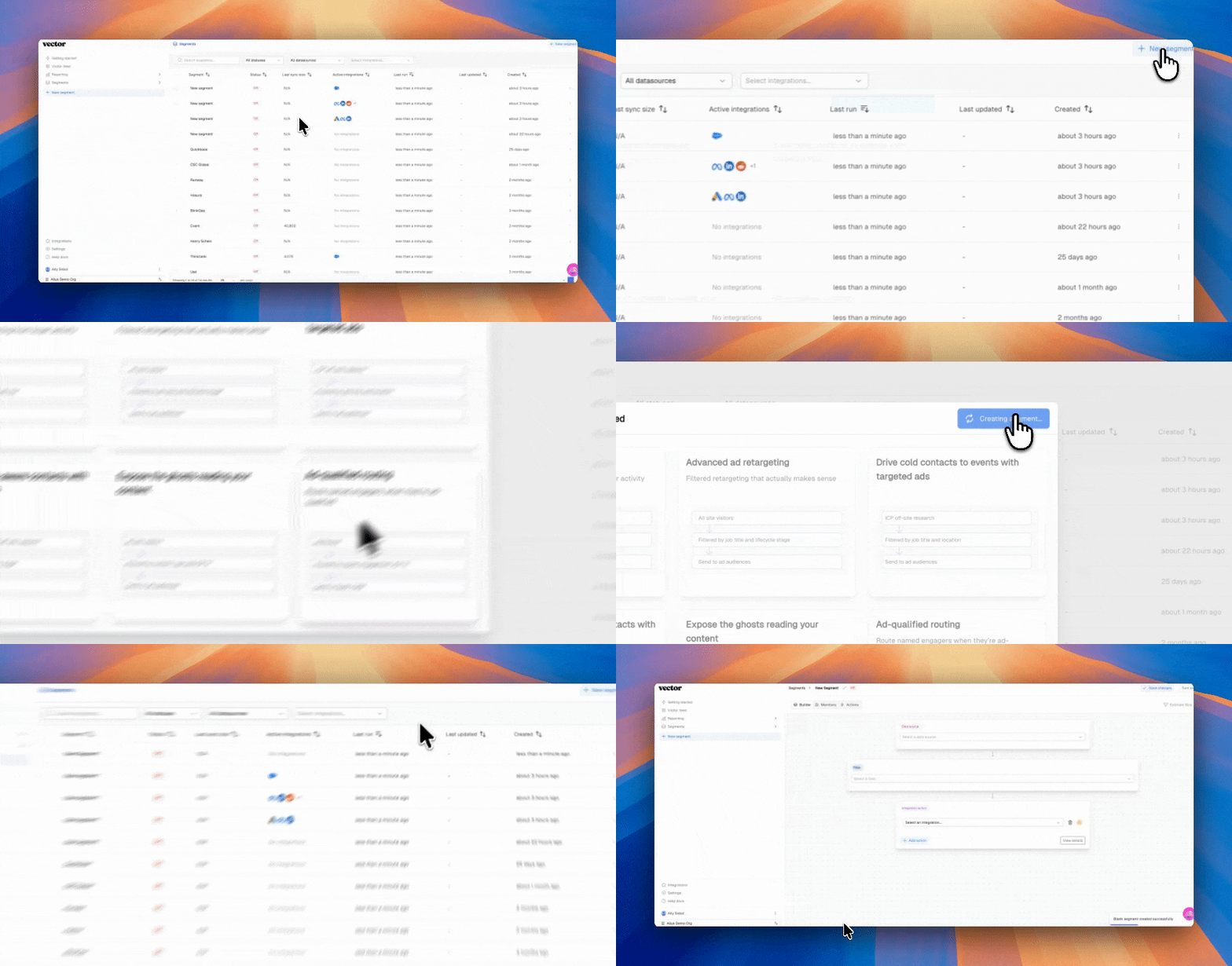
Click Create New Segment to start building.
You’ll be prompted to choose how you want to begin:
From Existing Playbook – Start from a pre-configured template.
From Scratch – Build a new segment with full flexibility.
🧩 Building a Segment
Once inside the builder, you’ll notice the updated design layout.
1. Select a Data Source
Choose where your segment data should come from:
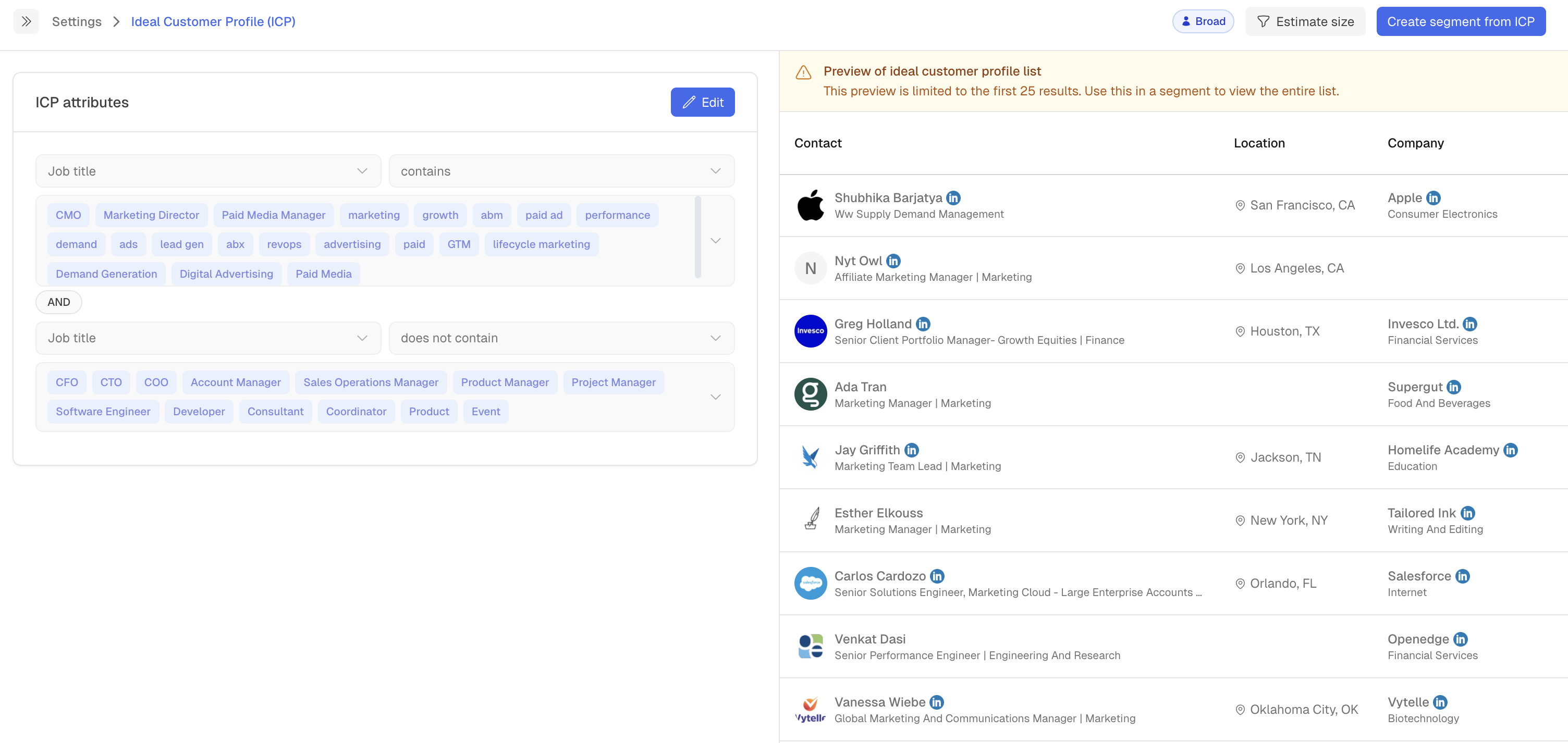
Ideal Customer Profile (ICP) - Leverage Vector's contact database to find all contacts matching your buyer persona to push to ads
Site Visitors – Contacts visiting your website.
Off-site Intent – Contacts showing interest elsewhere online.
CSV Upload – Import your own list.
Integrated List – Pull from a connected system (like your CRM).
2. Apply Filters
Add filters to narrow your audience, such as:
Industry
ICP filters
Account lists or attributes
3. Define Actions
Choose where you want this data sent:
Ad Audiences – Push contacts to platforms like Google, LinkedIn, Meta, etc.
CSV Exports – Schedule or trigger exports.
CRM
Slack
💡 If an integration or action doesn’t appear in the list, make sure that connection has been integrated in Integrations Settings first.

👥 Viewing Members
Members can be automatically previewed as you apply the datasource and filters. This allows you to gain a birdseye view of who is a part of the segment before activating. Once the segment is turned on, the members will continue to build based on the data collected.
⚠ Note: Segments do not backfill.
Contacts start populating only after the segment is turned on—from that moment forward.
📤 Managing Actions & Exports
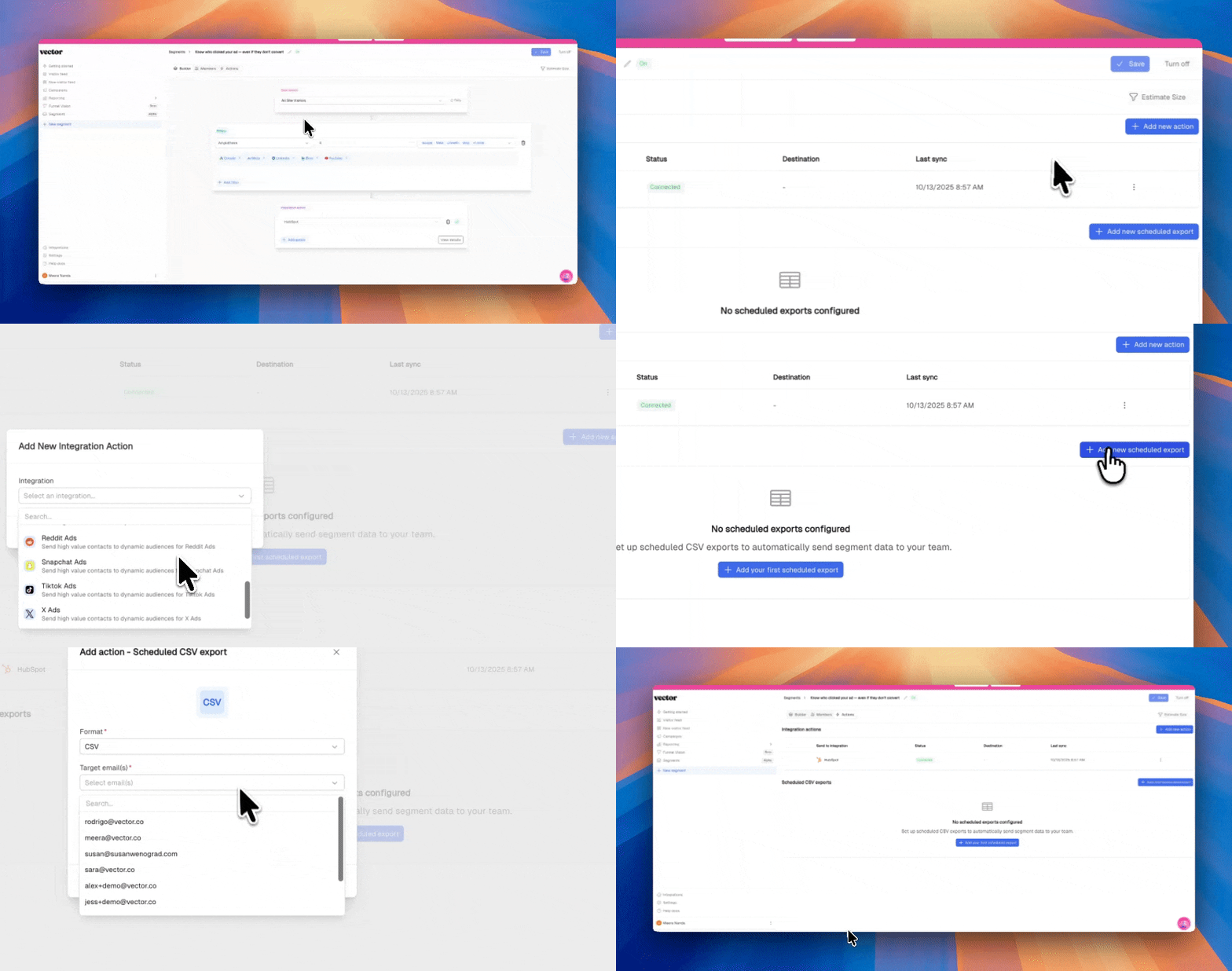
Within the Actions section, you can also manage your scheduled CSV exports:
Choose your export type (e.g., Meta Ads format or standard CSV).
Specify the recipient email.
Set frequency: Daily, Weekly, or Monthly.
✅ Turning On Your Segment
Once everything is set up, don’t forget to turn your segment ON — toggle the switch in the top-right corner of the page to begin collecting and pushing data.
🧠 Pro Tip
Use filters and naming conventions to keep your segments organized — especially if you manage both intent-based and CRM-based audiences. This will make reporting and troubleshooting even easier across your team.
Want to chat about segment best practices?! Reach out to solutions@vector.co!