Configuring Research Intent Topics
Last updated: September 15, 2026
Research Intent is a signal in Vector's Signal Library that helps you identify contacts researching topics relevant to your business.
You can configure which topics Vector should track as part of this signal.
Before you start - Research Intent must be available in your workspace, and the topics you want to track must be provisioned for your account.
Choose Your Research Intent Topics
Navigate to the Signal Library and open Research Intent > Advanced Configuration > Edit > Add topic(s).
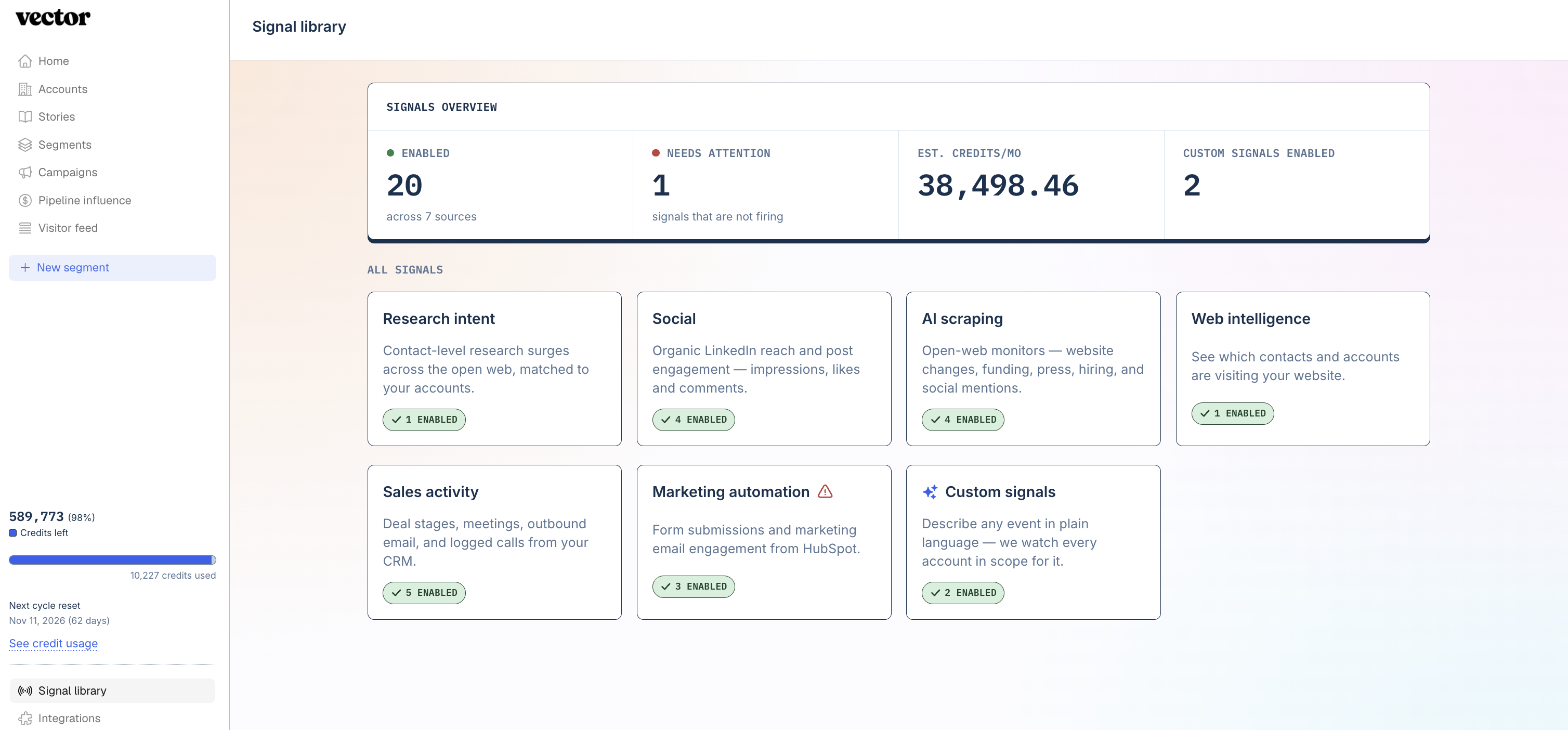
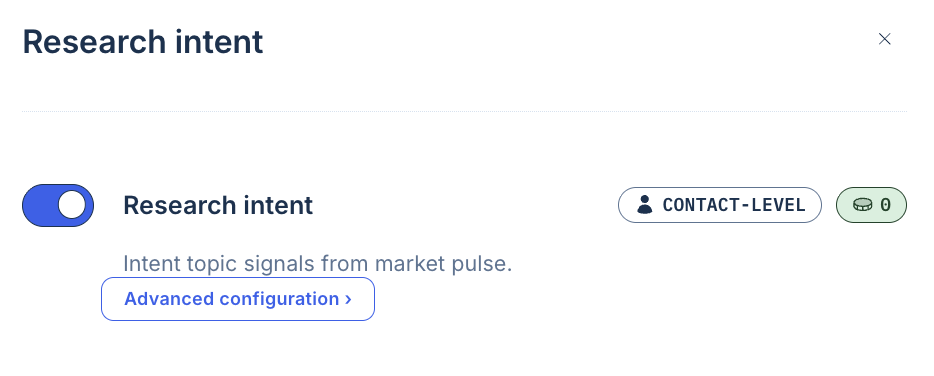
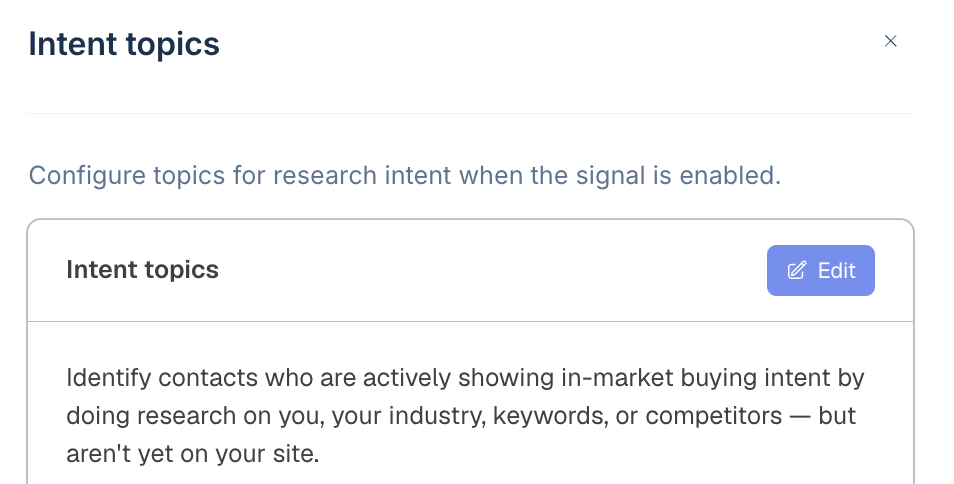
If Research Intent is not already active, turn the signal on. You'll then be able to choose which available topics you want Vector to track.
If Research Intent is already configured, open its advanced configuration to review your currently selected topics.
Your workspace will only show the topics currently available to your organisation.
Choosing Good Topics
Research Intent works best when topics are specific enough to represent a meaningful product, company, capability, or industry concept. Many customers find tracking competitors, in-market/relational topics, or branded to be most helpful.
Good examples include:
Salesforce
Fulfilment Centres
ICHRA
Avoid topics that are overly broad or depend on modifiers such as:
“Best”
“Top”
“Competitors”
“Alternatives”
For example, Sales is likely too broad to represent a useful research topic on its own.
💡 Tip: Think about the subject someone is researching rather than the exact search phrase they might type.
Adding a Topic That Isn't Available
At launch, the full Research Intent topic library is not self-service.
If you need a topic that isn't available in your workspace, contact your Vector team (support@vector.co). We can help determine whether an existing topic fits your use case or whether a custom topic can be added.
You do not need to build or maintain a separate keyword list inside Vector.
Validate Your Selection
Before you activate Research Intent, review the topics you've selected and ask:
Does this topic represent something a relevant buyer would genuinely research?
Is it specific enough to distinguish meaningful interest from general industry activity?
Would seeing this topic in an account's journey provide useful context to your team?
Avoid turning on topics simply because they are loosely related to your market. More topics can create more signal volume without necessarily creating more useful evidence.
Start Tracking
Once you've selected the topics you want to monitor, click Start Tracking.
Vector will begin looking for Research Intent activity associated with those topics.
Research Intent is contact-level intent, meaning the underlying signal comes from people researching relevant topics across supported publication sources.
When applicable, those signals can also contribute to the broader evidence Vector uses when evaluating tracked accounts.
How Usage Works
Selecting a Research Intent topic does not consume usage on its own.
Usage occurs when Vector finds and delivers a meaningful Research Intent signal for one of the topics you're tracking.
For example:
A contact at one of your accounts is identified researching a topic you've enabled.
That delivered signal is what contributes to usage.
Because selecting more topics can increase the number of signals Vector finds, we recommend focusing on the topics most relevant to your GTM strategy rather than enabling everything available.
Backfilling Research Intent
Some Vector signals support historical backfill.
Where Backfill is available for Research Intent, you can use it to look for eligible historical activity from the topics you've selected.
⚠ Use backfill carefully. Backfilling a large number of topics can create significant signal volume and usage.
Vector does not yet provide a cost estimate before every backfill action, so review your selected topics before starting a large historical backfill.
Quick Recap
To configure Research Intent:
Open Research Intent in the Signal Library
Select the topics available to your workspace
Review whether each topic represents meaningful buyer research
Click Start Tracking
Use backfill carefully where available
If a topic you need isn't available, contact your Vector team for help reviewing or adding the appropriate topic.