LinkedIn Ads + Vector: Integration Guide
Last updated: September 11, 2026
Connect LinkedIn to Vector to sync paid campaign data, activate audiences in LinkedIn Ads, and turn organic LinkedIn engagement into signals.
Vector has two separate LinkedIn connections, each serving a different purpose. For the full LinkedIn experience in Vector, you’ll want to connect both.
🔌 What Connecting LinkedIn Unlocks
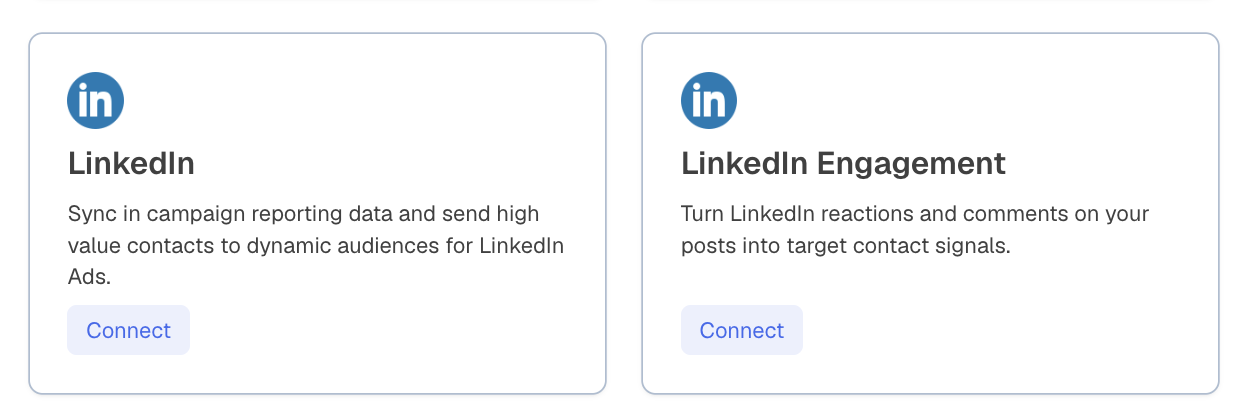
There are two LinkedIn integrations available in Vector:
Connect LinkedIn to:
Sync LinkedIn campaign data into Campaign Reporting
Send contacts from Vector Segments to dynamic audiences in LinkedIn Ads
This is the connection you’ll use for paid campaign reporting and audience activation.
LinkedIn Engagement
Connect LinkedIn Engagement to:
Capture reactions and comments on your LinkedIn posts
Turn that engagement into contact signals in Vector
This connection brings organic LinkedIn engagement into Vector as signal data.
💡 Why connect both?
Think of LinkedIn as your paid advertising connection and LinkedIn Engagement as your organic engagement connection. Connecting both gives Vector visibility into your LinkedIn campaign activity and the people engaging with your organic content.
🔑 Before You Connect
Before connecting LinkedIn:
Have your LinkedIn login ready to complete authorization.
Confirm you have access to the appropriate LinkedIn Campaign Manager account for paid campaign workflows.
Make sure you have the necessary permissions in LinkedIn to work with your ad account and audiences.
🔗 Connect LinkedIn
Both LinkedIn integrations are available from Integrations in Vector.
To connect both:
Navigate to Integrations.
Find LinkedIn and click Connect.
Sign in with your LinkedIn account and authorize the requested permissions.
Return to Integrations.
Find LinkedIn Engagement and click Connect.
Complete its authorization flow.
Each connection serves its own LinkedIn workflow, so connecting one does not replace the other.
📥 LinkedIn Data in Vector
Once connected, LinkedIn can bring two different types of data into Vector:
Campaign data from the LinkedIn integration powers supported paid campaign reporting.
Reactions and comments from LinkedIn Engagement become contact-level engagement signals.
These are separate from audience activation, where Vector sends contacts from your Segments out to LinkedIn Ads.
📤 Sync a Vector Audience to LinkedIn Ads
Vector uses Segments to build and activate audiences.
Build a Segment containing the contacts you want to reach, then connect that Segment to LinkedIn to send the audience to LinkedIn Ads.
As of September 16, Segments also support two account-level conditions:
Tracked Account
Account Stage
Segments otherwise continue to work as they did before. Other individual Signal Library signals aren't available as general Segment conditions at launch.
Once connected, Vector automatically keeps your audience synced with LinkedIn. Your Segment name carries over to LinkedIn, making it easier to identify the corresponding audience in Campaign Manager.
🔍 Verify Your Audience in LinkedIn
Once you've connected a Segment to LinkedIn Ads, check LinkedIn Campaign Manager to confirm the audience was received.
Go to Plan → Audiences → Matched Audiences → Uploaded Lists.
Find the audience with the same name as your Vector Segment.
Check its current status.
LinkedIn processes and matches the audience on its side, so a successful sync from Vector doesn't necessarily mean the audience is immediately ready to serve.
💡 Heads-up: Your Vector Segment size and LinkedIn matched audience size may be different. LinkedIn matches the contact data it receives against its own member data, so not every contact sent from Vector will necessarily result in a matched LinkedIn member.
📊 Understand Campaign Performance
Audience activation and campaign reporting are separate workflows.
Once your LinkedIn campaigns are running, use Campaign Reporting in Vector to answer:
How did this campaign perform?
Campaign Reporting uses data from your connected LinkedIn integration alongside Vector data to help you understand campaign performance.
👉 [Learn more about Campaign Reporting →]
🛠 Troubleshooting
My LinkedIn connection stopped working
Your LinkedIn authorization may have expired or been revoked.
Go to Integrations, find the affected LinkedIn connection, and reconnect it.
I connected LinkedIn, but I don't see engagement signals
Make sure you've connected LinkedIn Engagement, not just LinkedIn.
The standard LinkedIn connection supports paid campaign reporting and audience activation, while LinkedIn Engagement brings reactions and comments into Vector as signals.
My Vector audience isn't showing in LinkedIn
Check that:
Your LinkedIn integration is connected.
Your Segment is active and connected to LinkedIn.
You're checking the correct LinkedIn Campaign Manager account.
LinkedIn has had time to process the audience.
If everything looks correct in Vector but the audience still isn't appearing, contact support@vector.co.
My LinkedIn audience is smaller than my Vector Segment
This is expected. LinkedIn matches the data it receives against its own member database, so the number of matched members may be lower than the number of contacts in your Vector Segment.
My audience is in LinkedIn but isn't serving
A successful audience sync doesn't guarantee campaign delivery. Check the audience status and campaign setup directly in LinkedIn Campaign Manager.
LinkedIn controls its own audience eligibility, processing, targeting requirements, and campaign delivery.
💡 Tips for Success
Connect both LinkedIn integrations if you want paid campaign data, audience activation, and organic engagement signals.
Name your Segments clearly. Your Vector Segment name carries over to LinkedIn, making audiences easier to find and manage.
Verify audiences in LinkedIn. Check Campaign Manager to confirm your audience has been received and processed.
Keep activation and reporting separate. Use Segments to determine who you want to reach and Campaign Reporting to understand how your campaigns performed.
Check the right connection when troubleshooting. LinkedIn and LinkedIn Engagement serve different purposes, so make sure the integration responsible for the workflow you're troubleshooting is connected.
Questions or having trouble with your LinkedIn connection? Reach out to support@vector.co.